How to Transfer Photos from iPhone 8/8 Plus to Computer
Here are four ways to get photos off your iPhone 8 or iPhone 8 Plus.
To transfer pictures from your iPhone 8 to your computer, you can use a USB cable to connect your phone to your computer, then access the photos through the computer's file system, or use a cloud service like iCloud or Google Photos to upload the photos to your computer. Alternatively, you can use a third-party app like Image Capture or Photos to transfer the photos.
It's easy to transfer photos from an iPhone to a computer, especially using a USB cable and the built-in app or service on Windows, making it a straightforward process.
Besides the methods mentioned earlier, there are other tools and services that allow you to download pictures from iPhone to computer. If you're looking to transfer photos from your iPhone 8 to your computer, you have four proven ways to do so.
Method 1. How to Transfer Photos from iPhone 8 to Computer via File Explorer
To import photos from your iPhone 8 or iPhone 8 Plus to a Windows PC, simply connect your iPhone to your computer using a USB cable and access the DCIM folder. From there, you can copy the photos and videos from your iPhone to your computer using File Explorer. This straightforward method allows you to transfer your content with ease.
To download photos from an iPhone 8 to a computer using File Explorer, you need to connect the iPhone to the computer via a USB cable. Open File Explorer on the computer, select the iPhone as an external drive, and navigate to the DCIM folder where the photos are stored.
Step 1. Connect your iPhone 8 or iPhone 8 Plus to your PC using a USB cable.
Step 2. To continue, enter your iPhone passcode on your computer. This will allow you to access your iPhone from your computer and complete the process.
Step 3. To view your iPhone's photos and videos on your PC, go to "This PC" > "Internal Storage" > "DCIM" > "100APPLE" in File Explorer, where you'll find all the media stored on your iPhone.
Step 4. Copy and paste the pictures you want to transfer and paste them to a folder on your computer.
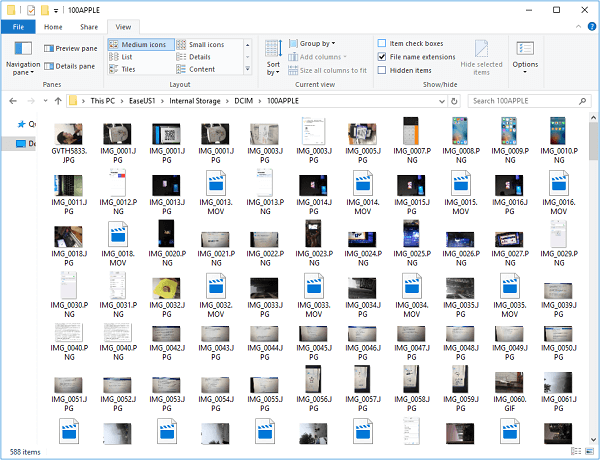
Since all the photos and videos are saved in one folder, using File Explorer to copy photos selectively is not a user-friendly solution, as it requires navigating through the entire folder to find and copy individual photos. This can be time-consuming and inefficient.
Method 2. How to Download Pictures from iPhone 8 to Computer via Photos
To transfer photos from your iPhone to a PC running Windows 10, you can also use the Photos app, which is available on PC since Windows 8. It allows you to view, manage, and import photos from external devices, including your iPhone, to your computer.
The Photos app on an iOS device allows users to easily transfer photos to a computer.
To import photos from an iPhone 8 or iPhone 8 Plus to a PC, you can use a USB cable to connect your iPhone to your computer. Once connected, open the Photos app on your iPhone and select the photos you want to transfer.
Step 1. Connect your iOS device to your PC.
Step 2. Unlock your iPhone and trust the computer.
Step 3. To import photos from a USB drive, launch the Photos app on your PC and click on the "Import" option. From the dropdown menu, select "From a USB device" to begin the import process.
Step 4. Wait for Photos to load all the photos and videos from your iPhone.
Step 5. The app automatically selects all items on your device, but you can deselect any unwanted items and click "Continue" to start transferring photos from your iPhone 8 or iPhone 8 Plus to your computer.
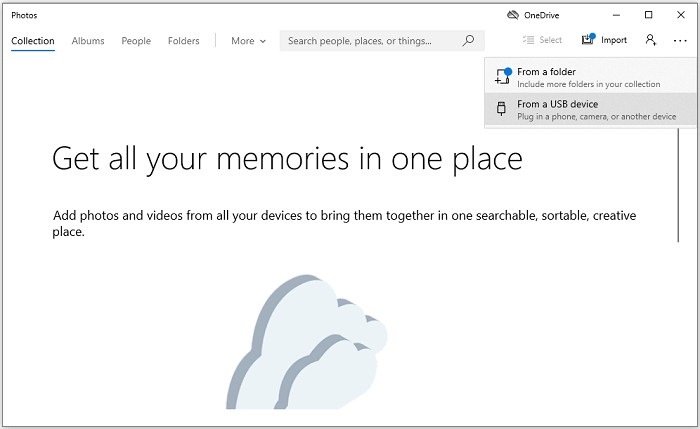
If the Windows 10 Photos app is not working, you can try to fix it by following the related guide, or alternatively, use one of the other methods to transfer photos from your iPhone 8 to your computer.
Method 3. How to Get Photos from iPhone 8 to Computer Using iPhone Transfer Software
Although both File Explorer and Photos are useful for transferring photos from an iPhone 8 to a computer for free without any third-party software, they are limited to downloading photos and videos. If you want to copy other types of content, such as music, ringtones, contacts, and messages, neither of these methods will work.
You may prefer using the iPhone transfer software Qiling MobiMover, which supports transferring not only photos and videos but also audio files, contacts, messages, books, and podcasts.
Whether you want to transfer photos from iPhone to PC or download photos from PC to iPhone, Qiling MobiMover can do it for you.
To get photos off iPhone onto computer:
Step 1. Connect your iPhone to a PC running Windows 7 or later, and run Qiling MobiMover. On the screen, click "Phone to PC" and then "Next" to proceed.
Step 2. To transfer photos from your iPhone to a PC running Windows, check the category/categories you wish to transfer, which can include photos along with other supported files, and initiate the transfer process.
Step 3. To transfer photos from your iPhone to your PC, click the "Transfer" button to complete the process in one click. If you've customized the storage path, find the files there, but if not, you can check them on your desktop.
Whether you prefer transferring photos all at once or selectively, Qiling MobiMover is designed to meet your needs.
Method 4. How to Transfer Photos from iPhone 8 to PC Using iCloud
You can use iCloud to wirelessly transfer photos from your iPhone 8 to your computer.
With iCloud enabled, you can share files across your devices that use the same Apple ID account.
To download pictures from iPhone 8 to computer using iCloud:
Step 1. To upload your iPhone photos to iCloud, go to Settings and turn on "iCloud Photos".
Step 2. On your PC, open a browser and visit iCloud.com.
Step 3. To sign in with your Apple ID account, you can use the Apple ID account that you use on your mobile device. This will allow you to access the Apple ID account settings and manage your account from the Apple ID website.
Step 4. Choose "Photos" among the options.
Step 5. Now you could see the items from your iPhone.
Step 6. To download iCloud Photos to your PC, you can transfer photos from your iPhone to your computer by using this feature.
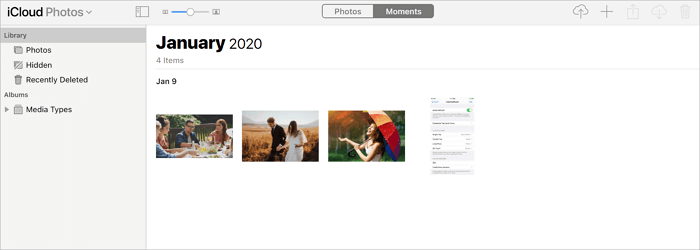
In addition to iCloud, other cloud-based storage services like Dropbox and Google Photos can automatically sync photos from your iPhone 8 or iPhone 8 Plus to your PC over Wi-Fi.
The Bottom Line
Importing photos from an iPhone to a PC is a straightforward process that can be done with or without a third-party tool, and the methods mentioned are also applicable for devices earlier or later than iPhone 8, as well as for iPads and iPod Touches.
To transfer photos from your iPhone to your computer, simply follow one of the tips above, such as using a cable, wirelessly, or through a cloud service, and you'll be able to access and save your photos on your computer with ease.
Related Articles
- How to Download Bilibili Videos with 4 Bilibili Downloaders
- How to Recover ASD Files and Open It
ASD is the file extension for AutoSave Microsoft Word documents, which can be recovered to prevent document loss. You can learn how to recover ASD files. - How to Recover Deleted Audio Driver on Windows 7
If you've accidentally deleted the audio driver on your Windows 7 computer. You can recover the deleted audio driver efficiently by following some helpful tips. - How to Reset Canon Rebel DSLR to factory settings
Learn how to reset a Canon Rebel DSLR or Canon camera to factory settings, restore default camera settings, and prepare before resetting.
Products
Articles & Tutorials
- Data Recovery
- Data Backup
- File Recovery
- File Backup
- System Backup and Restore
- Disk and Partition Clone
- Technical articles
- Mobile articles
- Disk Master Help
- Windows Data Recovery Tutorials
- Windows Secure Delete Tutorials
- Windows Partition Management Tutorials
- Windows File Backup and Restore Tutorials
- Windows System Backup and Restore Tutorials
- Windows Disk Backup and Restore Tutorials
- Windows Clone Tutorials