How to Transfer Photos from iPhone to Flash Drive on Mac
Transferring photos from your iPhone to a flash drive or external hard drive on your Mac is a great way to back up your photos and free up space on your device.
You can easily import photos from your iPhone to an external hard drive or flash drive using your Mac, since both devices are Apple products. Mac has pre-installed apps that allow you to directly import photos from your iPhone to an external storage device, making the process straightforward and convenient.
Notes: To transfer photos from an iPhone to a flash drive on a PC, follow the steps in the related guide to learn how to do it.
Transfer Photos from iPhone to Flash Drive on Mac with Photos
The Photos app on Mac is a familiar and convenient tool for managing and transferring photos from an iPhone or external device to a Mac. This app allows users to import photos from their iPhone or an external device, making it easy to transfer photos from their iPhone to their Mac.
You can import photos from your iPhone to a Mac using the Photos app, and save them directly to a flash drive or external hard drive by changing the destination folder before starting.
To transfer photos from your iPhone to an external hard drive or flash drive on your Mac, you can use the Photos app and a cable to connect your iPhone to your Mac. First, connect your iPhone to your Mac using a USB cable.
Step 1. Connect both the iPhone and the external storage device to the Mac. On the Mac, open Finder and select the iPhone from the sidebar.
Step 2. To unlock your iPhone, simply press the power button until the lock screen appears. Then, click "Trust" in the prompt that appears on your computer screen to trust the computer.
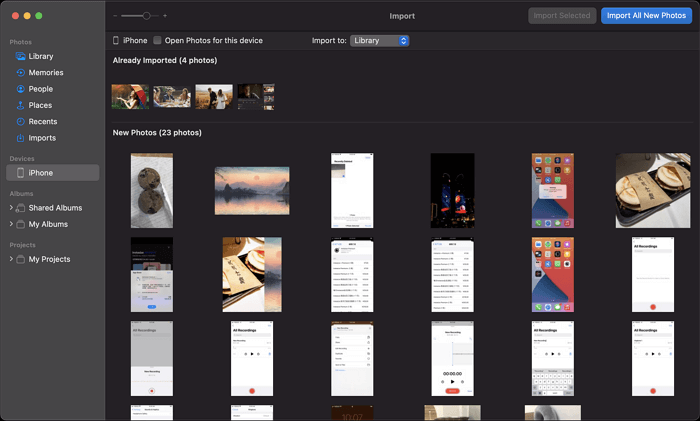
Step 3. To access your iPhone photos on a Mac, open the Photos app, navigate to the "Devices" tab, and select your iPhone from the list of connected devices. This will display all the photos and media from your iPhone that have been synced with your Mac.
Step 4. Choose the flash drive or external hard drive as the target storage folder next to "Import To" in order to save the file to an external location.
Step 5. To transfer photos from your iPhone to an external storage device, click on "Import All New Photos" or manually select the desired photos and choose "Import [number] Selected" to initiate the transfer process.
Transfer Photos from iPhone to External Hard Drive on Mac with Image Capture
Image Capture is a useful tool for importing photos from an iPhone to an external hard drive on a Mac. It serves as a photo transfer tool that allows you to import photos from a camera or a device with a camera to your Mac, making it easy to transfer photos from iPhone to a flash drive or external hard drive on Mac.
You can also transfer videos from iPhone to Mac using Image Capture.
To import photos from an iPhone to an external hard drive or flash drive on a Mac using Image Capture, connect the iPhone to the Mac using a USB cable. Open Image Capture, select the iPhone as the device, and choose the external hard drive or flash drive as the import destination.
Step 1. Connect the iPhone and external storage device to the Mac.
Step 2. Unlock the iPhone and trust the computer.
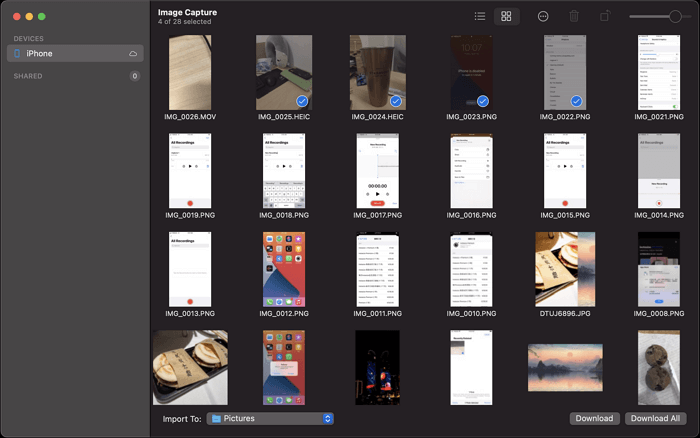
Step 3. Open Image Capture and select the iOS device.
Step 4. To import files, click the drop-down menu next to "Import To" and select your USB or external drive as the storage path.
Step 5. Select the desired images and click the "Download" button to save them to an external storage device.
If photos are not importing from iPhone to Mac, check the USB cable and follow the troubleshooting guide to resolve the issue.
Import Photos from iPhone to External Hard Drive on Mac with Qiling MobiMover
You can transfer photos from iPhone to a flash drive on Mac without needing a third-party tool, but if you also need to transfer photos from a flash drive or external hard drive to iPhone, or transfer files between iPhone and Mac, it's recommended to use a reliable iPhone data transfer tool like Qiling MobiMover.
Qiling MobiMover is an ideal tool for transferring files between iPhone and Mac. It supports various types of content, including Photos, videos, music, ringtones, books, and contacts, allowing you to transfer specific items or all content at once.
Besides transferring data, MobiMover also allows you to back up your iPhone with flexible choices. Unlike iTunes or Finder, which save backups in a default folder, MobiMover lets you customize the destination folder, making it easy to backup iPhone directly to an external drive if you prefer.
To import photos from an iPhone to an external hard drive or flash drive on a Mac, you can use the Image Capture app that comes pre-installed on Macs. Simply connect the iPhone to the Mac using a USB cable, open Image Capture, select the iPhone as the source device, and choose the external hard drive or flash drive as the destination.
Step 1. To transfer files from your iPhone to your computer, start by connecting your iPhone and flash drive to your computer. Then, launch Qiling MobiMover and select the "Phone to PC" option from the left panel. Click the "Next" button to proceed to the next step.
Step 2. You can transfer various file types such as photos, videos, audio, books, podcasts, and more from your iPhone to a flash drive as a backup, and you can also set the flash drive as the destination by clicking "Custom Path".
Step 3. To transfer photos from your iPhone to a flash drive, click the "Transfer" button, which will initiate the process. Once complete, you can verify the transferred items on the flash drive.
Transfer Photos from iPhone to USB on Mac via AirDrop
You can import photos from your iPhone to an external hard drive or USB on Mac using various methods. One way is to directly connect your iPhone to the external hard drive or USB using a USB connection. Another way is to use AirDrop, which allows you to wirelessly transfer photos from your iPhone to an external hard drive or USB flash drive without the need for a USB connection or software installation. This makes AirDrop a convenient and indirect method for transferring photos.
AirDrop is a convenient way to transfer photos from an iPhone to a Mac wirelessly, allowing users to share files such as photos, videos, and more without the need for a USB cable. If AirDrop is not functioning properly, it should be resolved before proceeding.
To copy photos from your iPhone to a USB drive or external hard drive on a Mac, follow these steps:
Step 1. To enable AirDrop on your iPhone, go to the Control Center by swiping down from the top-right corner of the screen on an iPhone X or later, or swiping up from the bottom of the screen on earlier iPhone models. From the Control Center, tap on the "AirDrop" icon to turn it on.
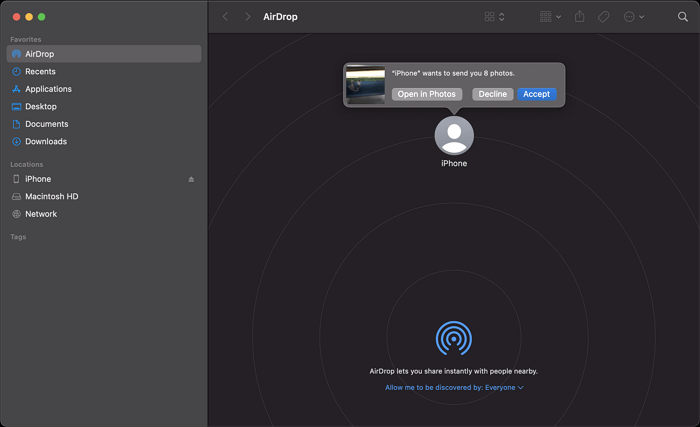
Step 2. To use AirDrop on a Mac, open Finder and navigate to the "Go" menu, then select "AirDrop".
Step 3. To enable AirDrop, first make sure your devices have Wi-Fi turned on. If necessary, set your devices to be discovered by "Contacts Only" or "Everyone" so they can find each other.
Step 4. To transfer photos from your iPhone, go to the Photos app, select the photos you want to transfer, and tap the Share button.
Step 5. Choose "AirDrop" and tap the name of the Mac.
Step 6. To accept the AirDrop pictures on your Mac, click the "Accept" button in the AirDrop window.
Step 7. Afterward, go to the "Downloads" folder to copy these images to the connected external storage device.
3 Frequently Asked Questions
When transferring photos from an iPhone to a flash drive on a Mac, users may encounter issues such as difficulty in finding the correct settings, compatibility problems, or errors during the transfer process. Additionally, users may struggle with navigating the complexities of the iPhone's file system and the Mac's operating system to successfully transfer the photos.
How do I transfer photos from iPhone to USB on Mac?
You can use various tools to transfer photos from your iPhone to a USB drive on your Mac, including the built-in apps Photos and Image Capture, or a professional data transfer tool like Qiling MobiMover, which can help you transfer your photos with ease.
Can you transfer photos directly from iPhone to a flash drive?
You can transfer photos from your iPhone to a flash drive using a specifically designed flash drive for iPhone and iPad. This allows you to connect the flash drive directly to your iPhone and complete the photo transfer, making it a convenient option for sharing or storing your photos.
How do I transfer photos from my iPhone to a flash drive without a computer?
You can transfer data between your iPhone and a USB flash drive without needing a computer, as long as you have a USB flash drive that's compatible with your iPhone.
The Bottom Line
After transferring photos from your iPhone to a flash drive or external hard drive, you can delete the photos from your iPhone to free up space on your iOS device. The same process can also be used to transfer videos from your iPhone to an external storage device.
Related Articles
- How to Download Audio from YouTube on Mac
- How to Transfer Photos from iPhone to Dell Laptop
- How to Transfer PDF from iPad to Computer
- How to Recover Shift Deleted Files in Windows 7/8/10/11 in 4 Ways [2023]
To recover shift deleted files in Windows 11/10/8/7, you have four options: using File History, restoring from a previous version, recovering from a Windows backup, or employing specialized software. Choose the most suitable method to retrieve deleted files after a shift delete operation.
Products
Articles & Tutorials
- Data Recovery
- Data Backup
- File Recovery
- File Backup
- System Backup and Restore
- Disk and Partition Clone
- Technical articles
- Mobile articles
- Disk Master Help
- Windows Data Recovery Tutorials
- Windows Secure Delete Tutorials
- Windows Partition Management Tutorials
- Windows File Backup and Restore Tutorials
- Windows System Backup and Restore Tutorials
- Windows Disk Backup and Restore Tutorials
- Windows Clone Tutorials