How to Put Videos on iPad With or Without iTunes
To put videos on your iPad, whether you want to transfer videos from a computer or download online videos, there's a straightforward process. You can transfer videos to your iPad from a computer using a USB cable and the iTunes software, or download online videos directly to your tablet using the Safari browser or a dedicated video download app, making it easy to access your favorite videos on your iPad.
First of all, I'd like to show you how to transfer videos to iPad from a computer in three ways. Then I will detail the way to download online videos from websites like YouTube, Twitter, Facebook, and more to your iPad for offline watching.
Method 1. How to Put Videos on iPad Without iTunes
If you want to transfer videos from your PC to your iPad without losing any data, you can use the iPhone transfer software Qiling MobiMover. This tool allows you to transfer videos, including movies, TV shows, and music videos, to your iPad from a computer or from another iPhone/iPad.
It works well as a free video downloader that enables you to put YouTube videos on your iPad for offline watching.
To transfer videos from PC to iPad without iTunes:
Step 1. To connect your iPad to your PC and start Qiling MobiMover, unlock your iOS device and click "Trust" in the prompt asking for permission. Next, go to "PC to Phone" > "Select Files" on the Qiling MobiMover interface.
Step 2. To transfer videos to your iPad, select the desired videos and click "Open" to initiate the transfer process.
Step 3. To transfer selected videos from your PC to your iPad, click "Transfer" and wait for the process to complete. Once finished, you can verify the transferred items on your iPad.
You can also add music to your iPhone or iPad using this tool, in addition to videos.
Method 2. How to Transfer Videos from PC to iPad Without iTunes Wirelessly
You can also put videos on your iPad without using iTunes by using a cloud-based file-sharing service like Dropbox or Google Drive, which allows you to share videos across devices with the same account.
To add videos to your iPad wirelessly:
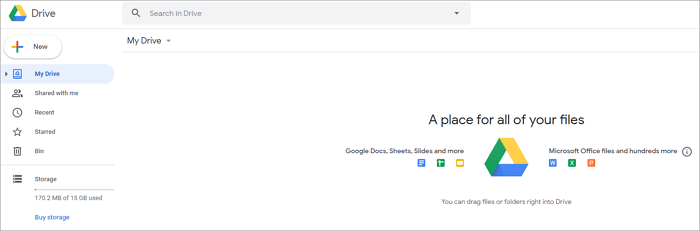
Step 1. Sign in to Google Drive on your computer, download and install Google Drive on your iPad, and sign in with the same Google account on your iPad.
Step 2. To upload a file or folder, click on the "New" tab and select either "File upload" or "Folder upload".
Step 3. To transfer videos onto your iPad, select the desired videos and click the "Upload" option. This will initiate the transfer process, allowing you to add the chosen videos to your iPad.
Step 4. To start the process, click the "New" button and select "File upload" or "Folder upload" from the options.
Step 5. Select the files or folders you'd like to transfer and click "Upload".
Step 6. To access your Google Drive videos on your iPad, open the Google Drive app, select the videos you want to download, and then tap the "Download" button to save them for offline viewing.
There are many other cloud-based storage services allow you to share videos between your devices, making it easy to access and enjoy your favorite content across different devices. You can search for the service that suits your needs best to get started.
Method 3. How to Transfer Movies to iPad with iTunes
You can transfer movies from your computer to your iPad using iTunes, making it easy to put movies on your iPad without needing any third-party software.
You can transfer movies to your iPad using iTunes in two ways: syncing or File Sharing. Syncing will automatically put the videos into the corresponding app on your iPad, while File Sharing allows you to transfer videos to apps like iMovie that also support file sharing.
Since the way to sync movies to iPad has been detailed in many guides, here I'd like to show you how to sync movies to iPad via iTunes File Sharing.
To put videos to iPad via iTunes File Sharing:
Step 1. Connect your iPad to your computer with a USB cable, and iTunes should launch automatically.
Step 2. Unlock your device and trust the computer. If required, enter your device passcode.
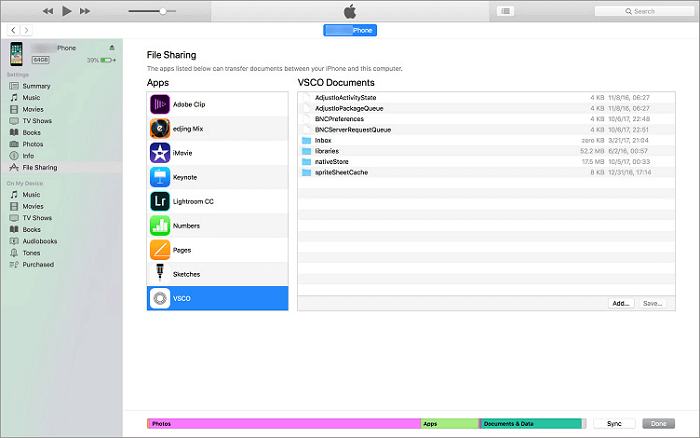
Step 3. Select the device icon and choose "File Sharing" to see a list of video-related apps that support file sharing.
Step 4. To copy videos to another app, such as iMovie, select the app and add the video file to it. You can either drag and drop the desired videos into the app's window or click "Add File" to add them. The video will then be automatically copied to your device.
Step 5. When you have finished, open iMovie and click the download icon.
Step 6. To transfer videos to your iPad from a PC, select "iTunes" and then choose "Import [number] Files". This will allow you to successfully transfer videos to your iPad.
Method 4. How to Put YouTube Videos on iPad
To transfer videos from your PC or laptop to your iPad, you can use one of three methods: using iTunes, AirDrop, or a cloud service like Google Drive or Dropbox. Alternatively, you can also download online videos directly to your iPad using a URL.
Qiling MobiMover, an iOS data transfer tool, can also be used as a video downloader, allowing you to download videos from websites like YouTube, Twitter, Vimeo, and more directly to your computer or iPhone/iPad.
You can use it to save YouTube videos to your computer or mobile device for offline watching without ads or plugins. For more details, refer to the guide on how to download YouTube videos to iPad.
The Bottom Line
When you want to watch a YouTube video offline or enjoy your favorite movies on your mobile device, you can put videos on your iPad by downloading them from a website or a computer, using a tip such as copying and pasting the video URL into the iPad's Safari browser or using a computer to transfer videos to the iPad via iTunes. This allows you to enjoy videos on your iPad with ease.
Related Articles
- [Stepwise Guide]: How to Recover Deleted Files on Windows
The article offers four methods to recover deleted files on Windows 10 or 11, providing users with options to choose the method that suits them best. - How to Recover Files from Hard Drive Using CMD? Easy & Free!
How to recover files from hard drive using CMD? You can easily recover files using different commands and the first one is to use the attrib command to exclude the hidden files. - Four Options: How to Recover Lost Data from Hard Disk for Free
Have been confused about how to recover lost data from hard disk? We'll give you four options to retrieve your last data back in this post. - How to Recover Lost Word Documents in Windows?
If you've lost a Word document, there are ways to recover it. You can recover unsaved, deleted, or corrupted Word documents using various methods outlined on this page.
Products
Articles & Tutorials
- Data Recovery
- Data Backup
- File Recovery
- File Backup
- System Backup and Restore
- Disk and Partition Clone
- Technical articles
- Mobile articles
- Disk Master Help
- Windows Data Recovery Tutorials
- Windows Secure Delete Tutorials
- Windows Partition Management Tutorials
- Windows File Backup and Restore Tutorials
- Windows System Backup and Restore Tutorials
- Windows Disk Backup and Restore Tutorials
- Windows Clone Tutorials