Fix Error Unfortunately App Has Stopped on Android
Summary
The Android system webview has stopped error on various phone brands such as Nexus, Android One, Samsung, Motorola, and Sony has been resolved after updating the phone to Android 6.0 Marshmallow, which also fixed issues in other apps like Snapchat, Google photos, Facebook, Messenger, True Caller, Contacts, Hangouts, and Google Play Music.
"Unfortunately, xx (app name) has stopped"
With the increasing number of Android devices upgrading to Android 6.0 Marshmallow, users of brands like Nexus, Android One, Samsung, Motorola, Sony, and LG have been experiencing the error "Unfortunately app has stopped" due to the OS upgrade.
Jack, Samsung Galaxy S6 - "Ever since I updated to Marshmallow, I keep getting this message (unfortunately Android system webview has stopped). Does anyone else experience the same? Any fix for this? I can't believe it's a coincidence that it just started on its own. It must be connected to the OS update."
Daan, Nexus 6 - You're experiencing a persistent pop-up message that won't go away, even after pressing OK, and it's preventing you from accessing the settings, which is also not opening due to the "Unfortunately app name has stopped" error.
Gordan, HUAWEI P8 - Many of your phone's apps, including Google Maps and YouTube, have stopped functioning and are displaying error messages.
Common Ways to Fix The Error "Unfortunately app has stopped"
The "Unfortunately, the app has stopped" error is a common issue in Android devices, often caused by outdated apps or issues with the Android System Webview app. Fortunately, there are several methods to resolve this problem, including updating apps, clearing app cache, restarting the device, uninstalling updates, and checking for software updates. Hopefully, one of these methods will work for your specific case and resolve the issue.
Method 1. Re-install the app
If you're experiencing the error "Unfortunately, the app has stopped" on only one app, try uninstalling and reinstalling that specific app to resolve the issue. This method is a good first attempt to troubleshoot the problem. If this doesn't work, you can try other methods.
Method 2. Uninstall newly installed apps
New apps may not work with the device's software or hardware, causing errors, so they should be uninstalled to resolve the issue.
Method 3. Clear cache
Clearing cache can often resolve issues with apps, as cache files are a common source of errors. To do this, go to Settings > Application > Manage apps, select the "All" tab, choose the app causing problems, and then tap "Clear cache and data". This may solve most of the problems associated with the app.
Method 4. Clear RAM
Clearing RAM can be a good solution when you're experiencing the error "Unfortunately, the app has stopped" on your Android device. This is because apps running in the background consume a significant amount of RAM, leaving less space for the app you're trying to use, which can cause the error. To resolve this, go to the Task Manager, select RAM, and clear the memory.
Method 5. Factory Reset
If none of the methods above worked, you may need to perform a factory reset on your device, which will erase all data, including apps, software updates, pictures, documents, messages, contacts, and personal files stored on the Android memory.
Before performing a factory reset on your phone, backup your data and settings by going to Settings, then Backup and Restore, and selecting the backup option. This will ensure that your app data and settings are saved. Additionally, if you need to backup other files on your Android, you can learn how to do so by following a separate guide. Once you have backed up your files, you can proceed with the factory reset.
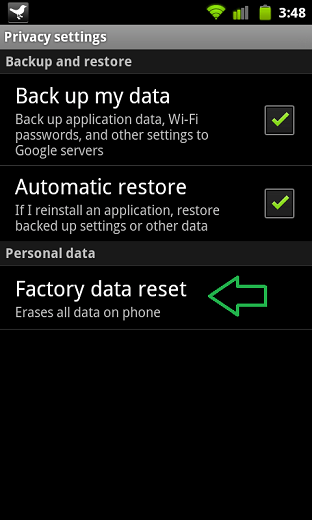
You may want some extra help to recover Android data after a factory reset with Qiling MobiSaver for Android.
Android devices aren't the only ones to experience the "Unfortunately app has stopped" error, as Windows Phone and iOS devices also face this issue. Fortunately, the fixes for these errors are generally the same, allowing users to resolve the problem on various platforms.
Related Articles
- How to Recover Message on Galaxy S5
- How to Retrieve Deleted Photos on Kik Messenger
- Recover Files from Android Phone Internal Storage
- How to Recover Lost Photos on Android Marshmallow
Products
Articles & Tutorials
- Data Recovery
- Data Backup
- File Recovery
- File Backup
- System Backup and Restore
- Disk and Partition Clone
- Technical articles
- Mobile articles
- Disk Master Help
- Windows Data Recovery Tutorials
- Windows Secure Delete Tutorials
- Windows Partition Management Tutorials
- Windows File Backup and Restore Tutorials
- Windows System Backup and Restore Tutorials
- Windows Disk Backup and Restore Tutorials
- Windows Clone Tutorials