Add Unallocated Space Without Converting to Dynamic Disk
Windows may suggest converting to dynamic disk when the free space is not in the right place. In most home and office cases, keeping the disk basic is safer.
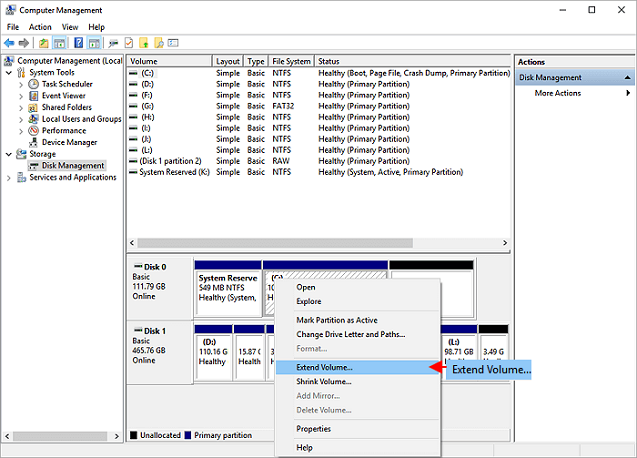
Why Extend Volume Is Limited
Disk Management can extend a partition only into adjacent unallocated space on the right side. If another partition sits between C drive and free space, Windows cannot extend it directly.
Choose the Right Operation First
The next step depends on where the unallocated space is. Do not convert the disk to dynamic just because Extend Volume is greyed out. Check the partition order first, then use the matching workflow below.
- Case A: The unallocated space is directly behind the target partition. You can extend the partition directly.
- Case B: Another partition sits between the target partition and the unallocated space. Move the blocking partition first, then extend the target partition.
Use Qiling Disk Master to Keep the Disk Basic
Qiling Disk Master shows the full disk layout before applying changes. This is helpful when Windows Disk Management cannot extend a basic disk partition because the unallocated space is not adjacent.
Case A. Extend the Partition When Unallocated Space Is Adjacent
Step 1. Open Qiling Disk Master and locate the partition you want to extend. Confirm the drive letter, partition size, and the unallocated space next to it.

Step 2. Choose Resize/Move, drag the partition border into the adjacent unallocated space, and preview the new size.

Step 3. Confirm that only the target partition is being extended, then click Proceed.
Case B. Move the Blocking Partition First
Step 1. If the unallocated space is not next to the target partition, find the partition between them. This may be a data partition, recovery partition, or OEM partition.
Step 2. Choose Resize/Move on the blocking partition and move it so the unallocated space becomes directly adjacent to the partition you want to extend. Do not delete a recovery or data partition unless you have confirmed it is no longer needed.
Step 3. After the unallocated space is beside the target partition, use Resize/Move on the target partition, drag its border into the unallocated space, and click Proceed.
Before You Click Proceed
- Back up important files before moving or resizing partitions.
- Keep the computer connected to power.
- Do not interrupt the process while data is being moved.
- If BitLocker is enabled, suspend protection or make sure you have the recovery key.
Conclusion
Handle the visible symptom first, then protect data before any delete, format, resize, or clone action. If the disk layout is confusing, use a visual tool and confirm the target before you click Proceed.
Related Articles
Products
Articles & Tutorials
- Data Recovery
- Data Backup
- File Recovery
- File Backup
- System Backup and Restore
- Disk and Partition Clone
- Technical articles
- Mobile articles
- Disk Master Help
- Windows Data Recovery Tutorials
- Windows Secure Delete Tutorials
- Windows Partition Management Tutorials
- Windows File Backup and Restore Tutorials
- Windows System Backup and Restore Tutorials
- Windows Disk Backup and Restore Tutorials
- Windows Clone Tutorials