ASUS Unmountable Boot Volume: Diagnose and Repair Windows
UNMOUNTABLE_BOOT_VOLUME means Windows cannot mount the volume it needs for startup. On an ASUS laptop or desktop, the cause may be file-system corruption, a failing drive, a connection problem, or a changed storage-controller setting. Treat it as a diagnosis, not a reason to rebuild every boot record.
Check Hardware Before Changing Windows
Power off and disconnect unneeded USB drives. If the ASUS firmware cannot detect the internal SSD or HDD, Windows repair commands cannot fix the missing hardware. Check the drive's presence in firmware and, where the model allows, its connection. Do not change SATA/AHCI/RAID or UEFI/Legacy settings at random; a changed setting can itself prevent an otherwise healthy installation from booting.
If the drive clicks, repeatedly disappears, or fails SMART checks, stop repeated startup attempts. Attach it to another Windows computer only if safe, copy essential files first, and consider professional recovery for valuable data. Keep the BitLocker recovery key available before any offline repair.
Try Windows Recovery in Order
Step 1. Boot from a Windows recovery USB or use the built-in recovery environment. Select Repair your computer > Troubleshoot > Advanced options, not Install now.
Step 2. Run Startup Repair once. Record its result. If Windows boots, open your files and arrange a full backup before doing more maintenance.
Step 3. If Startup Repair fails, open Command Prompt in recovery and use diskpart, list volume, then exit to identify the actual Windows letter; it may not be C: offline. A locked BitLocker volume must be unlocked by its authorized recovery key.
Step 4. On a readable disk, run a file-system check such as chkdsk W: /f, replacing W: with the confirmed Windows volume. Do not start repeated surface repair scans on a mechanically failing disk. If errors recur, replace the drive and restore from backup.
Use Qiling Fix Boot Only for a Boot-Entry Problem
Qiling Disk Master's Fix Boot is a separate action from Rebuild MBR. It may help when the Windows partition is healthy and detected but the boot entry is damaged; it is not a cure for an unreadable NTFS volume. Create and test a Qiling bootable medium in advance or use another working Windows environment if the installed system will not start.
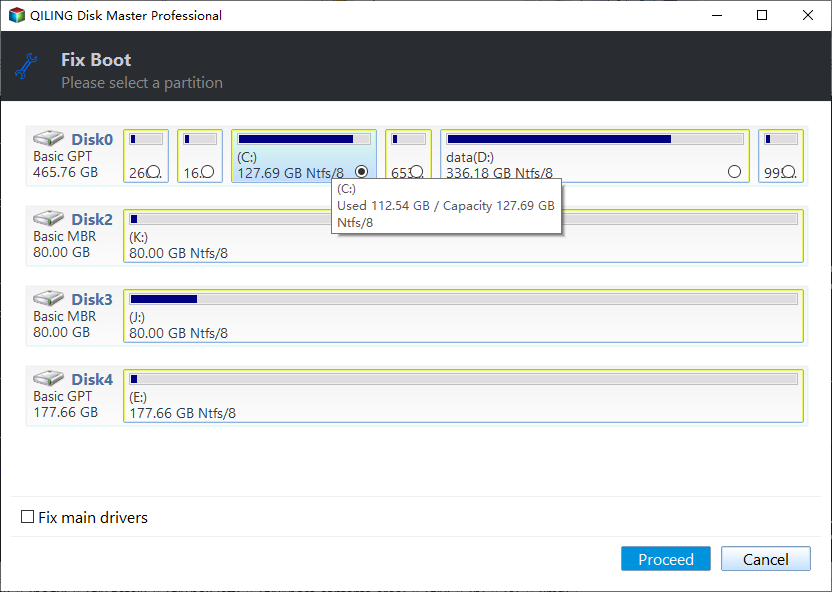
Step 1. Boot the Qiling environment, open Tools and utilities > Fix Boot, and identify the correct Windows partition by disk map, size, and file system.
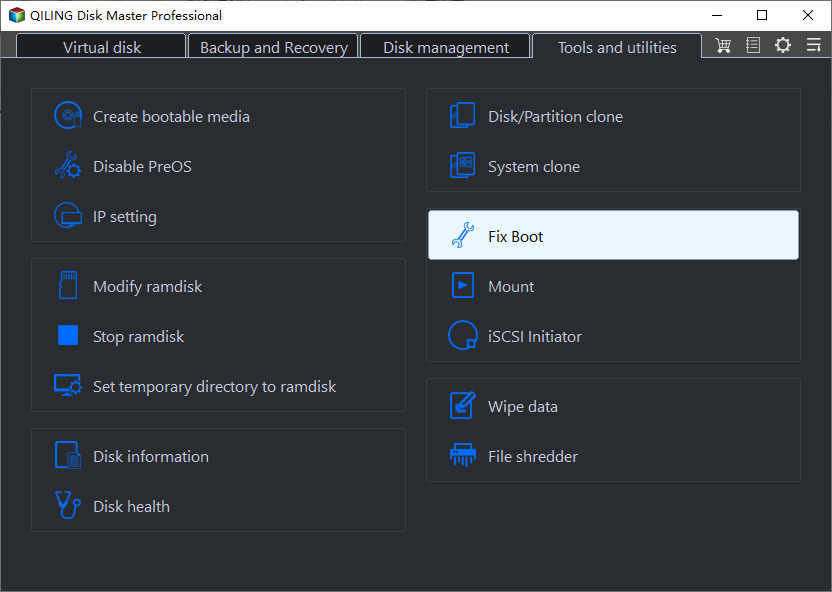
Step 2. Select that partition. Check the disk and partition labels again, then click Proceed and wait for the reported result.
Step 3. Restart and verify Windows. Do not run Rebuild MBR merely because Fix Boot did not help; MBR repair applies only to a compatible legacy boot layout and addresses a different fault.
If the Error Returns
Review SMART status and Windows system events after any successful boot. Test RAM if blue screens vary, and consider recent storage-driver or firmware changes. If the disk is healthy but the installation remains damaged, use a verified system image or a clean Windows installation. Do not format the source before recovering needed files.
Conclusion
Confirm the drive exists, protect data, try Windows Recovery, and reserve Fix Boot for a supported boot problem rather than a failing or unreadable disk.
Related Articles
- Windows 10 Repair Tool Guide
Compare startup and disk repair paths. - Check Disk Health in Windows
Investigate whether startup failure points to hardware.
Products
Articles & Tutorials
- Data Recovery
- Data Backup
- File Recovery
- File Backup
- System Backup and Restore
- Disk and Partition Clone
- Technical articles
- Mobile articles
- Disk Master Help
- Windows Data Recovery Tutorials
- Windows Secure Delete Tutorials
- Windows Partition Management Tutorials
- Windows File Backup and Restore Tutorials
- Windows System Backup and Restore Tutorials
- Windows Disk Backup and Restore Tutorials
- Windows Clone Tutorials