Burn ISO to Flash Drive in Windows 10
A bootable flash drive can install or repair Windows 10. The process overwrites the USB drive, so copy files off the USB before creating the media.
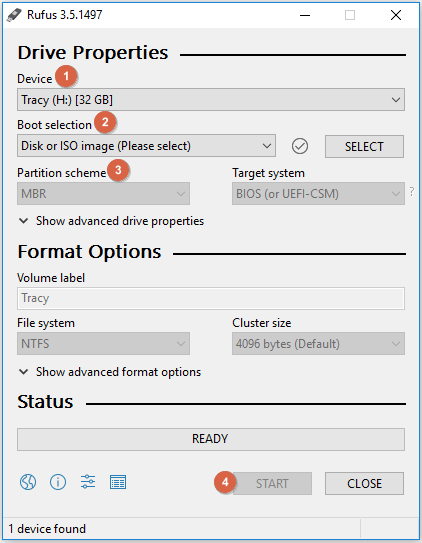
Prepare the USB Drive
- Use an 8GB or larger USB drive.
- Back up all files on the USB drive.
- Download the ISO from a trusted source.
- Check whether the target PC needs UEFI/GPT or Legacy/MBR boot.
After Creating the USB
- Restart the PC and open the boot menu.
- Choose the USB device under the matching UEFI or Legacy entry.
- Use Repair your computer if you only need recovery tools.
- Create a system backup before reinstalling Windows.
Back Up Windows Before Burning the ISO to USB
Burning an ISO to a flash drive erases the USB drive, and using that USB for repair or reinstallation can affect the system disk. Before you boot from the USB, create a system or disk backup so you can restore Windows if the repair, clean install, or partition change does not go as planned.
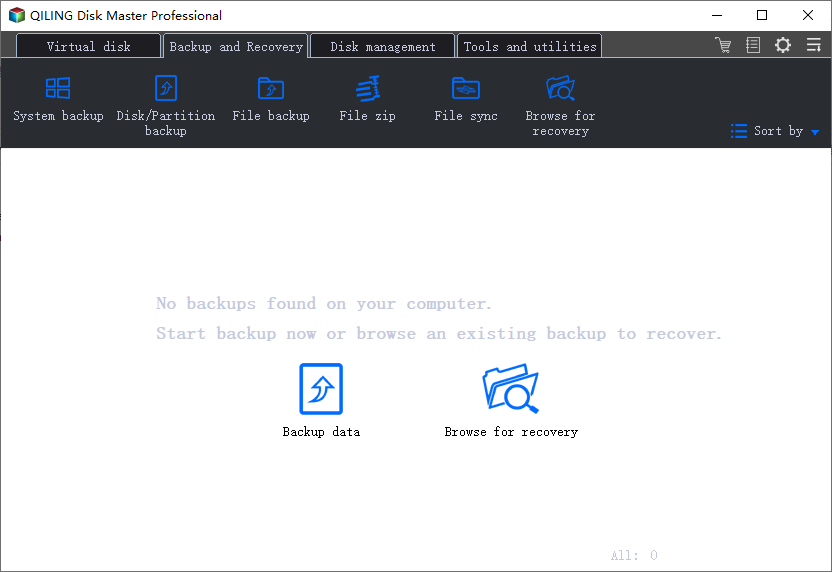
Step 1. Connect an external hard drive with enough free space. Open Qiling Backup and choose a system, disk, or partition backup based on what you may need to restore after using the bootable USB.
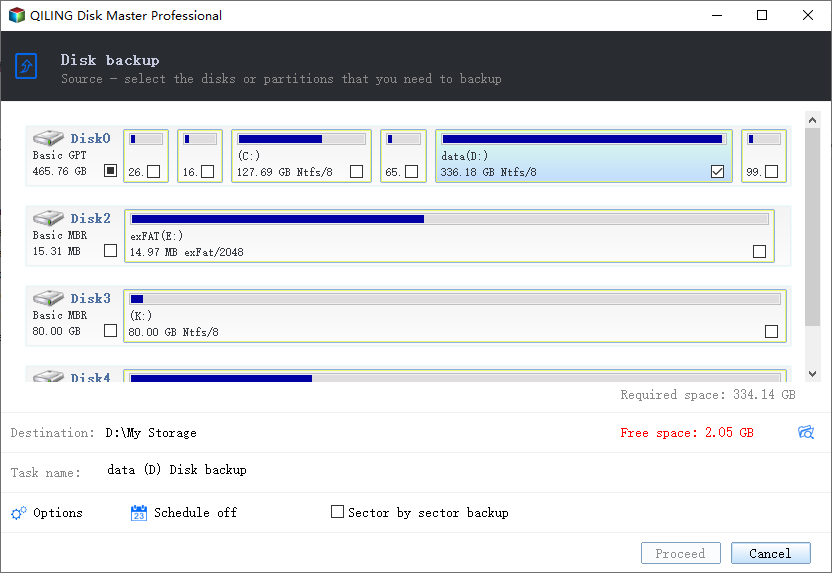
Step 2. Select the Windows system disk or the important partitions you want to protect. If you plan to reinstall Windows, include the system, EFI/System Reserved, and recovery-related partitions when possible.
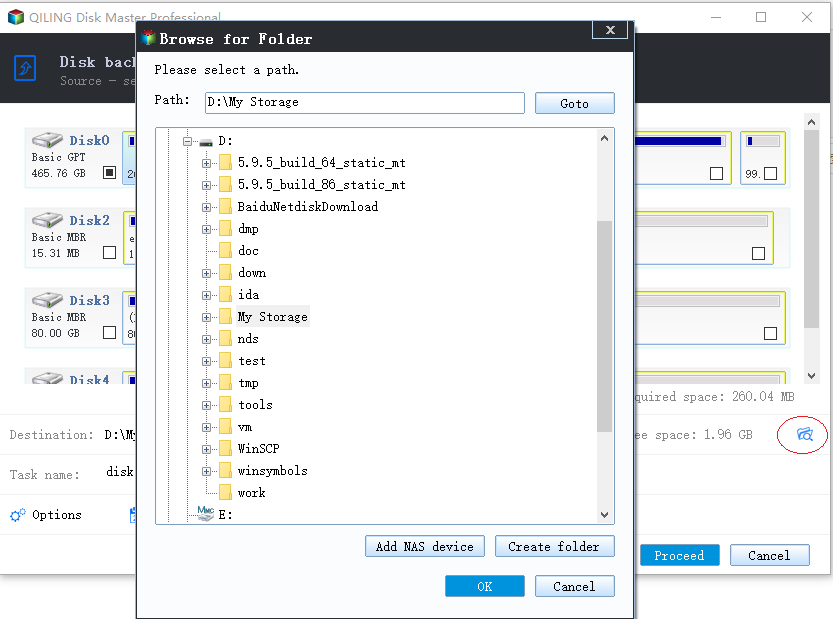
Step 3. Choose the external drive as the backup destination, review the task summary, and click Proceed. After the backup finishes, disconnect the backup drive before writing the ISO to the flash drive.
Conclusion
Handle the visible symptom first, then protect data before any delete, format, resize, or clone action. If the disk layout is confusing, use a visual tool and confirm the target before you click Proceed.
Related Articles
Products
Articles & Tutorials
- Data Recovery
- Data Backup
- File Recovery
- File Backup
- System Backup and Restore
- Disk and Partition Clone
- Technical articles
- Mobile articles
- Disk Master Help
- Windows Data Recovery Tutorials
- Windows Secure Delete Tutorials
- Windows Partition Management Tutorials
- Windows File Backup and Restore Tutorials
- Windows System Backup and Restore Tutorials
- Windows Disk Backup and Restore Tutorials
- Windows Clone Tutorials