Cannot Format an mSATA Drive in Windows
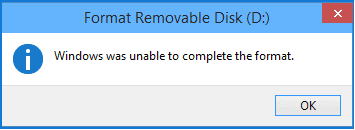
An mSATA drive may fail to format if it is not seated correctly, the adapter is unstable, the disk is offline, the partition table is damaged, or the SSD has health problems. Because mSATA drives are often older, health checks matter before reuse.
What to Know First
- Check the mSATA connection or USB adapter first.
- Back up or recover data before formatting.
- Initialize the disk if it is new and uninitialized.
- Check SSD health if formatting fails repeatedly.
Windows Method and Background
- Open Disk Management and check whether the mSATA drive appears with the correct capacity.
- If it is offline, bring it online.
- If it is new, initialize it as GPT for modern systems.
- Create a new simple volume and format it as NTFS.
- If formatting fails, check the drive with another adapter or system.
Use Qiling Disk Master to Prepare the mSATA Drive
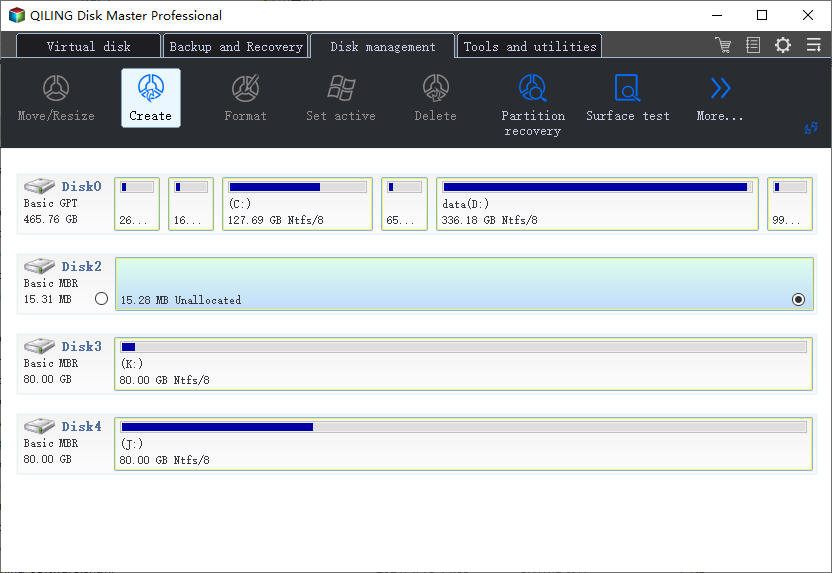
Open Qiling Disk Master and find the mSATA drive by model, capacity, and partition layout. Then choose the case that matches what you see.
Case A. The mSATA Drive Is New or Unallocated
Step 1. Select the unallocated space on the mSATA drive. Confirm it is the mSATA SSD, not your Windows system disk.
Step 2. Choose Create. Set the partition size, assign a drive letter, and choose NTFS for normal Windows use.
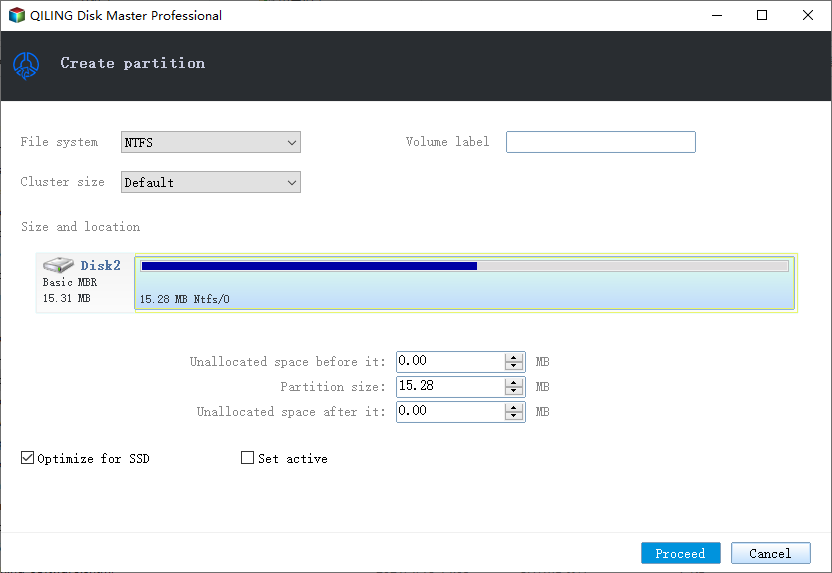
Step 3. Preview the new partition layout. If the operation is on the correct mSATA drive, click Proceed.
Step 4. After it finishes, open File Explorer and copy a small test file to confirm the mSATA drive works.
Case B. The Existing Partition Is Damaged or Cannot Be Formatted
Step 1. If the mSATA drive contains files you still need, recover or copy them first. Do not delete the partition before data is safe.
Step 2. Select the damaged partition and choose Delete.
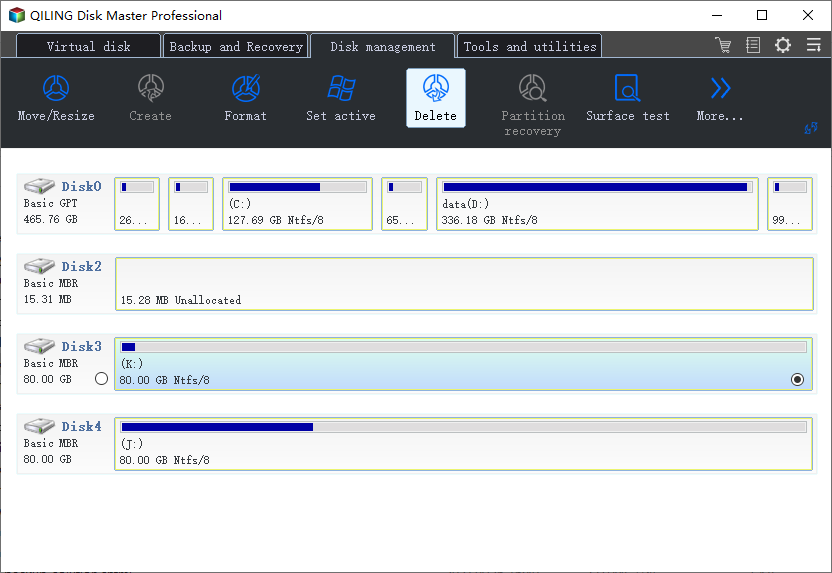
Step 3. A data-loss warning will appear. Confirm it only if the selected partition is correct and files have been backed up or recovered.
Step 4. Select the unallocated space, choose Create, set NTFS, assign a drive letter, and enter a volume label.
Step 5. Preview the final operation list. It should show deleting the old partition and creating a new NTFS partition on the same mSATA drive.
Step 6. Click Proceed. When the operation finishes, reconnect the drive or refresh File Explorer if the new volume does not appear immediately.
Case C. Formatting Still Fails
Step 1. Stop repeating the format operation. Repeated failures may indicate adapter instability, bad sectors, or a failing mSATA SSD.
Step 2. Try another mSATA adapter, enclosure, USB port, or computer to rule out connection problems.
Step 3. Run a surface test or SSD health check before storing important files on the drive.
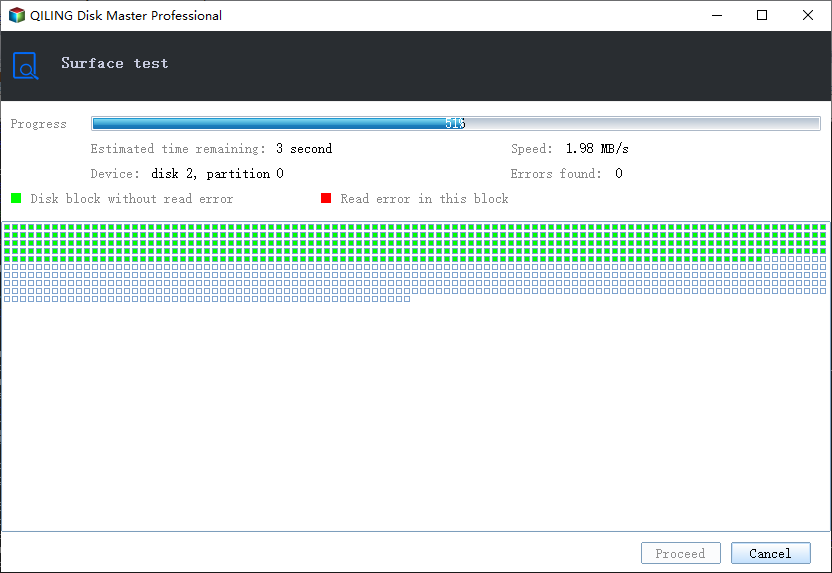
Step 4. If errors are reported or the mSATA drive disconnects again, replace the drive instead of forcing another format.
Conclusion
If an mSATA drive cannot be formatted, check connection and health before blaming Windows. Rebuild the partition only after files are safe.
Related Articles
Products
Articles & Tutorials
- Data Recovery
- Data Backup
- File Recovery
- File Backup
- System Backup and Restore
- Disk and Partition Clone
- Technical articles
- Mobile articles
- Disk Master Help
- Windows Data Recovery Tutorials
- Windows Secure Delete Tutorials
- Windows Partition Management Tutorials
- Windows File Backup and Restore Tutorials
- Windows System Backup and Restore Tutorials
- Windows Disk Backup and Restore Tutorials
- Windows Clone Tutorials