Cannot Format USB to NTFS
Fix a USB drive that cannot be formatted to NTFS. Check write protection, file system errors, bad sectors, and format safely with Qiling tools.

What This Problem Usually Means
Windows may fail to format a USB drive if it is write-protected, physically damaged, locked by another program, infected, or shown as RAW. Some small or special-purpose USB devices may also be limited by firmware.
What to Check First
- Move files off the USB drive if it still opens.
- Check for a physical lock switch.
- Close programs that may be using the drive.
- Run error checking or CHKDSK if the file system is damaged.
- Try another USB port before assuming the drive is bad.
Format or Repair the Drive with Qiling Disk Master
Use this method when Windows can see the device but File Explorer, Disk Management, or a command line format does not finish correctly. If the drive contains useful files, copy them out first or recover them before formatting.
Step 1. Connect the external drive, USB drive, or SD card to the PC. Open Qiling Disk Master and identify the device by capacity, drive letter, and partition layout. Do not choose an internal Windows disk by mistake.
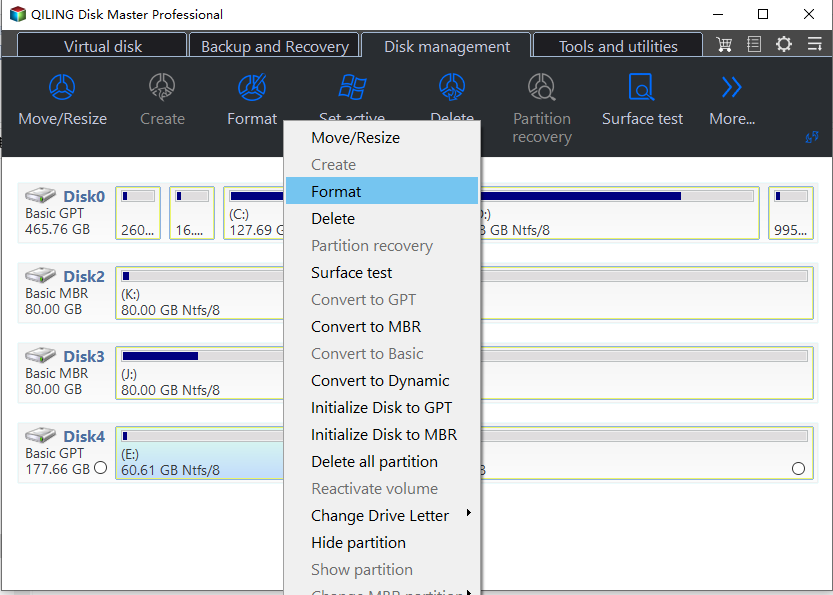
Step 2. Right-click the target partition and choose Format. If the device shows as RAW or has no usable partition, create a new partition first, then format it.
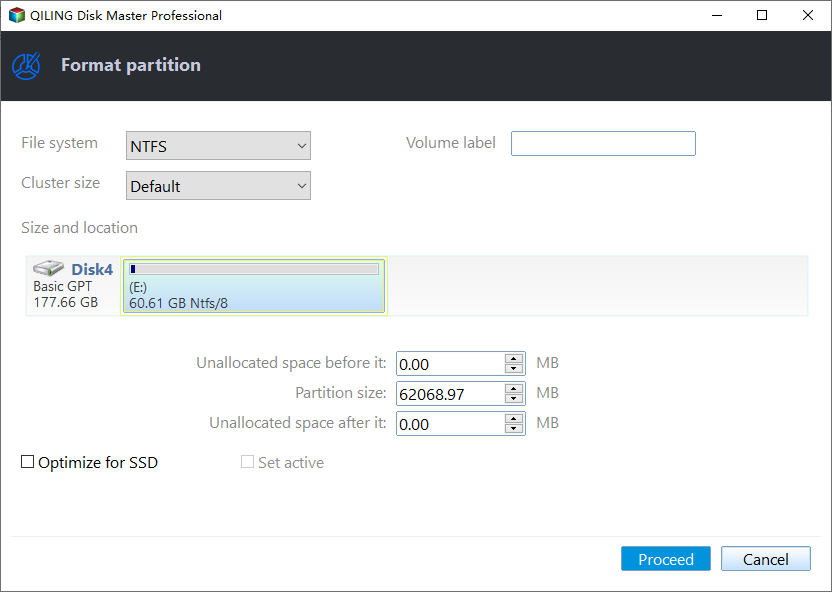
Step 3. Set a clear partition label, choose NTFS for Windows storage, and keep the default cluster size unless a special device requires another value.
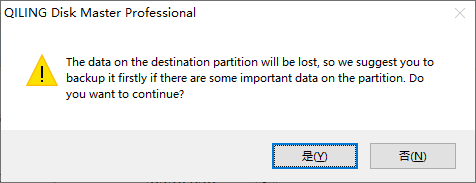
Step 4. Read the warning carefully. Formatting removes the visible file table, so stop here if you still need files from the drive.
Step 5. Preview the pending operation. If the correct device is selected, click Proceed and wait until the task finishes. Reconnect the drive and test copying a small file to confirm it works.
FAQ
Should I repair Windows before backing up? If the disk is readable, back up first. Repair commands, formatting, resizing, and reset options can change data or boot records.
Can Windows built-in tools solve the issue? Often yes. Use Settings, Disk Management, Startup Repair, CHKDSK, SFC, or DISM first when the risk is low. Use Qiling tools when you need a clearer disk map, safer preview, or a full backup before changing the drive.
What should I avoid? Do not format a drive that still holds needed files, do not run clean commands on the wrong disk, and do not clone to a target disk that contains the only copy of important data.
Conclusion
A USB format failure can come from write protection, bad sectors, open files, or a damaged partition table. Protect needed files first, then remove the cause and format the correct USB drive.
Related Articles
- Windows Partition Management Tutorials
Find practical Windows partition guides for resizing, formatting, checking, converting, and repairing disks without unnecessary risk. - Windows Data Recovery Tutorials
Use these recovery guides when files are lost after formatting, partition errors, Windows repair, or accidental deletion.
Products
Articles & Tutorials
- Data Recovery
- Data Backup
- File Recovery
- File Backup
- System Backup and Restore
- Disk and Partition Clone
- Technical articles
- Mobile articles
- Disk Master Help
- Windows Data Recovery Tutorials
- Windows Secure Delete Tutorials
- Windows Partition Management Tutorials
- Windows File Backup and Restore Tutorials
- Windows System Backup and Restore Tutorials
- Windows Disk Backup and Restore Tutorials
- Windows Clone Tutorials