Can't Format Windows Hard Drive: Causes and Fixes
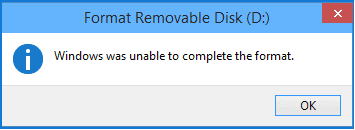
Windows may refuse to format a hard drive when the partition is in use, the disk has errors, BitLocker is active, the drive is write-protected, or the file system is damaged. Formatting also erases access to files, so the first question is whether the data still matters.
What to Know First
- Recover or back up files before formatting.
- Do not format the running Windows system partition from inside Windows.
- Unlock BitLocker drives before formatting if you need to access files first.
- Check disk health if formatting repeatedly fails.
Windows Method and Background
- Close programs that may be using the drive.
- Try formatting from Disk Management instead of File Explorer.
- If the partition is RAW or inaccessible, recover files first.
- Run chkdsk only when the drive is stable and recognized correctly.
- If formatting still fails, delete and recreate the partition after backup.
Use Qiling Disk Master to Rebuild and Format the Drive
Open Qiling Disk Master and identify the target drive by capacity, model, and drive letter. Do not select the Windows system partition unless you are working from a bootable environment and have a full backup.
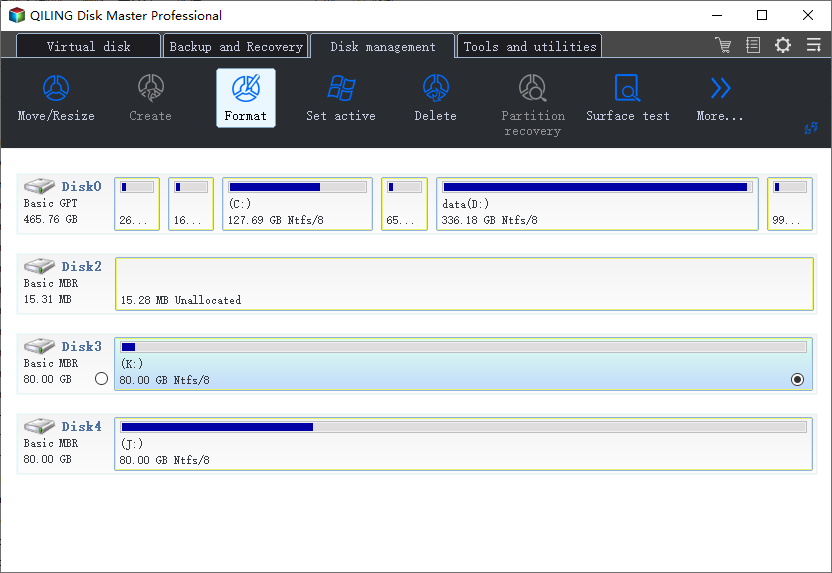
Case A. Format a Data Partition That Is Detected Correctly
Step 1. Select the data partition that Windows cannot format. Confirm the drive letter and capacity match the disk you want to erase.
Step 2. Choose Format. Set the file system to NTFS for a Windows internal drive, or exFAT if the drive must be used on both Windows and other devices.
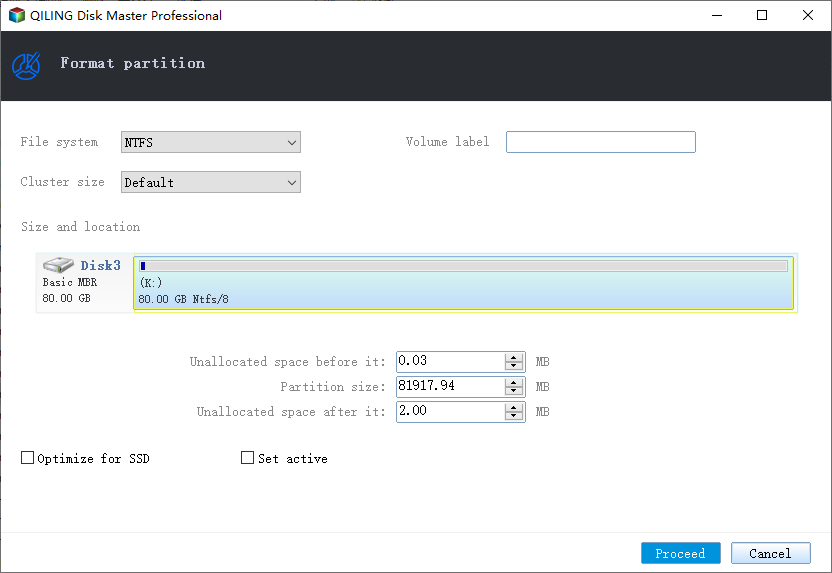
Step 3. Enter a clear volume label, keep the default cluster size unless you have a special need, and confirm the format settings.
Step 4. Preview the pending task. If the correct partition is listed, click Proceed to start formatting.
Case B. Delete and Recreate a Damaged Partition
Step 1. If the partition is RAW, inaccessible, or repeatedly fails to format, recover or copy important files before deleting it.
Step 2. Select the damaged partition and choose Delete.
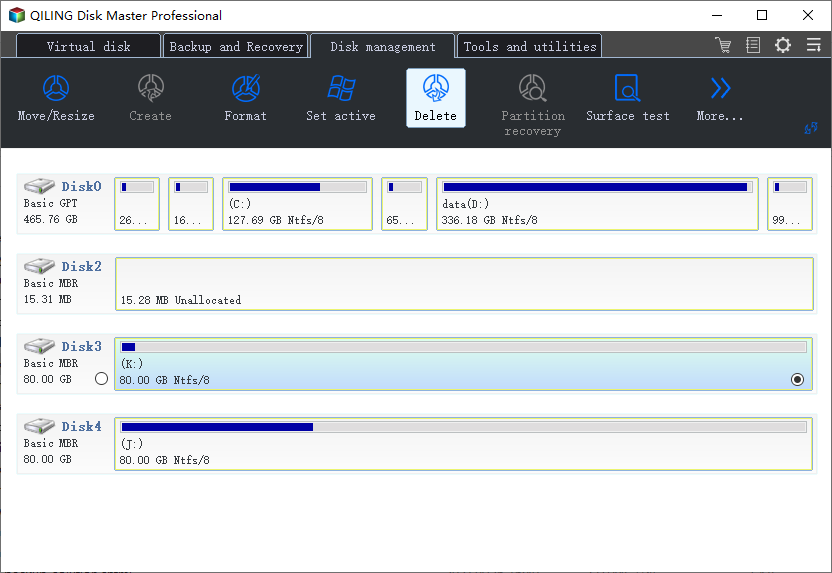
Step 3. Confirm the data-loss warning only after you verify the selected partition is correct and the files are safe.
Step 4. Select the unallocated space, choose Create, set the partition size, assign a drive letter, and choose NTFS or exFAT.
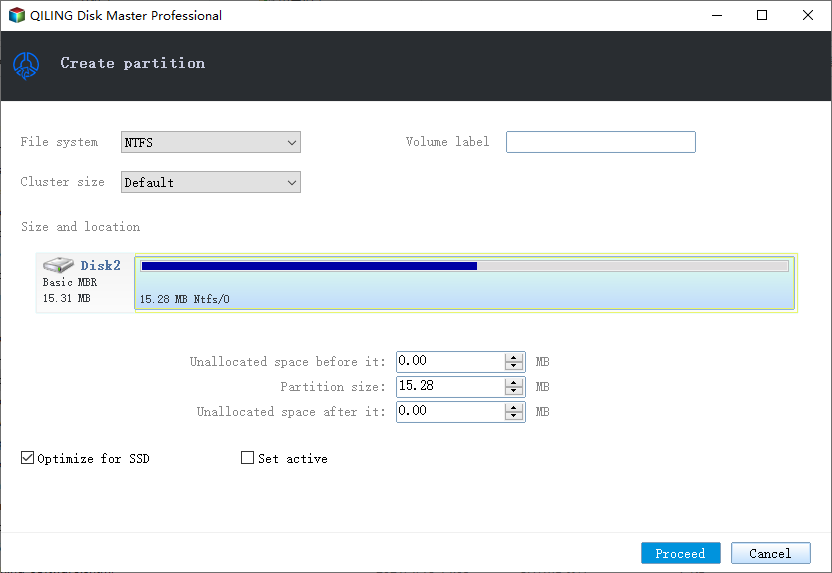
Step 5. Preview the final operation list. It should show deleting the damaged partition and creating a new formatted partition on the same drive.
Step 6. Click Proceed. When it finishes, open File Explorer and copy a small file to the new volume to confirm it works.
Case C. The Drive Is the Windows System Disk
Step 1. Do not format the active C drive from inside the running Windows installation. Windows blocks this because the system is using the partition.
Step 2. Back up files and make sure you have a Windows installer, recovery media, or a bootable disk management environment.
Step 3. Boot the computer from that external media, then format or rebuild the system partition only if you plan to reinstall Windows or restore a full system image.
Case D. Formatting Still Fails
Step 1. Stop repeating the same format operation if the drive disconnects, becomes RAW again, or reports I/O errors.
Step 2. Check the cable, enclosure, SATA port, or USB adapter, then run a surface test or disk health check.
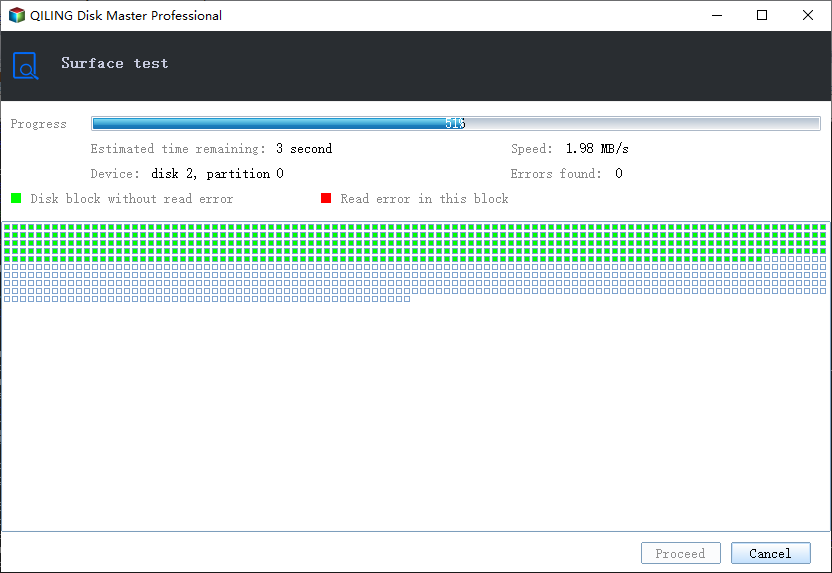
Step 3. If bad sectors or unstable connection problems appear, replace the drive instead of relying on a forced format.
Conclusion
A format failure is often a symptom, not the root cause. Protect files first, check whether the drive is locked or damaged, and then format or rebuild the partition.
Related Articles
Products
Articles & Tutorials
- Data Recovery
- Data Backup
- File Recovery
- File Backup
- System Backup and Restore
- Disk and Partition Clone
- Technical articles
- Mobile articles
- Disk Master Help
- Windows Data Recovery Tutorials
- Windows Secure Delete Tutorials
- Windows Partition Management Tutorials
- Windows File Backup and Restore Tutorials
- Windows System Backup and Restore Tutorials
- Windows Disk Backup and Restore Tutorials
- Windows Clone Tutorials