How to Change MBR to GPT in BIOS Windows 11
| Workable Solutions | Step-by-step Troubleshooting |
|---|---|
| Method 1. Qiling Partition Master | Step 1. Download and launch Qiling Partition Master on your Windows computer; Step 2. Right-click the MBR ...Full steps |
| Method 2. Installation CD or Media | Step 1: First, you should enter the boot menu in your BIOS mode. Depending on your manufacturer, you can use that...Full steps |
Why Do You Want to Change MBR to GPT in BIOS on Windows 11
In most situations, a regular user will have no reason to change MBR to GPT in BIOS, especially if they are using an older OS, but it can be an essential improvement to Windows 11 performance.
Here we provides some of the most common situations that require you to convert MBR to GPT in BIOS. If you ever encounter one of these issues, this guide contains tried and proven solutions.
- Windows 11 OS disk was converted to GPT by mistake and isn't bootable now.
Microsoft's updates in Windows 11 have introduced new requirements, including the need for UEFI and Secure Boot, in order to install the operating system.
Users need more skill to ensure their PC boots correctly, particularly when the OS disk is converted from MBR to GPT while still being in BIOS mode, leading to booting issues.
Since changing the Disk partition type will likely require formatting it, you're better off just changing the BIOS settings, as this will allow your PC to boot normally.
- UEFI boot mode and secure boot mode were disabled on Windows 11 as the OS disk is with MBR.
Windows 11 requires UEFI and secure boot mode to be installed and run, and an MBR type partition does not support these settings and protocols as it's from an older era.
To enable certain settings on your Windows 11 partition, it will need to be converted to a GPT partition scheme.
- Windows 11 was disabled on dual boot OS, and Windows 10 is currently used.
Some users, often programmers, may want to dual boot Windows 10 and Windows 11 to take advantage of the optimization of certain programs that haven't been updated for Windows 11. This allows them to use the operating system that best suits their needs.
With Windows 10 not requiring GPT, users may opt for running their disk on MBR (Master Boot Record) more frequently.
To enable Windows 11, you need to change the Disk to GPT in the BIOS settings. This is necessary to avoid issues when upgrading to Windows 11.
-
Users want to change the MBR disk to GPT on the computer without OS.
To install Windows 11, you'll need a GPT partitioned disk, otherwise you may encounter issues if you first install it on an MBR partitioned disk.
To make Windows 11 run on a disk that was previously using MBR, you need to convert the disk to GPT in the BIOS settings. This change allows the disk to support the larger partition sizes required by Windows 11.
Upgrading to Windows 11 from Windows 10 can be done without deleting partitions, and the process of converting a Master Boot Record (MBR) to a GUID Partition Table (GPT) is also possible, allowing for a seamless transition to the new operating system.
How Do I Change MBR to GPT in BIOS
This issue can be quite complex for those without experience, but this guide can help with a guide that provides solutions to help you avoid system-crashing mistakes and fix the issue.
Follow the instructions patiently, and you will soon see the results.
Converting MBR to GPT in a BIOS system can be achieved through the use of a disk converter software. This type of software simplifies the process, making it more accessible to users who are new to this type of conversion, and reduces the risk of errors.
If you're a more experienced user or want to try something new, you can convert MBR to GPT during the Windows 11 installation process using the installation CD or Media.
I recommend method 1 as it is more straightforward, making it great for beginners.
To delete a Facebook account, you can either deactivate it temporarily or permanently delete it. If you want to take a break from Facebook, you can deactivate your account, which will remove your name, profile picture, and other identifying information from the site.
Method 1. Change MBR to GPT in BIOS with Disk Converter Software
Qiling Partition Master is a top-notch disk converter software optimized for Windows 11 users.
This software makes changing from MBR to GPT in the BIOS a simple and easy task, suitable for users of all experience levels.
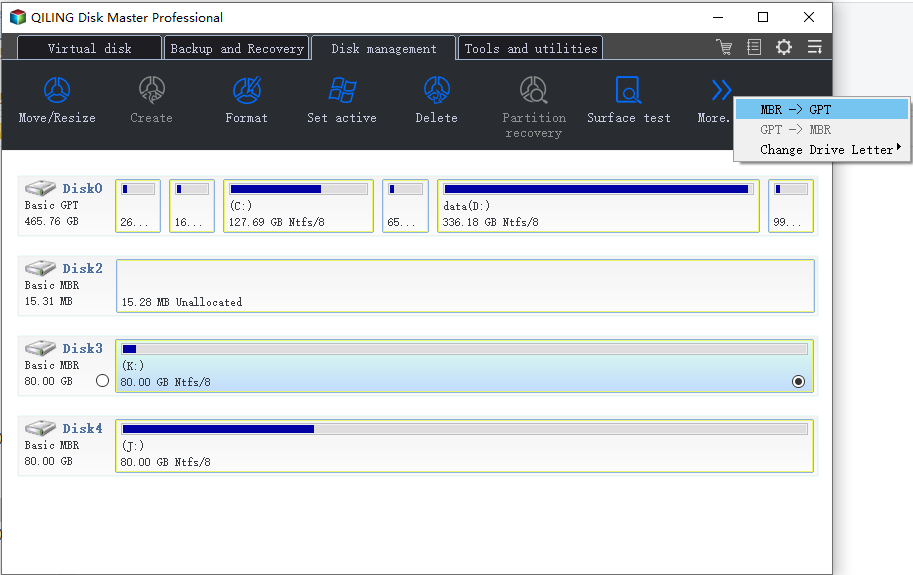
Step 1.Download and launch Qiling Partition Master on your Windows computer.
Step 2.Select the MBR disk you want to convert, click "More..." and choose "MBR -> GPT".
Method 2. Convert MBR to GPT During Windows 11 Installation via Its Installation CD or Media
Converting a Master Boot Record (MBR) to a Globally Unique Identifier Partition Table (GPT) can be done during the Windows 11 installation process, providing another great way to make this conversion on a computer with a BIOS system.
The first method is recommended for novice users, as it is simpler and more user-friendly. However, for advanced users who are familiar with the Command Prompt, the second method can be used. This alternative approach is more suited for those who know what they are doing, but it may not be the best option for those who are new to using the Command Prompt.
Step 1: To enter the boot menu in your BIOS mode, press F2/Del or other shortcuts depending on your manufacturer, then look for the boot menu and select the USB drive as the primary boot device.
Step 2: To continue, select the CD/DVD-ROM drive or USB device where your Windows 11 installation drive is located.
Step 3: To complete the Windows 11 setup, press Enter, then press any key to proceed, which will reboot your PC and allow the Windows 11 setup to run.
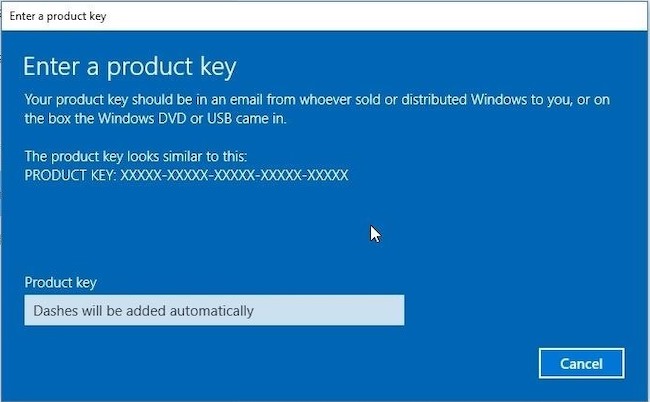
Step 4:Once you're on the Windows 11 activation screen, press Shift + F10 to run Command Prompt.
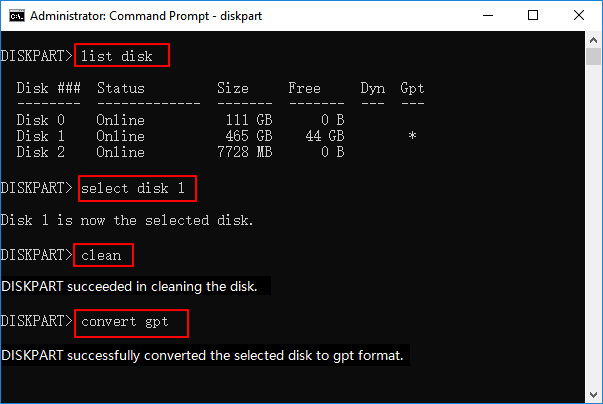
Step 5: To view the list of disks in the Command Prompt, type "diskpart", press Enter, then type "list disk", and press Enter again.
You will have a list of all disks. This will allow you to identify the disk where you want to install Windows, which is the one you want to convert.
The next command you need to type in is "select disk 0" (or the number of your disk) -
To clean the disk, type `clean` and press enter, and you should see a message indicating that your disk has been cleaned.
To convert to GPT, execute the command "convert GPT" in your command prompt, and you should see a success message.
To exit the chat, simply type "exit" and hit enter, then type "exit" again and hit enter.
To install Windows 11, you'll need to convert your disk to GPT. This can be done by running the command `diskpart` in the Command Prompt, selecting the disk you want to convert, and then running the command `convert gpt`.
Conclusion
Changing the Master Boot Record (MBR) to a GUID Partition Table (GPT) in a BIOS system can be a complex process, especially for those without technical expertise. To simplify this process, we've created a step-by-step guide, and recommend using specialized software to make it easier.
If you need further assistance, you can visit the Qiling Partition Master website for more information on hard drives, partitioning, and Windows 11. This software can also be used to run a hard drive speed test.
Related Articles
- How to Resize EFI System Partition on Windows 11/10/8/7
- How to Convert GPT to MBR (Without Data Loss) with 3 GPT to MBR Converter
- How to Resize USB Flash Drive Partition with Magic Partition Software
- How Do I Perform Windows Password Reset with USB? 2024 Guide
If you want to reset your Windows password with a USB but don't know how then this article is for you. Continue reading as we share all the methods that you could use to reset your Windows password. - How Can I Remove Write Protection From USB, Help
Sometimes the USB will be write-protected, and this article provides a beginner's guide on how to remove write protection from USB so that you can format or modify it again. - How Do I Write Protect My USB Flash Drive, Help
This article will help you learn how to write-protect your USB drive, preventing your data from being changed or written. Two solutions were provided.
Products
Articles & Tutorials
- Data Recovery
- Data Backup
- File Recovery
- File Backup
- System Backup and Restore
- Disk and Partition Clone
- Technical articles
- Mobile articles
- Disk Master Help
- Windows Data Recovery Tutorials
- Windows Secure Delete Tutorials
- Windows Partition Management Tutorials
- Windows File Backup and Restore Tutorials
- Windows System Backup and Restore Tutorials
- Windows Disk Backup and Restore Tutorials
- Windows Clone Tutorials