Change USB from FAT32 to NTFS Without Formatting
Change USB from FAT32 to NTFS without formatting in Windows. Learn the convert command, limits, backup advice, and safer alternatives.
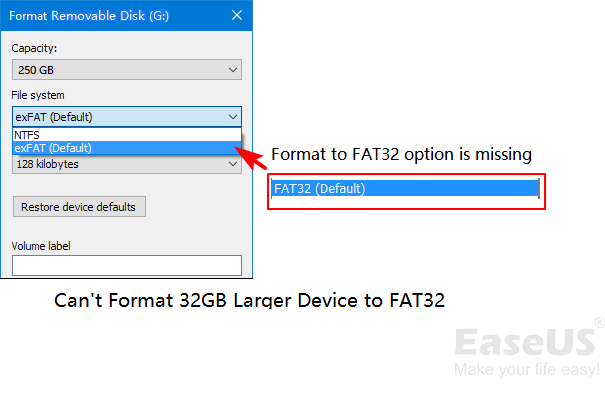
Can You Convert Without Formatting?
Yes, Windows can convert FAT32 to NTFS with the convert command, but it cannot convert NTFS back to FAT32 without formatting. A backup is still important because power loss or disk errors can interrupt conversion.
Use Windows Convert Command
- Back up important USB files.
- Open Command Prompt as administrator.
- Run convert X: /fs:ntfs, replacing X with the USB drive letter.
- Wait for completion and reconnect the drive.
Use Qiling Disk Master When Windows Tools Are Not Enough
Qiling tools give you a visual way to review the disk state, protect files, and confirm risky operations before Windows repair, formatting, resizing, or cloning changes are applied.
Step 1. Back up important USB files first. Converting FAT32 to NTFS is usually non-destructive, but errors or power loss can still cause file problems.

Step 2. Open Qiling Disk Master and select the USB partition by capacity and drive letter.
Step 3. Check the current file system. If the USB is healthy and only needs NTFS, use Windows convert command or a supported conversion option rather than formatting.
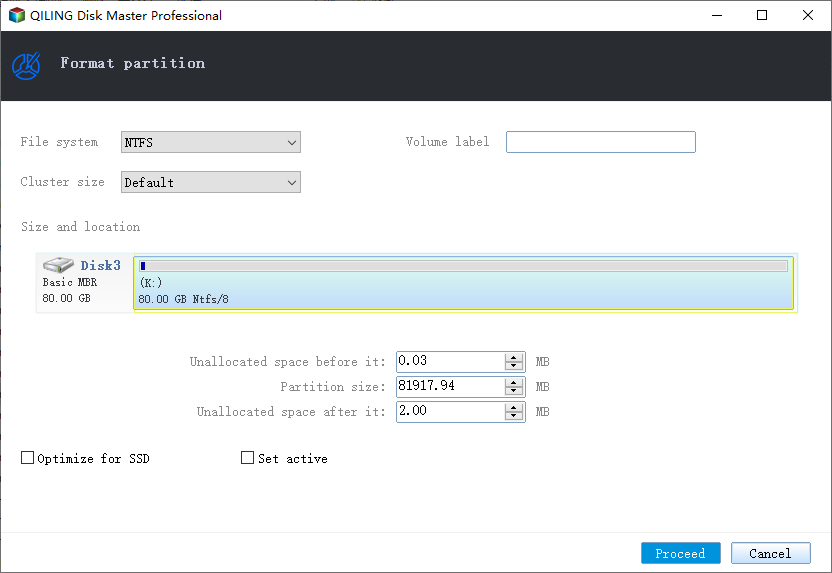
Step 4. If conversion is not available or the file system has errors, copy files out first, then choose Format and select NTFS.
Step 5. Preview the task and confirm the correct USB drive is selected.
Step 6. Click Proceed only if the operation is a format or layout change. Afterward, reconnect the USB and test a file larger than 4GB.
Conclusion
Start with the Windows checks that match your symptom, protect important data before formatting or repartitioning, and use the Qiling workflow when you need a clearer, safer way to repair the disk or move data.
Related Articles
Products
Articles & Tutorials
- Data Recovery
- Data Backup
- File Recovery
- File Backup
- System Backup and Restore
- Disk and Partition Clone
- Technical articles
- Mobile articles
- Disk Master Help
- Windows Data Recovery Tutorials
- Windows Secure Delete Tutorials
- Windows Partition Management Tutorials
- Windows File Backup and Restore Tutorials
- Windows System Backup and Restore Tutorials
- Windows Disk Backup and Restore Tutorials
- Windows Clone Tutorials