How to Clone a Steam Deck SSD Using a Windows PC
A Steam Deck SSD contains SteamOS partitions that Windows may not recognize. A Windows PC can still be used as a host for a physical-disk copy, but a normal Windows file copy or System clone is not appropriate. Plan for model-specific hardware compatibility and SteamOS recovery first.
Check Compatibility and Protect the Original
Identify your exact Steam Deck model and the supported SSD form factor, thickness, interface, and capacity before opening the device. Follow Valve's model-specific repair and recovery guidance for disassembly; a generic Windows disk article is not a safe physical-service manual. Back up locally stored game data that is not cloud-synced and save any custom configurations separately.
Connect the old and new SSDs to a Windows PC with compatible enclosures or adapters. If Windows asks to initialize or format the SteamOS disk, choose Cancel. Record each disk's model, serial number, and actual sector count. For a sector-by-sector copy, the destination must have at least as many addressable sectors as the source, even if both are sold under the same nominal capacity.
Choose Clone or Fresh SteamOS Recovery
A fresh SteamOS recovery installation is often preferable when the source SSD is failing or the target has different geometry. A clone can preserve a working installation and local layout but may leave unused capacity that needs later expansion through a supported SteamOS procedure. If the source reports read errors, do not repeat long scans on the only copy of valuable data.
On Windows, Qiling Disk Master's Disk/Partition clone can be considered only if it detects both raw physical devices and offers a full sector-by-sector mode for the source. Do not use System clone; it is designed to identify Windows boot partitions.
Make a Conditional Full-Disk Copy
Step 1. Open Qiling Disk Master and choose Tools and utilities > Disk/Partition clone. Keep Windows Disk Management open separately to cross-check the two physical disk models.

Step 2. At the source screen, enable Sector by sector clone if supported for the device and select the entire original Steam Deck SSD, not an individual Windows-readable volume. Check model and sector count before clicking Next.
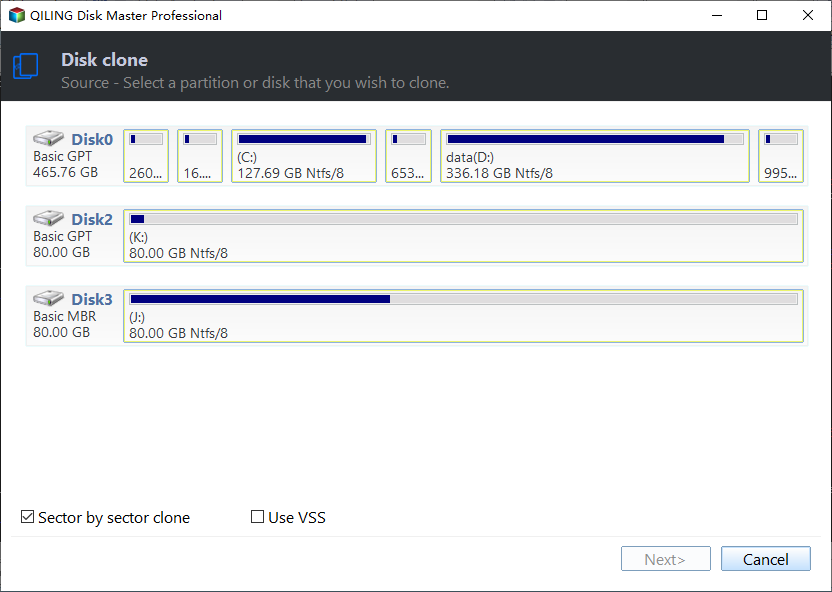
The example shows the sector-by-sector option before a source disk is selected; its Next button is disabled. Select your actual Steam Deck SSD to continue.
Step 3. Select the replacement SSD as the destination. Its existing data will be erased. Recheck both physical device identities and the target's actual sector count, then click Next.

The highlighted disk in this example is only a sample destination. Match your replacement SSD by its model and capacity before proceeding.
Step 4. Check that the preview identifies the entire original SSD as the source and the replacement SSD as the destination, with sector-by-sector copying enabled and enough target sectors. Windows may not name SteamOS partitions, so do not judge the copy by Windows drive letters. If the preview shows only one selected partition, the target is too small, or the source cannot be read, cancel. Otherwise click Proceed, confirm the destination warning, and wait for a successful completion.

Do not proceed if your preview resembles this single-partition example. It does not show a complete Steam Deck SSD. The clone must cover the entire source disk, and the destination must have sufficient actual capacity.
Install and Verify the Result
Following the exact model's service procedure, install the new SSD and keep the old one unchanged. Boot the Steam Deck and check SteamOS, game library, controller functions, and available capacity. If it does not boot or capacity is wrong, do not format the original on Windows. Use Valve's supported SteamOS recovery media and model-specific partition guidance; a successful Windows copy alone does not guarantee a bootable handheld.
Conclusion
Use a verified-compatible SSD, preserve the original, clone only the complete raw disk when the tool and target support it, and validate through SteamOS after installation.
Related Articles
- Steam Deck SD Card Format Grayed Out
Distinguish removable-card issues from internal SSD migration. - Fastest Way to Clone a Hard Drive
Understand sector-by-sector copy time and limits.
Products
Articles & Tutorials
- Data Recovery
- Data Backup
- File Recovery
- File Backup
- System Backup and Restore
- Disk and Partition Clone
- Technical articles
- Mobile articles
- Disk Master Help
- Windows Data Recovery Tutorials
- Windows Secure Delete Tutorials
- Windows Partition Management Tutorials
- Windows File Backup and Restore Tutorials
- Windows System Backup and Restore Tutorials
- Windows Disk Backup and Restore Tutorials
- Windows Clone Tutorials