Combine All Partitions of a USB Flash Drive
A USB flash drive may show multiple small partitions after being used as boot media or recovery media. To make it normal storage again, back up files, remove the old partitions, and create one full-size partition.
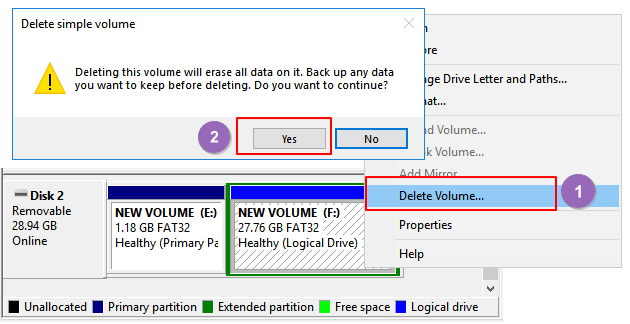
Before You Start
- Copy useful files off the USB drive first.
- Confirm the disk number and capacity before deleting partitions.
- Do not select an internal Windows disk.
- Use exFAT for broad compatibility or NTFS for Windows-only use.
Windows Method: Delete and Recreate the USB Volume
- Open Disk Management and find the USB drive by capacity.
- Delete each old USB partition if Windows allows it.
- Right-click the unallocated USB space and choose New Simple Volume.
- Use the full capacity, assign a drive letter, and format as exFAT or NTFS.
Use Qiling Disk Master to Combine USB Partitions
Step 1. Select the USB flash drive by capacity and removable-drive layout.
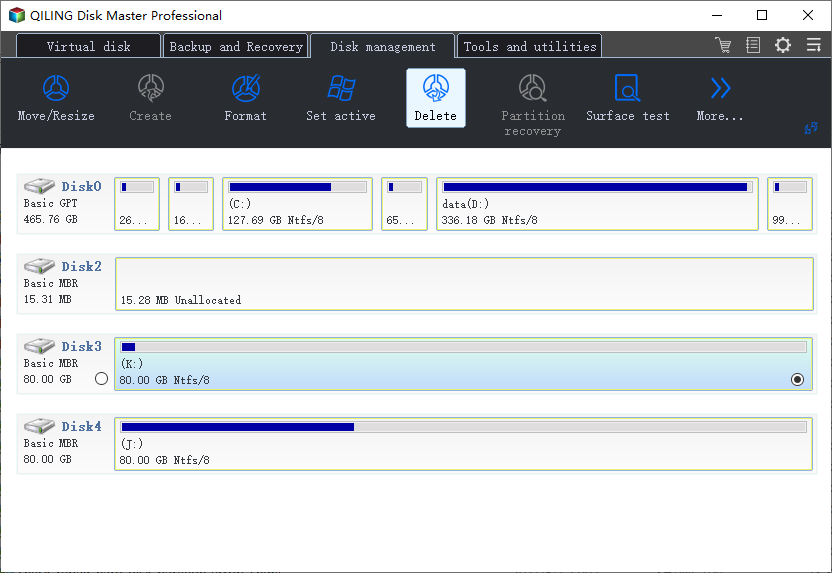
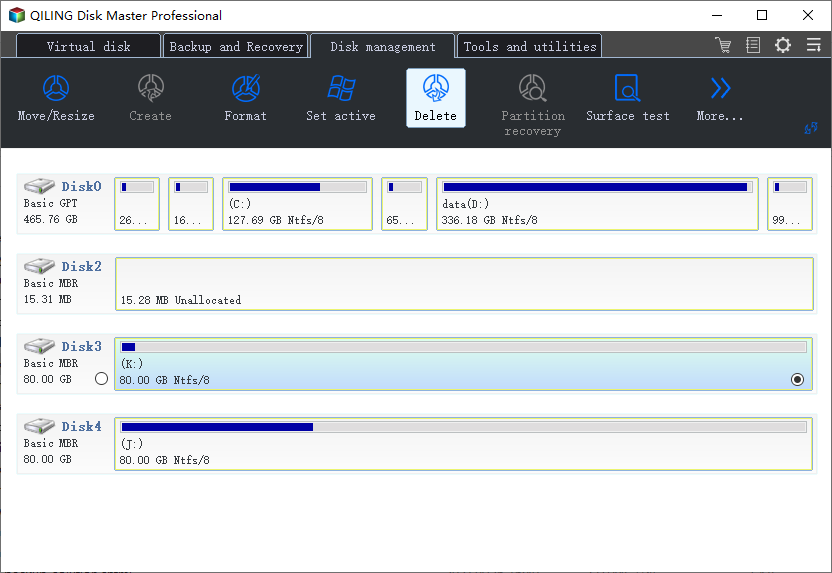
Step 2. Choose Delete for each old partition on the USB drive.
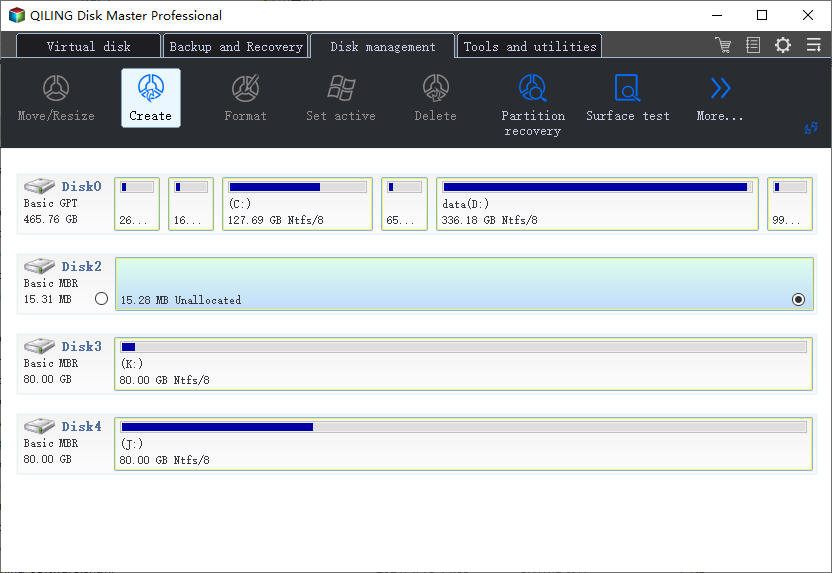
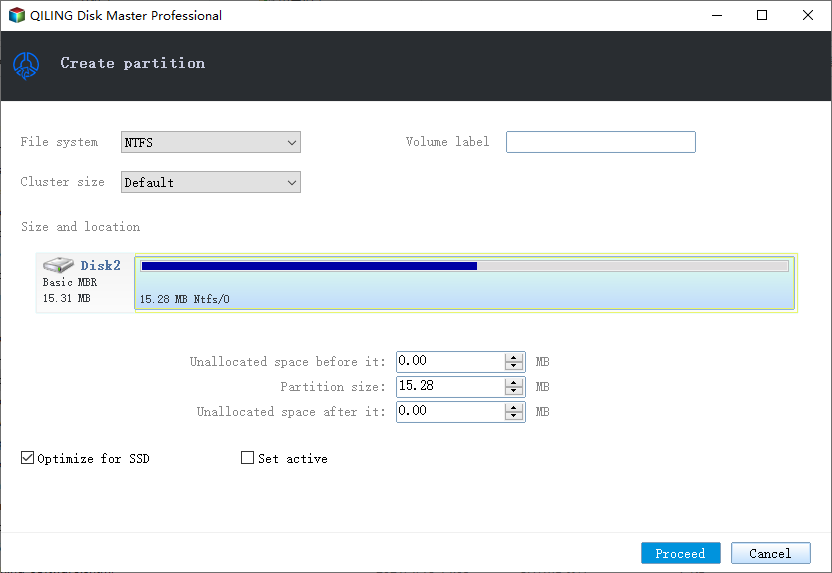
Step 3. Select the remaining unallocated space and choose Create.
Step 4. Use the full USB capacity, choose exFAT or NTFS, assign a drive letter, and click Proceed.
Conclusion
Combining USB partitions means rebuilding the USB layout. Back up first, delete only USB partitions, and create one new full-size volume.
Related Articles
Products
Articles & Tutorials
- Data Recovery
- Data Backup
- File Recovery
- File Backup
- System Backup and Restore
- Disk and Partition Clone
- Technical articles
- Mobile articles
- Disk Master Help
- Windows Data Recovery Tutorials
- Windows Secure Delete Tutorials
- Windows Partition Management Tutorials
- Windows File Backup and Restore Tutorials
- Windows System Backup and Restore Tutorials
- Windows Disk Backup and Restore Tutorials
- Windows Clone Tutorials