Create Two Partitions Without Erasing Data
You can create two partitions from one existing drive without erasing data if the disk has enough free space and the file system is healthy. Shrink the current partition first, then create a new partition from the unallocated space.

Before You Start
- Back up important files before resizing.
- Check the existing partition has enough free space.
- Do not shrink EFI, MSR, Recovery, or other small system partitions.
- Close programs using files on the target drive.
Windows Method: Shrink the Volume and Create a New One
- Right-click Start and open Disk Management.
- Right-click the partition you want to split and choose Shrink Volume.
- Enter the amount of space to shrink in MB.
- Right-click the new unallocated space and choose New Simple Volume.
- Set size, drive letter, and NTFS, then finish the wizard.
Use Qiling Disk Master to Split the Drive Visually
Step 1. Select the existing data partition you want to split. Confirm it by drive letter, capacity, and used space.
Step 2. Choose Resize/Move and shrink the partition to create unallocated space. Leave enough free space in the original partition.
Step 3. Preview the shrink operation and click Proceed. Wait until the resize finishes.

Step 4. Select the new unallocated space and choose Create.
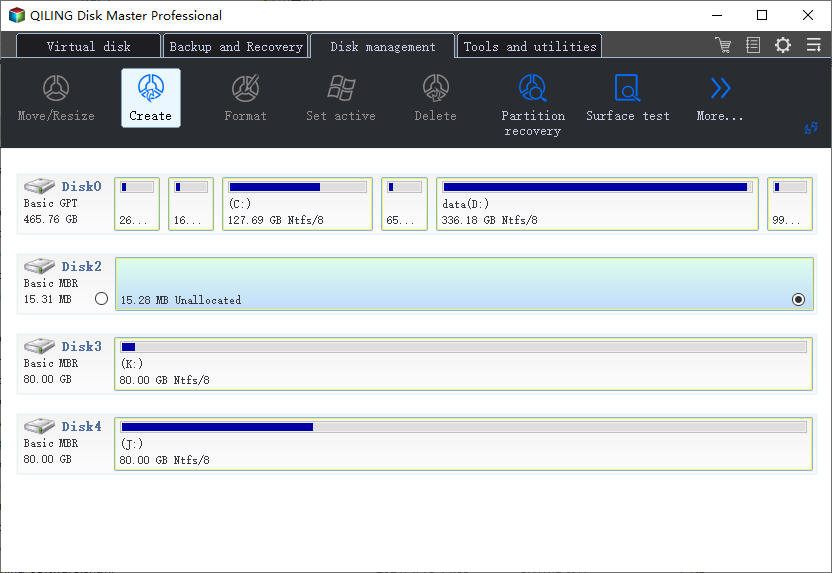
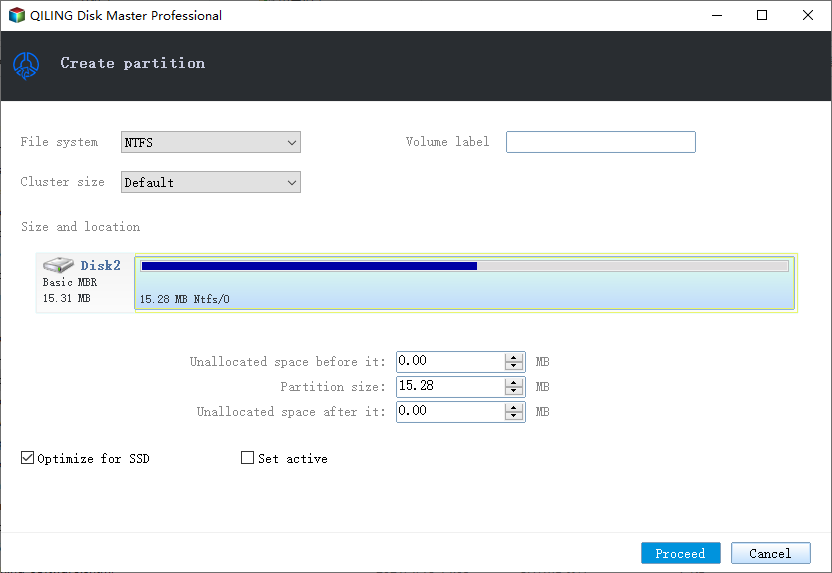
Step 5. Set the new partition size, drive letter, label, and file system, then click Proceed.
Conclusion
Splitting a drive does not have to erase data, but resizing still changes the partition table. Back up first, shrink only a healthy partition, and create the new partition from the released space.
Related Articles
Products
Articles & Tutorials
- Data Recovery
- Data Backup
- File Recovery
- File Backup
- System Backup and Restore
- Disk and Partition Clone
- Technical articles
- Mobile articles
- Disk Master Help
- Windows Data Recovery Tutorials
- Windows Secure Delete Tutorials
- Windows Partition Management Tutorials
- Windows File Backup and Restore Tutorials
- Windows System Backup and Restore Tutorials
- Windows Disk Backup and Restore Tutorials
- Windows Clone Tutorials