Is It Safe to Delete OEM Reserved Partition
An OEM reserved partition may store vendor recovery tools, diagnostics, or reset files. It is not normal user data, so do not delete it only to gain a small amount of space.
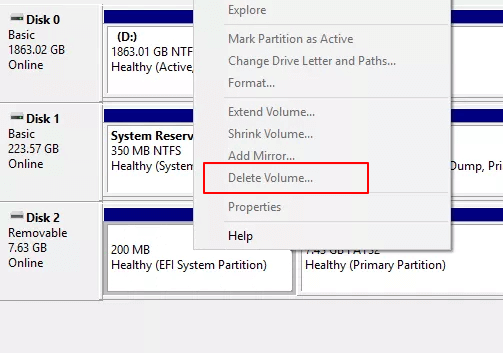
Before You Start
- Keep it if you rely on factory reset or vendor recovery tools.
- Do not delete EFI System, MSR, or System Reserved partitions.
- Create a system backup or recovery USB first.
- Check the partition size and location before making changes.
Windows Check Before Deleting
- Open Disk Management and locate the OEM or reserved partition.
- Check whether it is on the Windows system disk or an old external clone.
- Run reagentc /info in an elevated Command Prompt.
- If Windows Recovery Environment uses that area, keep it or move it instead of deleting it.
Use Qiling Disk Master to Delete Only an Unused OEM Partition
Step 1. Open Qiling Disk Master and select the disk that contains the OEM reserved partition.
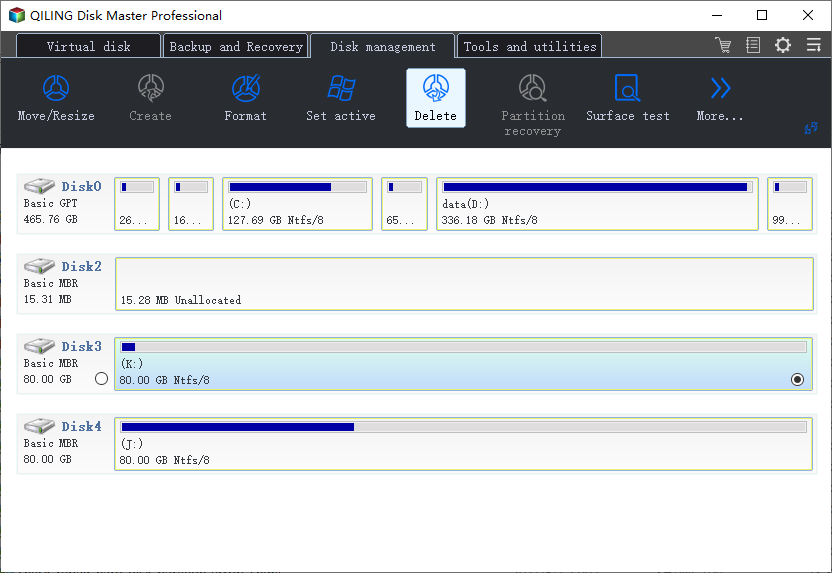
Step 2. Confirm the partition is not EFI, MSR, System Reserved, or the active WinRE location.
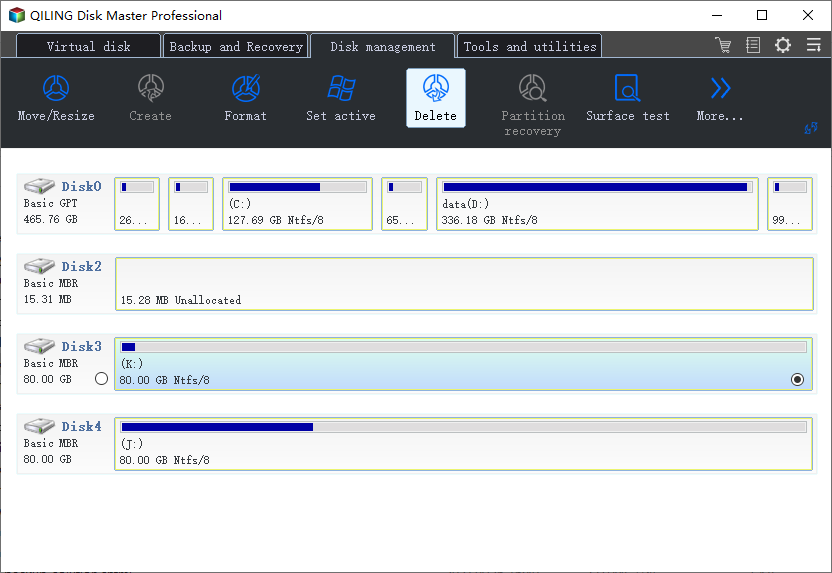
Step 3. Choose Delete for the unused OEM partition.
Step 4. There will show a warning message box, Click Yes to delete the Unused OEM Partition.
Conclusion
Delete an OEM reserved partition only when you have confirmed it is unused and you already have recovery media or a full backup.
Related Articles
Products
Articles & Tutorials
- Data Recovery
- Data Backup
- File Recovery
- File Backup
- System Backup and Restore
- Disk and Partition Clone
- Technical articles
- Mobile articles
- Disk Master Help
- Windows Data Recovery Tutorials
- Windows Secure Delete Tutorials
- Windows Partition Management Tutorials
- Windows File Backup and Restore Tutorials
- Windows System Backup and Restore Tutorials
- Windows Disk Backup and Restore Tutorials
- Windows Clone Tutorials