Can You Delete a Recovery Partition on an External Hard Drive
An external drive may contain an old recovery partition from cloning or PC recovery media. Remove it only if you are sure the drive no longer needs to boot or restore a system.
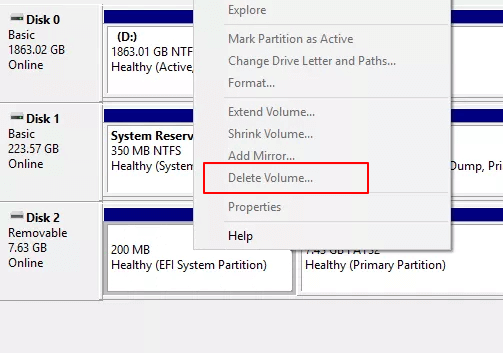
Check Before Deleting
- Open Disk Management and identify the external drive by size.
- Check whether the partition contains recovery files you still need.
- Copy important files off the drive.
- Do not delete partitions from the internal system disk by mistake.
After Removal
After deleting the recovery partition, create a new partition or extend the main external drive partition into the freed space.
Use Qiling Disk Master to Remove the External Recovery Partition
Delete the recovery partition only after confirming it is on the external hard drive. If the partition belongs to the internal system disk, removing it may affect Windows recovery or startup repair.
Step 1. Confirm the External Drive
Connect the external hard drive and open Qiling Disk Master. Identify it by brand name, total capacity, disk number, and existing partitions. Disconnect other removable drives if you are unsure.

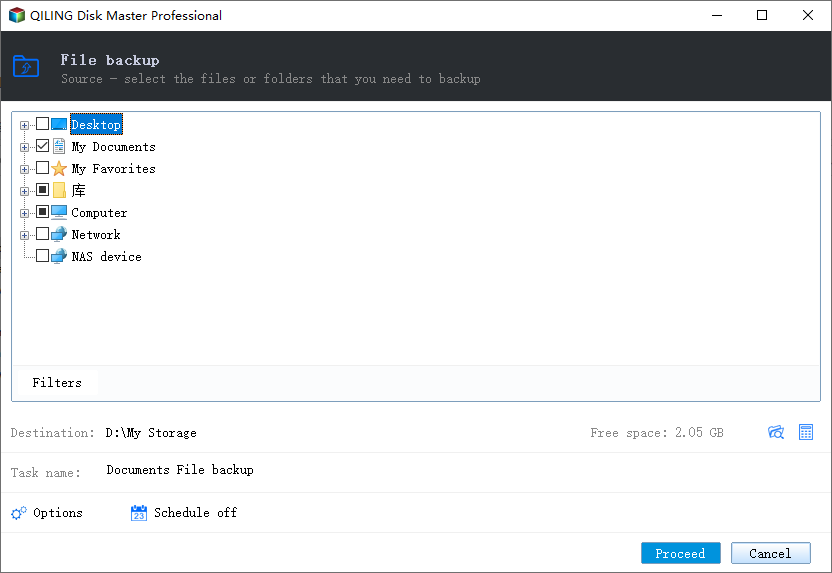
Step 2. Back Up Useful Files
Copy important files from the external drive to another safe location. Deleting a recovery partition normally removes only that partition, but checking the backup first prevents accidental data loss.
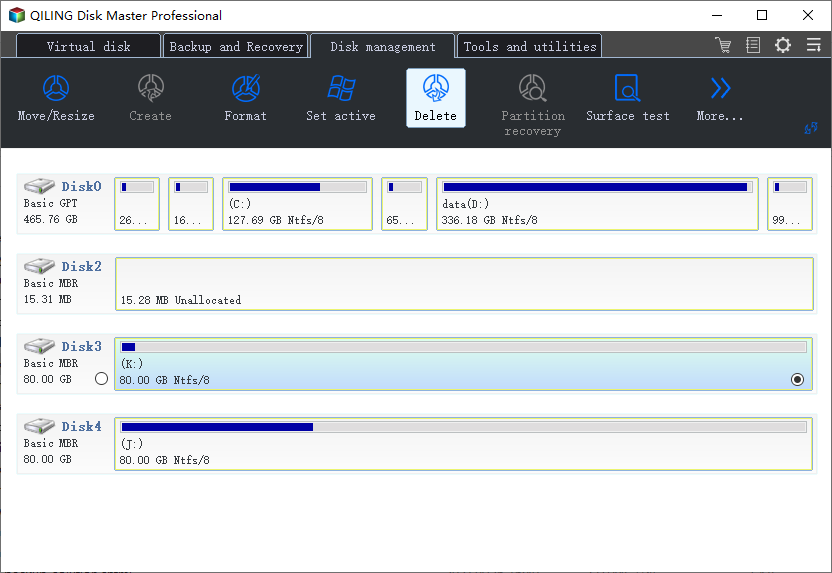
Step 3. Delete the Recovery Partition
Right-click the recovery partition on the external drive and choose Delete. Do not choose any EFI, System Reserved, or Recovery partition on the internal Windows disk.
Step 4. Reuse the Freed Space
After the partition becomes unallocated space, either extend the main external-drive partition into it or create a new partition. Use NTFS for Windows-only storage or exFAT if the drive must also work with macOS or other devices.

Step 5. Preview and Proceed
Review the pending operations carefully. The queue should show changes only on the external hard drive. If it is correct, click Proceed and wait until the operation finishes.
Conclusion
Handle the visible symptom first, then protect data before any delete, format, resize, or clone action. If the disk layout is confusing, use a visual tool and confirm the target before you click Proceed.
Related Articles
Products
Articles & Tutorials
- Data Recovery
- Data Backup
- File Recovery
- File Backup
- System Backup and Restore
- Disk and Partition Clone
- Technical articles
- Mobile articles
- Disk Master Help
- Windows Data Recovery Tutorials
- Windows Secure Delete Tutorials
- Windows Partition Management Tutorials
- Windows File Backup and Restore Tutorials
- Windows System Backup and Restore Tutorials
- Windows Disk Backup and Restore Tutorials
- Windows Clone Tutorials