Disk Offline Due to Signature Collision in Windows 11
When Windows sees two disks with the same identity, it can leave one offline and show a signature-collision message in Disk Management. This often happens when a cloned disk and its source are connected together. The message is not evidence that either disk should be formatted.
Identify both disks before changing anything
Step 1. Open Disk Management and read the exact status under each disk number. Note its capacity, connection type, partition layout, and which disk holds the running Windows installation.
Step 2. Match those details to the physical drive labels or enclosure information. A drive letter alone is not reliable because the offline disk may have none. If the message says a disk is offline because it has a signature collision, record which disk Windows kept online.
Step 3. If you only need to test a newly cloned system disk, shut down the PC and test with the original disconnected, following the computer manufacturer's hardware instructions. Do not hot-remove an internal drive. Confirm the clone boots before changing disk identities.
Protect the working installation
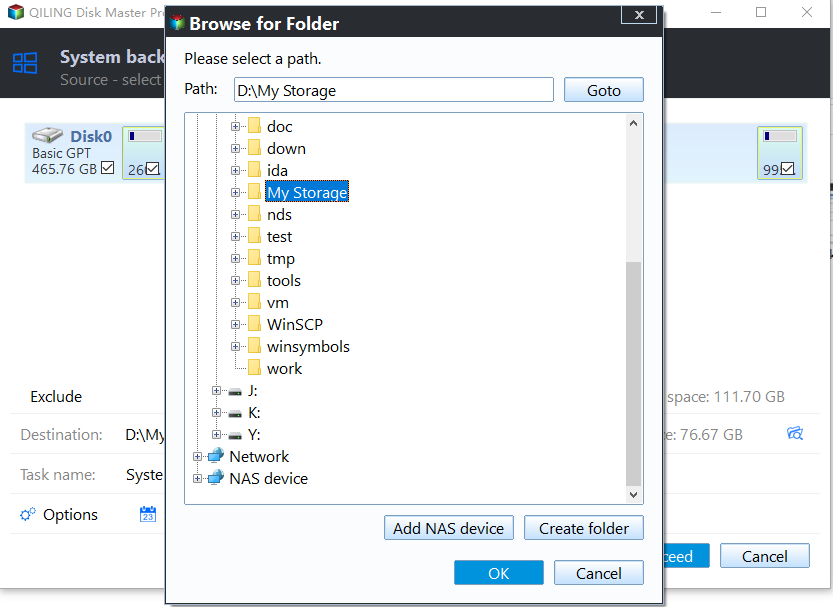
Step 1. While the original system remains online, use Qiling Disk Master Pro System backup to confirm the selected Windows-related partitions and choose a separate destination with enough free space.

Step 2. Verify the destination path and click Proceed. Wait for completion, then check that the backup task is available before making disk changes.
Changing a disk identifier or bringing a disk online can affect boot configuration, drive letters, and mounted volumes. Do that only after identifying the intended disk and securing its data. If the disks are part of a server, Storage Spaces pool, or other managed storage, use that platform's procedure instead of a generic disk-identity fix.
Related Articles
- Clone a Windows Drive to SSD
Check source and target disks during a planned clone. - System Backup and Restore
Keep a recoverable system copy before disk changes.
Products
Articles & Tutorials
- Data Recovery
- Data Backup
- File Recovery
- File Backup
- System Backup and Restore
- Disk and Partition Clone
- Technical articles
- Mobile articles
- Disk Master Help
- Windows Data Recovery Tutorials
- Windows Secure Delete Tutorials
- Windows Partition Management Tutorials
- Windows File Backup and Restore Tutorials
- Windows System Backup and Restore Tutorials
- Windows Disk Backup and Restore Tutorials
- Windows Clone Tutorials