Disk Partitioner for Windows
Use a Windows disk partitioner to create, resize, format, check, and convert partitions. Plan changes safely before clicking Proceed.
What This Problem Usually Means
Windows users partition disks to separate system and data, prepare a new SSD, format a USB drive, extend a full C drive, or convert disk style. Each task has a different risk level, so the safest method depends on the current disk layout.
What to Check First
- Identify the disk by model and capacity.
- Back up files from the partitions that may change.
- Decide whether you need NTFS, exFAT, MBR, or GPT.
- Preview operations before applying changes.
Resize, Create, or Move Partitions with Qiling Disk Master
Use Qiling Disk Master when Windows Disk Management cannot extend, shrink, move, or create the layout you need. Back up important files before changing partition boundaries.
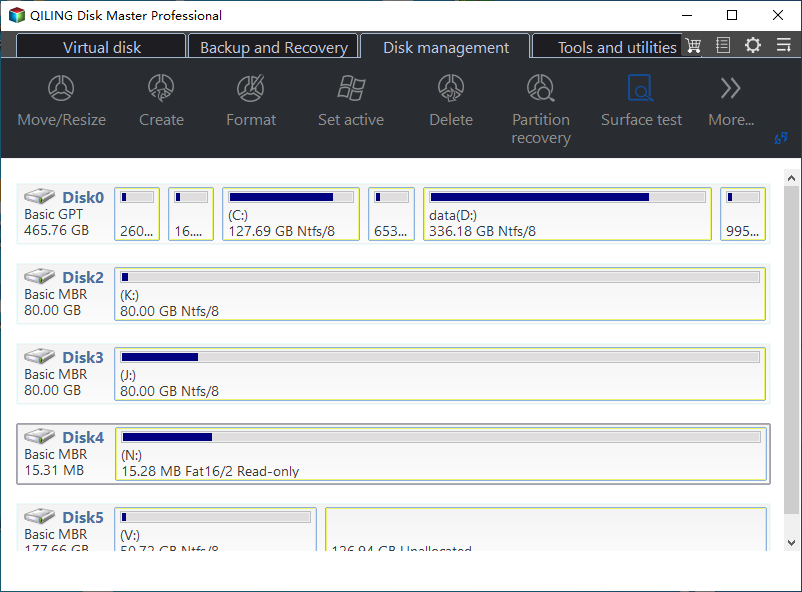
Step 1. Open Qiling Disk Master and check the whole disk map. Confirm where the C drive, data partition, recovery partition, and unallocated space are located.
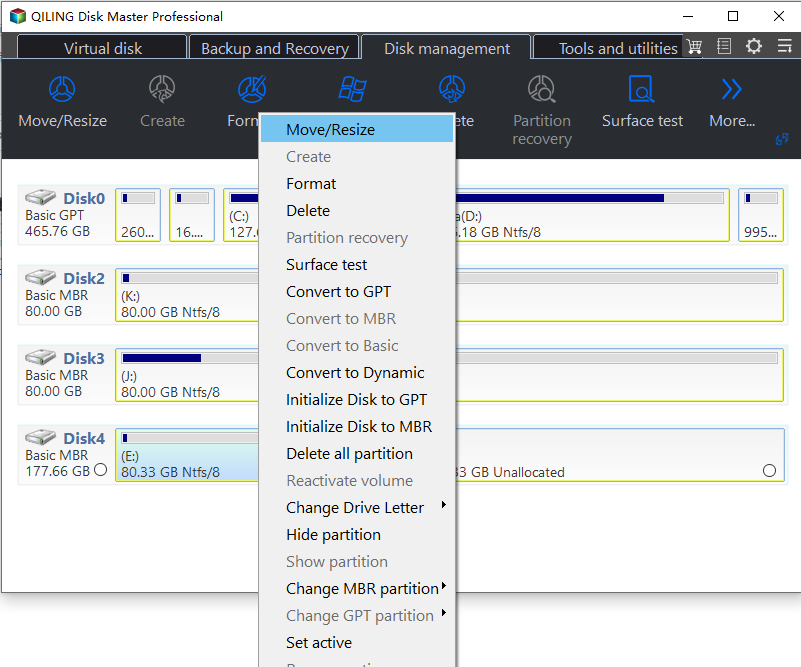
Step 2. Select the partition you want to change and choose Resize/Move. Drag the edge to shrink or extend it, or move the whole partition if unallocated space needs to be placed next to another volume.
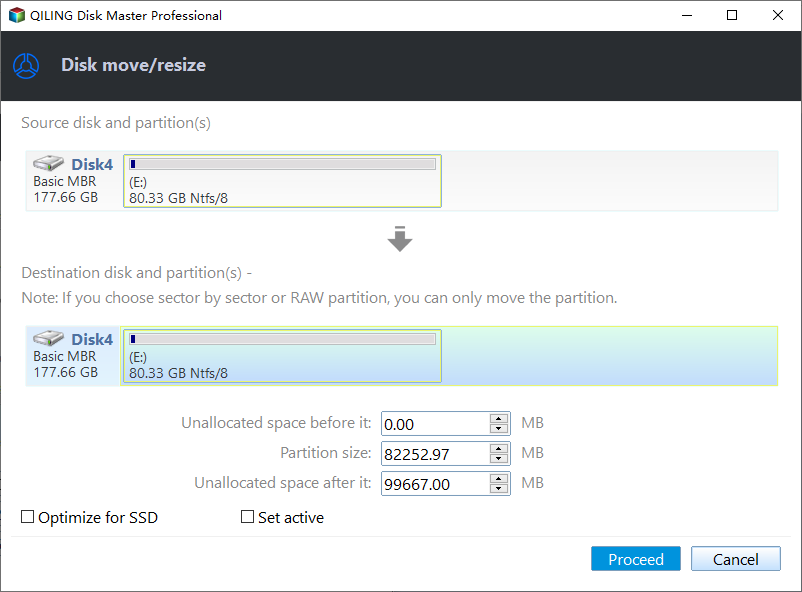
Step 3. If you are extending C drive, make sure the unallocated space is directly behind C drive. If another partition is in between, move that partition first and then extend C drive.
Step 4. Preview the pending changes. The list should match your plan exactly: move, resize, create, or format only the intended partition.
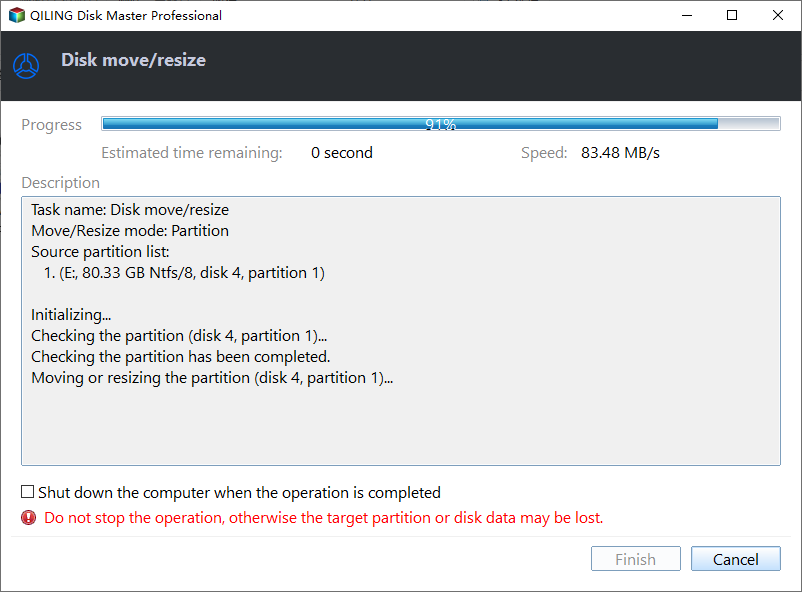
Step 5. Click Proceed. Keep the PC powered on and do not unplug external drives until the operation is complete.
FAQ
Should I repair Windows before backing up? If the disk is readable, back up first. Repair commands, formatting, resizing, and reset options can change data or boot records.
Can Windows built-in tools solve the issue? Often yes. Use Settings, Disk Management, Startup Repair, CHKDSK, SFC, or DISM first when the risk is low. Use Qiling tools when you need a clearer disk map, safer preview, or a full backup before changing the drive.
What should I avoid? Do not format a drive that still holds needed files, do not run clean commands on the wrong disk, and do not clone to a target disk that contains the only copy of important data.
Conclusion
Disk partitioning is easiest when you know the goal: create space, organize data, fix a file system, or prepare a disk. Use a preview-based tool for risky layouts.
Related Articles
- Windows Partition Management Tutorials
Find practical Windows partition guides for resizing, formatting, checking, converting, and repairing disks without unnecessary risk. - Windows Data Recovery Tutorials
Use these recovery guides when files are lost after formatting, partition errors, Windows repair, or accidental deletion.
Products
Articles & Tutorials
- Data Recovery
- Data Backup
- File Recovery
- File Backup
- System Backup and Restore
- Disk and Partition Clone
- Technical articles
- Mobile articles
- Disk Master Help
- Windows Data Recovery Tutorials
- Windows Secure Delete Tutorials
- Windows Partition Management Tutorials
- Windows File Backup and Restore Tutorials
- Windows System Backup and Restore Tutorials
- Windows Disk Backup and Restore Tutorials
- Windows Clone Tutorials