exFAT vs NTFS for External HDD: Which File System Is Better
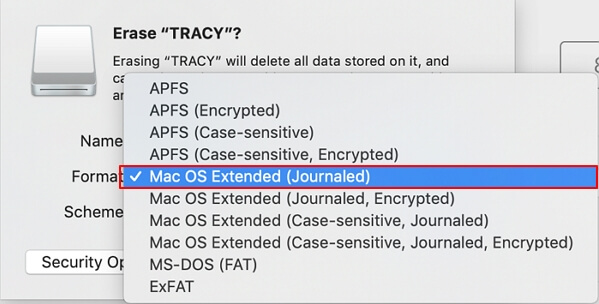
The file system controls how an external hard drive stores files, handles large files, and works across devices. NTFS is Windows-focused and supports permissions, compression, and large files. exFAT is simpler and works better across Windows, macOS, cameras, TVs, and other devices, but it lacks NTFS permission features.
What to Know First
- Use NTFS for Windows-only backup, work files, and drives needing permissions.
- Use exFAT for cross-platform transfer between Windows, macOS, and devices.
- Avoid FAT32 if files may be larger than 4GB.
- Back up data before reformatting from one file system to another.
Windows Method and Background
- Right-click the external HDD and choose Properties to check the current file system.
- If the drive is empty or backed up, right-click it and choose Format.
- Choose NTFS for Windows-only storage or exFAT for cross-device storage.
- Use Quick Format for a healthy drive.
- Copy a large test file to confirm the format meets your needs.
Use Qiling Disk Master to Format the External HDD
Before formatting, decide how the external HDD will be used. Formatting changes the file system and removes existing files from normal access, so back up needed data first.
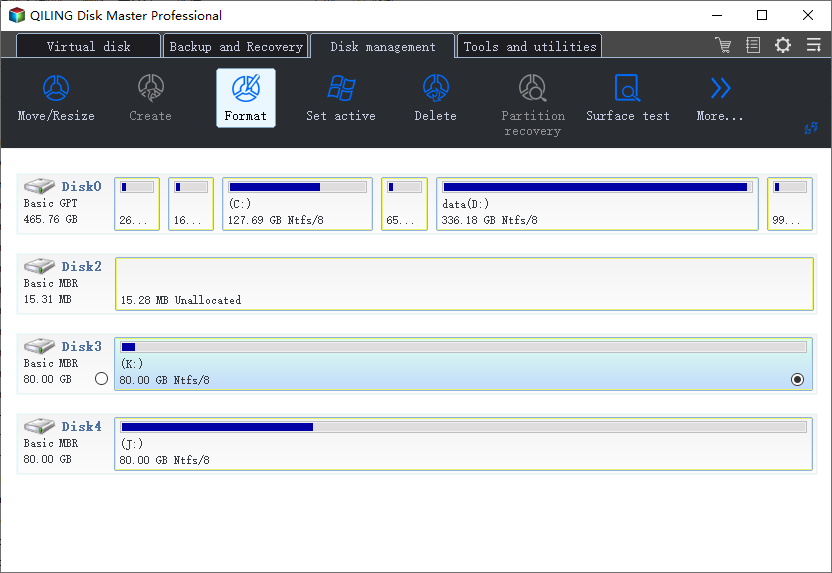
Step 1. Select the external HDD by model and capacity, then confirm the drive letter matches the disk you want to format.
Step 2. Choose Format for the target partition.
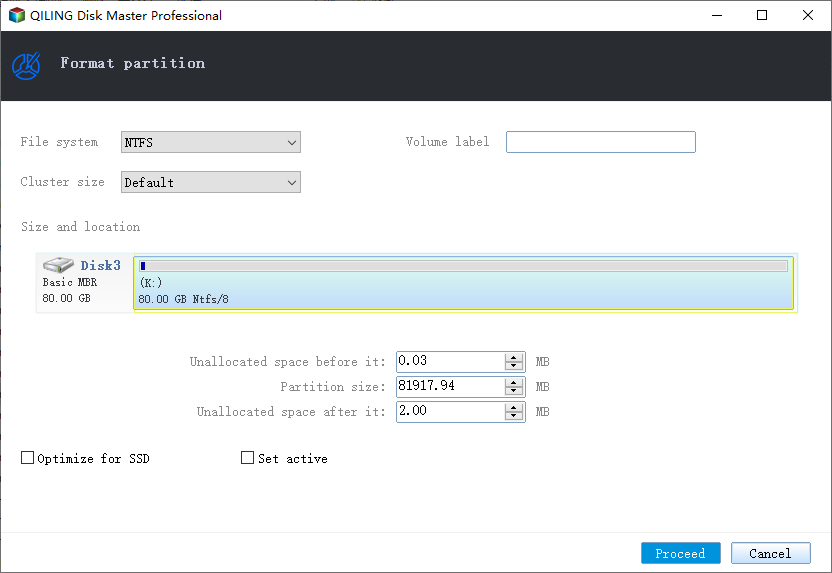
Step 3. Choose NTFS if the drive is mainly for Windows backup, permissions, work files, or large Windows-only storage.
Step 4. Choose exFAT if the drive needs to work with Windows, macOS, TVs, cameras, or other devices without the FAT32 4GB file limit.
Step 5. Enter a clear volume label, preview the operation, and confirm the correct external HDD is selected.
Step 6. Click Proceed. After formatting, copy a large test file and safely eject the drive before disconnecting it.
Conclusion
Choose NTFS for Windows reliability and permissions. Choose exFAT when the external HDD must move between Windows, macOS, TVs, cameras, or other devices.
Related Articles
Products
Articles & Tutorials
- Data Recovery
- Data Backup
- File Recovery
- File Backup
- System Backup and Restore
- Disk and Partition Clone
- Technical articles
- Mobile articles
- Disk Master Help
- Windows Data Recovery Tutorials
- Windows Secure Delete Tutorials
- Windows Partition Management Tutorials
- Windows File Backup and Restore Tutorials
- Windows System Backup and Restore Tutorials
- Windows Disk Backup and Restore Tutorials
- Windows Clone Tutorials