Extend C Drive Without Formatting in Windows
You can extend C drive without formatting when unallocated space can be placed directly behind it. If another partition blocks the space, move that partition first instead of deleting data blindly.
Before You Start
- Back up the system before resizing C drive.
- Check whether unallocated space is next to C drive.
- Do not delete Recovery or EFI partitions unless you have confirmed they are unused.
- Suspend BitLocker if C drive is encrypted.
Windows Method When Space Is Adjacent
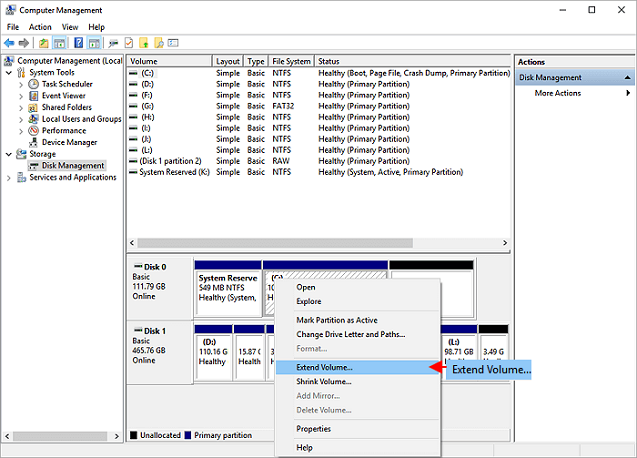
- Open Disk Management.
- Check whether unallocated space is directly to the right of C drive.
- Right-click C drive and choose Extend Volume.
- Follow the wizard and add the adjacent space.
- If Extend Volume is greyed out, the free space is probably not adjacent.
Use Qiling Disk Master When Space Is Not Adjacent
Step 1. Open Qiling Disk Master and locate C drive and the unallocated space.
Step 2. Select the partition between C drive and the free space.

Step 3. Choose Resize/Move and move that partition to the right.

Step 4. Click Proceed to complete the move if needed.
Step 5. Select C drive, extend it into the adjacent unallocated space, and click Proceed.
Conclusion
Formatting is not required to extend C drive. The key is to make the unallocated space adjacent and then resize C drive safely.
Related Articles
Products
Articles & Tutorials
- Data Recovery
- Data Backup
- File Recovery
- File Backup
- System Backup and Restore
- Disk and Partition Clone
- Technical articles
- Mobile articles
- Disk Master Help
- Windows Data Recovery Tutorials
- Windows Secure Delete Tutorials
- Windows Partition Management Tutorials
- Windows File Backup and Restore Tutorials
- Windows System Backup and Restore Tutorials
- Windows Disk Backup and Restore Tutorials
- Windows Clone Tutorials