Extend Volume Greyed Out in Windows Server 2016
On Windows Server 2016, Extend Volume is often greyed out because unallocated space is not directly to the right of the target partition.
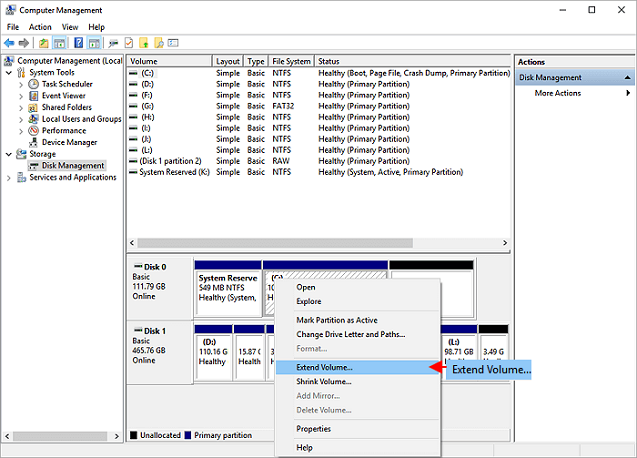
Common Causes
- Unallocated space is separated by a recovery or data partition.
- The partition uses a file system Windows cannot extend.
- The disk is MBR and has layout limits.
- You are trying to extend a system partition without adjacent space.
Server Safety Checklist
- Create a full server backup.
- Schedule downtime for system partition changes.
- Confirm the disk and volume in Server Manager or Disk Management.
- Move blocking partitions only after backup verification.
Use Qiling Disk Master to Extend the Server Volume
If Disk Management cannot extend the volume, first check where the unallocated space is. Qiling Disk Master can move or extend partitions with a preview, which is useful on Windows Server 2016 when a recovery, data, or OEM partition blocks the free space.
Case A. The Unallocated Space Is Next to the Target Volume
Step 1. Open Qiling Disk Master during a maintenance window. Find the target volume by disk number, drive letter, capacity, and file system. Make sure you are working on the correct Server 2016 disk.

Step 2. Right-click the target volume and choose Resize/Move. Drag the border toward the adjacent unallocated space, or enter the new size manually.

Step 3. Check the preview. If the layout is correct, click Proceed. If the system volume is involved, allow the server to restart and finish the operation before Windows loads.
Case B. Another Partition Blocks the Unallocated Space
Step 1. Identify the partition between the target volume and the unallocated space. If it stores data, back it up first. If BitLocker is enabled, unlock or suspend protection before changing the layout.
Step 2. Use Resize/Move on the blocking partition and move it to the right side of the disk, so the unallocated space becomes directly adjacent to the target volume.
Step 3. Select the target volume again, extend it into the adjacent unallocated space, review all pending operations, and click Proceed.
After the Server Restarts
- Open Disk Management and confirm the target volume shows the new size.
- Check key services, shared folders, and applications that use the extended volume.
- Review Event Viewer and your backup software to make sure no disk or VSS error appears after resizing.
Conclusion
Handle the visible symptom first, then protect data before any delete, format, resize, or clone action. If the disk layout is confusing, use a visual tool and confirm the target before you click Proceed.
For a ReFS volume, confirm the storage layout before applying NTFS-focused extension advice; see the ReFS volume extension guide for its specific checks.
Related Articles
Products
Articles & Tutorials
- Data Recovery
- Data Backup
- File Recovery
- File Backup
- System Backup and Restore
- Disk and Partition Clone
- Technical articles
- Mobile articles
- Disk Master Help
- Windows Data Recovery Tutorials
- Windows Secure Delete Tutorials
- Windows Partition Management Tutorials
- Windows File Backup and Restore Tutorials
- Windows System Backup and Restore Tutorials
- Windows Disk Backup and Restore Tutorials
- Windows Clone Tutorials