External SSD for Gaming on Windows
Choose and prepare an external SSD for gaming on Windows. Learn speed needs, file system choices, USB ports, and safe game migration tips.
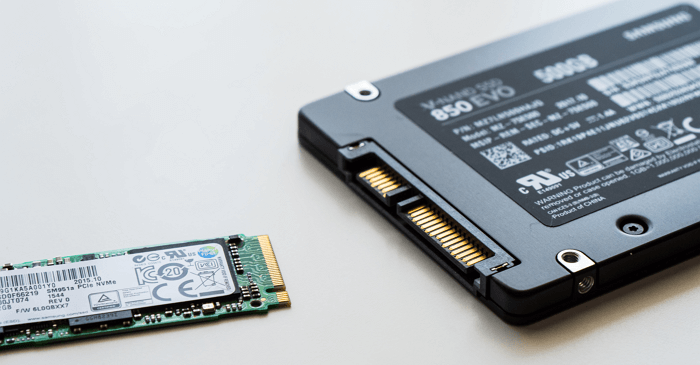
What Makes an External SSD Good for Games
A gaming external SSD should use a fast USB 3.2 or USB-C connection, have enough capacity for large game libraries, and use a Windows-friendly file system such as NTFS or exFAT. Slow cables and old USB ports can hide the SSD speed.
Prepare the Drive
- Use a reliable enclosure or branded external SSD.
- Connect it to the fastest port on the PC.
- Format as NTFS for Windows-only game libraries or exFAT for cross-device storage.
- Keep free space for game updates.
Use Qiling Disk Master When Windows Tools Are Not Enough
Qiling tools give you a visual way to review the disk state, protect files, and confirm risky operations before Windows repair, formatting, resizing, or cloning changes are applied.
Step 1. Connect the external SSD to the fastest available USB-C or USB 3.2 port. Avoid slow hubs when preparing a gaming drive.

Step 2. Open Qiling Disk Master and select the external SSD by model and capacity. Back up any existing files before formatting.
Step 3. Choose Format. Select NTFS for a Windows-only game library, or exFAT if the SSD also needs to work with other devices.
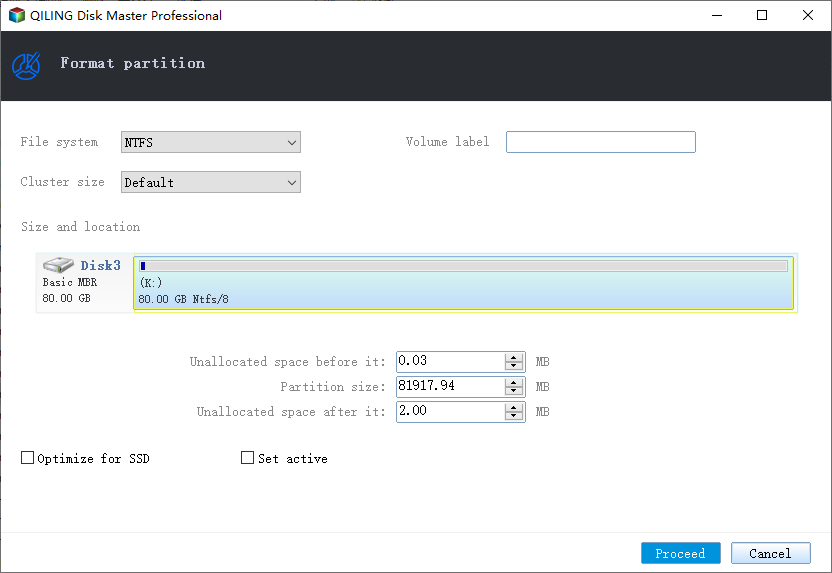
Step 4. Enter a label such as GameSSD and keep the default cluster size unless a game platform recommends otherwise.
Step 5. Preview the format task and click Proceed.
Step 6. After formatting, set the game launcher library folder on the external SSD and install or move one game first to test loading stability.
Conclusion
Start with the Windows checks that match your symptom, protect important data before formatting or repartitioning, and use the Qiling workflow when you need a clearer, safer way to repair the disk or move data.
Related Articles
Products
Articles & Tutorials
- Data Recovery
- Data Backup
- File Recovery
- File Backup
- System Backup and Restore
- Disk and Partition Clone
- Technical articles
- Mobile articles
- Disk Master Help
- Windows Data Recovery Tutorials
- Windows Secure Delete Tutorials
- Windows Partition Management Tutorials
- Windows File Backup and Restore Tutorials
- Windows System Backup and Restore Tutorials
- Windows Disk Backup and Restore Tutorials
- Windows Clone Tutorials