Find Large Files on Windows 11 and Free Disk Space
Find large files on Windows 11, decide what is safe to remove, and back up or move files before cleaning C drive.
What This Problem Usually Means
Large files can fill C drive quickly, especially game folders, downloads, virtual machines, old installers, videos, and backup images. The goal is to identify files safely before deleting or moving them.
What to Check First
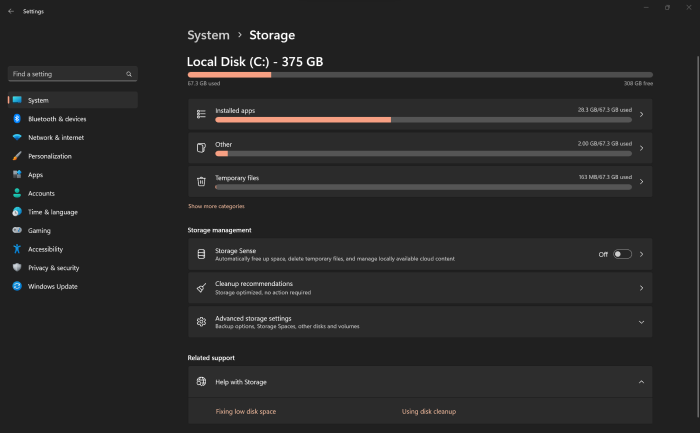
- Use Settings > System > Storage to review categories.
- Check Downloads, Videos, Desktop, and game libraries.
- Do not delete Windows, Program Files, or unknown system folders manually.
- Move personal files to another drive or backup location.
- Extend C drive only when cleanup is not enough and adjacent free space is available.
Find Large Files First, Then Fix Low Disk Space
Qiling Disk Master is not a file search tool. First use Windows 11 tools to find large files safely. After you delete, move, or back up files, use Qiling Disk Master only when C drive still needs more space from another partition or unallocated space.
Part 1: Find Large Files in Windows 11
Step 1. Open Settings > System > Storage. Wait for Windows to calculate Apps, Temporary files, Documents, Pictures, Videos, and Other categories.
Step 2. Open the largest category first. Check Downloads, Videos, Desktop, virtual machine folders, game libraries, ISO files, and old installers.
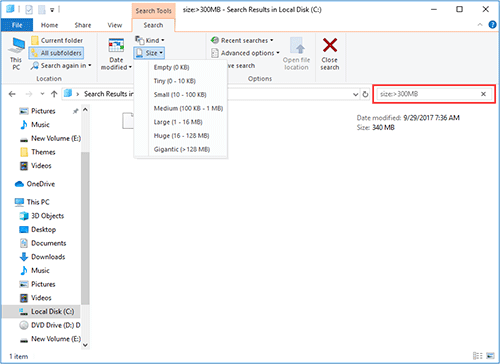
Step 3. Move personal files to another drive or back them up before deleting. Do not manually delete files from Windows, Program Files, ProgramData, or unknown system folders.
Step 4. Empty Recycle Bin and run Storage Sense only after checking what will be removed. This prevents deleting downloads or temporary files you still need.
Part 2: Extend C Drive If Cleanup Is Not Enough
Step 1. Open Qiling Disk Master and check whether unallocated space is directly behind C drive. If it is, select C drive and choose Resize/Move.
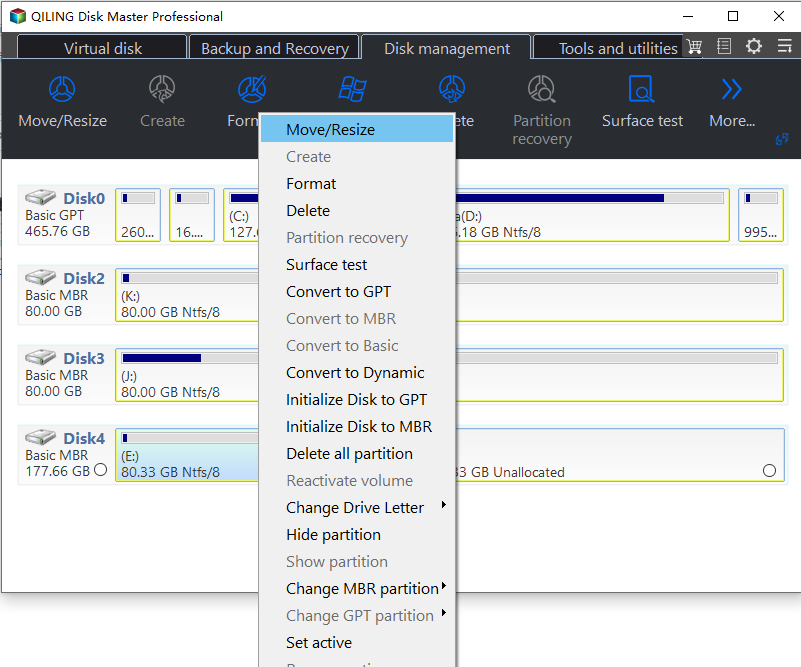
Step 2. Drag the right edge of C drive to take the adjacent unallocated space. Keep enough free space on the other partitions if you shrink them.
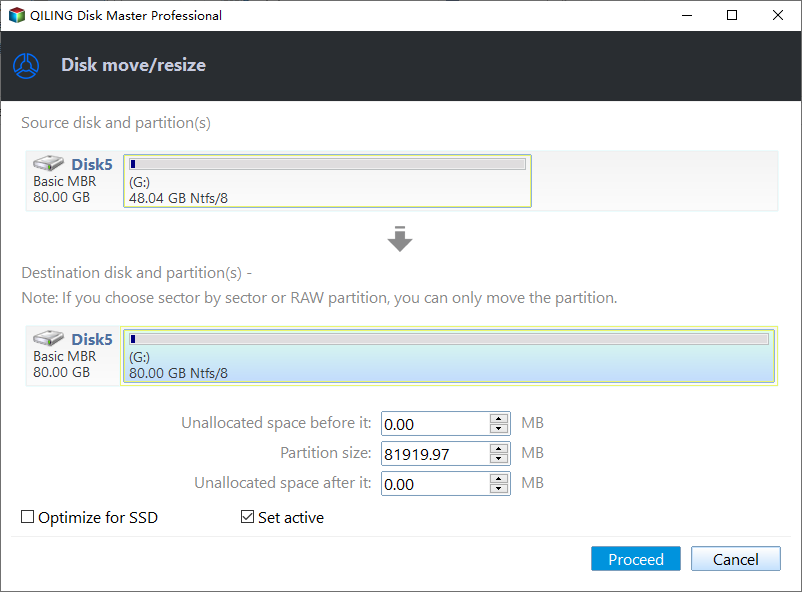
Step 3. If another partition sits between C drive and unallocated space, move that partition to the right first. Do this only after backing up important files from that partition.
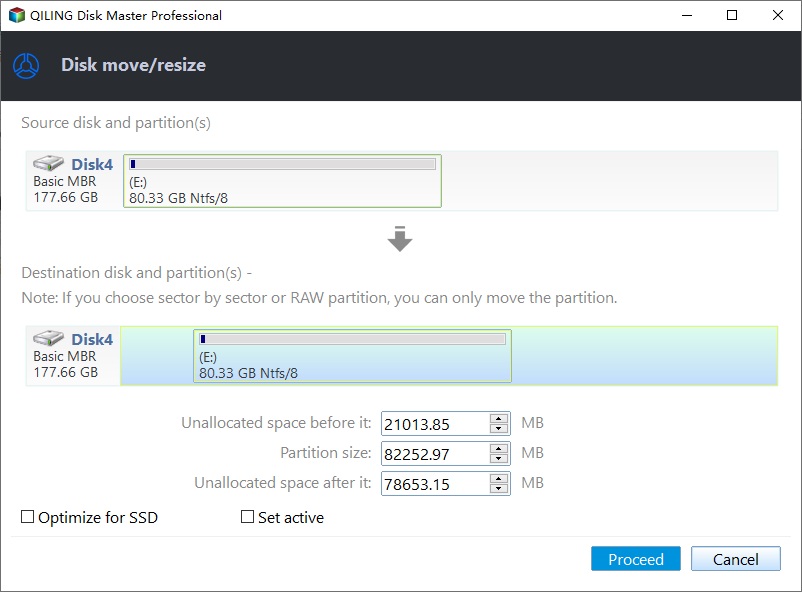
Step 4. Preview the operation list. It should show the move or resize operations you planned and nothing else.
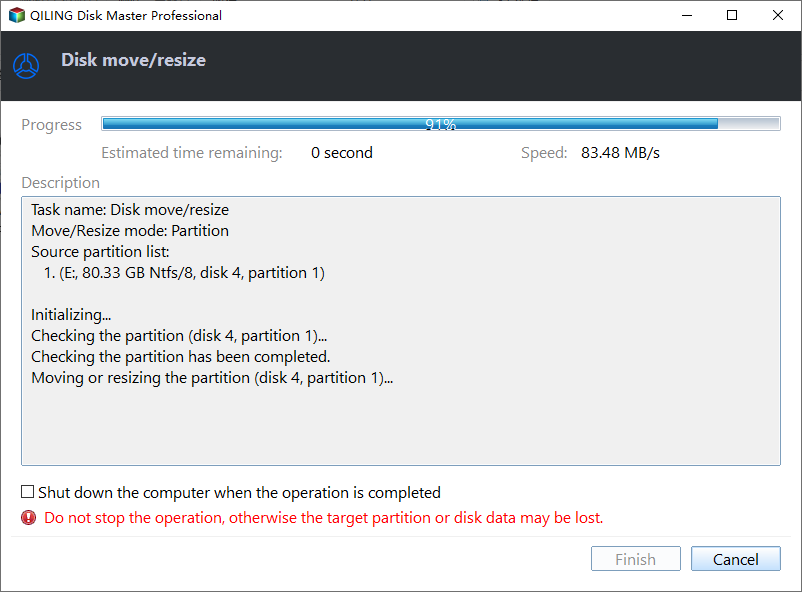
Step 5. Click Proceed. After Windows restarts or the operation finishes, open File Explorer and confirm C drive has the expected free space.
FAQ
Should I make changes before backing up? If the disk is readable and the files matter, back up first. Repairs, formatting, conversion, and cloning can change boot records or partition data.
When should I use Windows built-in tools? Use Settings, Disk Management, Startup Repair, CHKDSK, SFC, DISM, or account recovery first when the issue is simple and the risk is low.
When does Qiling help? Use Qiling tools when you need a clearer disk map, a bootable recovery environment, backup before repair, partition preview, disk cloning, or controlled password recovery on an authorized PC.
Conclusion
Finding large files is safer than deleting folders blindly. Move or back up personal files first, then resize partitions only when storage layout needs to change.
Related Articles
- Windows Partition Management Tutorials
Find practical Windows partition guides for resizing, formatting, checking, converting, and repairing disks without unnecessary risk. - Windows System Backup and Restore Tutorials
Browse Windows backup and restore guides for system images, recovery drives, restore points, and safe repair preparation.
Products
Articles & Tutorials
- Data Recovery
- Data Backup
- File Recovery
- File Backup
- System Backup and Restore
- Disk and Partition Clone
- Technical articles
- Mobile articles
- Disk Master Help
- Windows Data Recovery Tutorials
- Windows Secure Delete Tutorials
- Windows Partition Management Tutorials
- Windows File Backup and Restore Tutorials
- Windows System Backup and Restore Tutorials
- Windows Disk Backup and Restore Tutorials
- Windows Clone Tutorials