Fix Cannot Convert GPT to MBR in Windows
Fix GPT to MBR conversion problems in Windows. Learn why conversion fails, how to back up, and when not to convert a boot disk.
What This Problem Usually Means
Windows may refuse to convert GPT to MBR when the disk has partitions, is larger than 2TB, contains a running Windows installation, or is required for UEFI boot. Converting the wrong disk can make Windows unbootable.
What to Check First
- Back up the disk before conversion.
- Check whether the PC needs UEFI/GPT to boot.
- Do not convert a Windows 11 boot disk unless you know the firmware supports Legacy boot.
- Use MBR only for compatibility with older systems or tools.
Convert GPT to MBR with Qiling Disk Master
Use this workflow only when the target computer or device really requires MBR. If the disk is a Windows 11 boot disk, a UEFI system disk, or larger than 2TB, keeping GPT is usually safer.
Before Conversion
Step 1. Check why GPT cannot be converted to MBR. If Windows Disk Management shows the option as unavailable, the disk may contain partitions, be a system disk, be larger than 2TB, or be required for UEFI boot.
Step 2. Back up the disk first. Conversion changes the partition table, and a boot disk may fail to start if the firmware mode is not changed correctly after conversion.
Step 3. Confirm the target disk by model and capacity. Do not choose the Windows system disk unless you have a boot plan and a full backup.
Convert a Data Disk from GPT to MBR
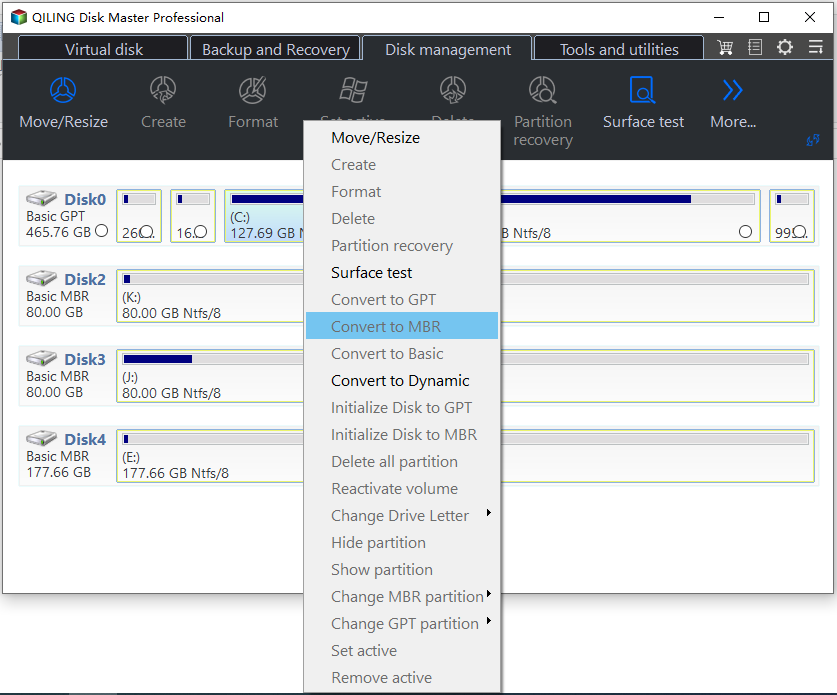
Step 1. Open Qiling Disk Master and review the disk map. Select the whole GPT disk, not a single partition.
Step 2. Choose the conversion option from GPT to MBR. If the disk contains more than four primary-style partitions or uses capacity beyond 2TB, reduce the layout first or keep GPT.
Step 3. Preview the pending operation. The list should show only the intended disk conversion. If it also shows delete, format, or resize operations you did not plan, cancel and recheck the target disk.
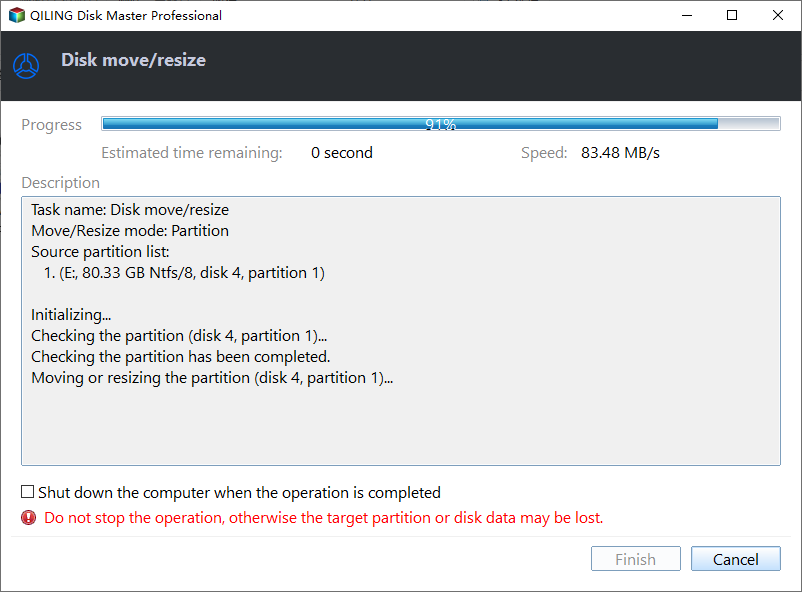
Step 4. Click Proceed and wait for the conversion to finish. Do not unplug the disk during the operation.
If It Is a Boot Disk
Step 1. Make sure the computer supports Legacy BIOS boot. A GPT/UEFI Windows installation will not normally boot as MBR/Legacy without boot repair and firmware changes.
Step 2. After conversion, enter BIOS and switch the boot mode to Legacy or CSM if the machine supports it. Then set the converted disk as the first boot device.
Step 3. If Windows does not start, use boot repair from recovery media. If the PC is designed for UEFI only, convert back to GPT or restore the backup instead of forcing MBR.
FAQ
Should I make changes before backing up? If the disk is readable and the files matter, back up first. Repairs, formatting, conversion, and cloning can change boot records or partition data.
When should I use Windows built-in tools? Use Settings, Disk Management, Startup Repair, CHKDSK, SFC, DISM, or account recovery first when the issue is simple and the risk is low.
When does Qiling help? Use Qiling tools when you need a clearer disk map, a bootable recovery environment, backup before repair, partition preview, disk cloning, or controlled password recovery on an authorized PC.
Conclusion
GPT to MBR conversion is not always the right fix. If the computer uses UEFI or the disk is larger than 2TB, keeping GPT is usually safer.
Related Articles
- Windows Partition Management Tutorials
Find practical Windows partition guides for resizing, formatting, checking, converting, and repairing disks without unnecessary risk. - Windows System Backup and Restore Tutorials
Browse Windows backup and restore guides for system images, recovery drives, restore points, and safe repair preparation.
Products
Articles & Tutorials
- Data Recovery
- Data Backup
- File Recovery
- File Backup
- System Backup and Restore
- Disk and Partition Clone
- Technical articles
- Mobile articles
- Disk Master Help
- Windows Data Recovery Tutorials
- Windows Secure Delete Tutorials
- Windows Partition Management Tutorials
- Windows File Backup and Restore Tutorials
- Windows System Backup and Restore Tutorials
- Windows Disk Backup and Restore Tutorials
- Windows Clone Tutorials