How to Force a Hard Drive to Format to FAT32
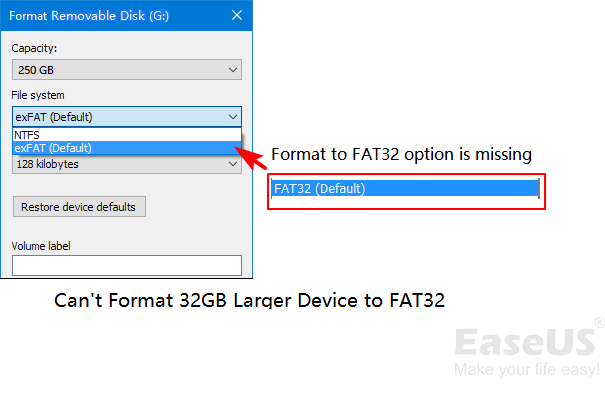
If Windows only offers NTFS or exFAT, you may still need FAT32 for a specific device. Confirm the device requirement before forcing the format.
Before Formatting
- Copy important files to another drive.
- Check whether the target device really requires FAT32.
- Remember that formatting erases the selected partition.
- Use exFAT instead if you need files larger than 4GB.
Windows Options
Disk Management may not offer FAT32 for large partitions. DiskPart can format some drives, but large FAT32 formatting is easier with a visual partition tool because you can confirm the correct disk before proceeding.
Use Qiling Disk Master to Format the Drive to FAT32
Use this method when Windows does not show FAT32 for a large USB drive, SD card, or external hard drive. Formatting removes files from the selected partition, so confirm the target drive before you continue.
Step 1. Select the Target Partition
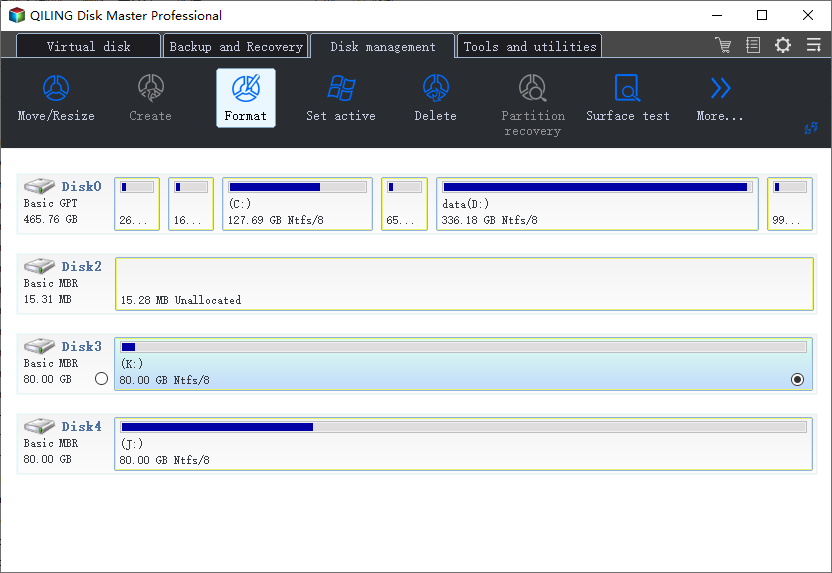
Open Qiling Disk Master and find the drive by capacity, drive letter, and device name. Select the partition you want to format. If the drive has several partitions, check each size carefully before choosing one.
Step 2. Choose Format
Right-click the selected partition and choose Format. This formats the selected partition only, not the whole disk, unless you delete and recreate all partitions first.
Step 3. Set FAT32 and the Volume Label
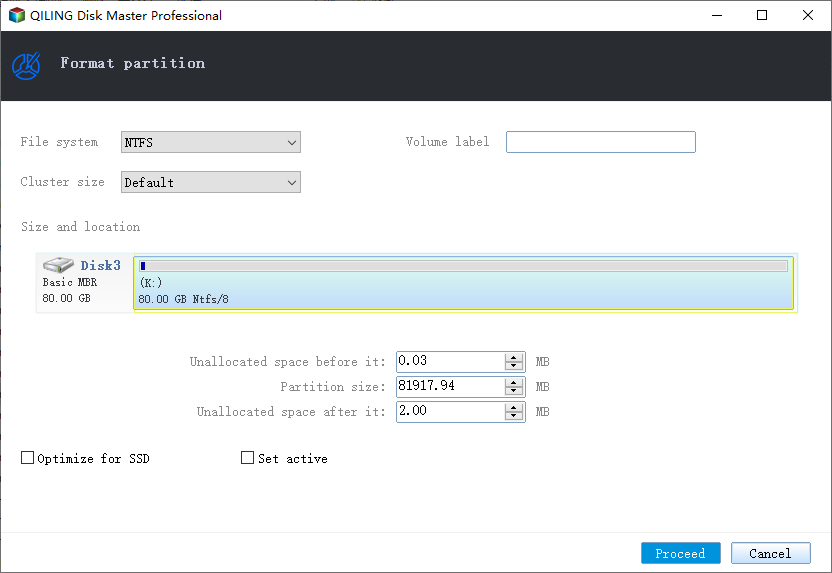
Select FAT32 as the file system. Enter a simple volume label if needed. Keep the default cluster size unless the target device requires a specific value.
Step 4. Preview and Click Proceed
Review the pending operation and confirm the correct partition will be formatted. Click Proceed, wait for the format to finish, and reconnect the drive if Windows does not refresh the file system immediately.
Conclusion
FAT32 is useful for older devices, but it is not always the best choice. Use it only when your camera, console, boot tool, or device requires FAT32, and back up files before formatting.
Related Articles
Products
Articles & Tutorials
- Data Recovery
- Data Backup
- File Recovery
- File Backup
- System Backup and Restore
- Disk and Partition Clone
- Technical articles
- Mobile articles
- Disk Master Help
- Windows Data Recovery Tutorials
- Windows Secure Delete Tutorials
- Windows Partition Management Tutorials
- Windows File Backup and Restore Tutorials
- Windows System Backup and Restore Tutorials
- Windows Disk Backup and Restore Tutorials
- Windows Clone Tutorials