Format a 64GB Flash Drive to FAT32 Free
A 64GB flash drive can use FAT32, but Windows built-in format tools may not offer FAT32 above 32GB. FAT32 is useful for devices that require it, but it cannot store a single file larger than 4GB.
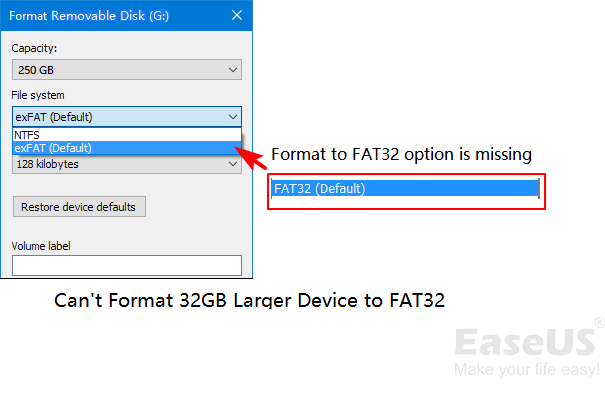
What to Know First
- Back up files before formatting the 64GB flash drive.
- Use FAT32 only when the target device requires it.
- Use exFAT if you need large files and broad device support.
- Confirm the USB drive by capacity before formatting.
Windows Method and Background
- Connect the 64GB flash drive and check its drive letter.
- Try File Explorer or Disk Management first.
- If FAT32 does not appear, do not repeatedly format as NTFS by mistake.
- Use a FAT32-capable formatting tool after backup.
Use Qiling Disk Master to Format 64GB USB to FAT32
Step 1. Select the 64GB flash drive by capacity and drive letter.
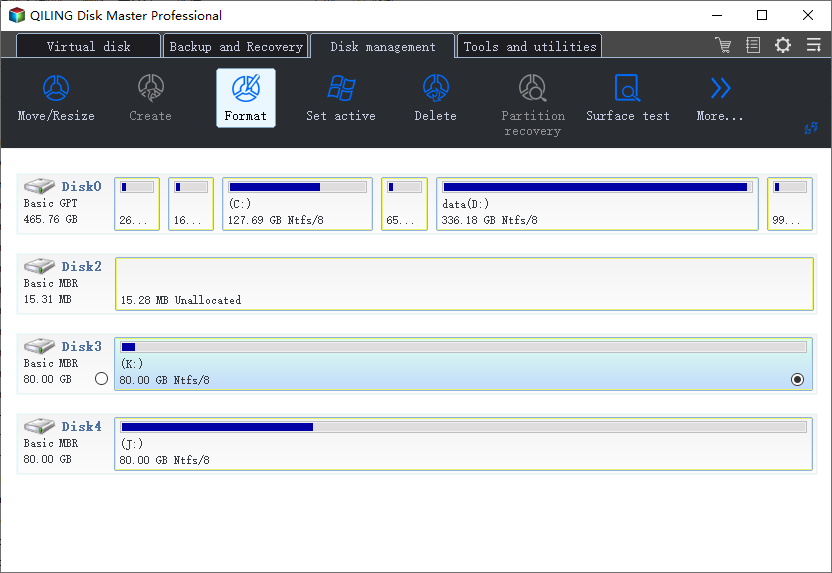
Step 2. Choose Format for the target USB partition.
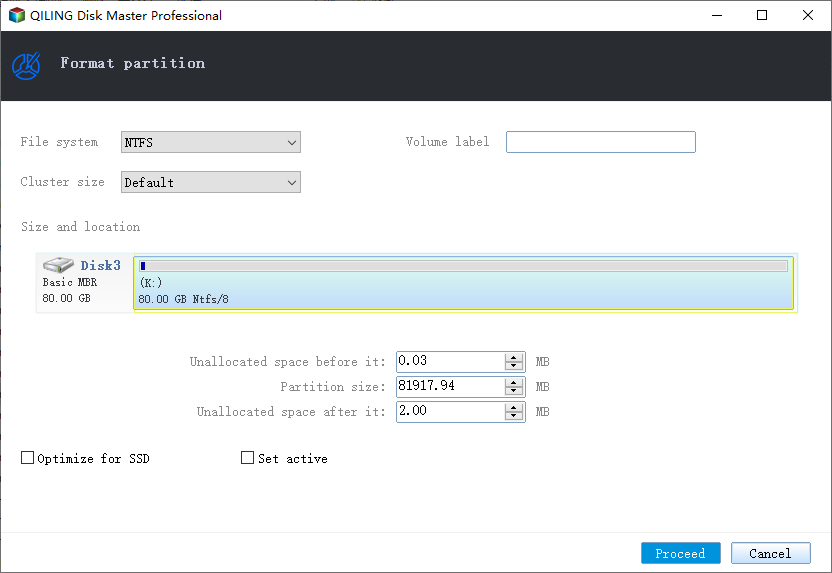
Step 3. Select FAT32 as the file system and enter a volume label.
Step 4. Preview the operation and confirm the correct USB drive is selected.
Step 5. Click Proceed and test the USB on the target device.
Conclusion
A 64GB flash drive is not too large for FAT32, but Windows may hide the option. Format it as FAT32 only when the device requires it.
Related Articles
Products
Articles & Tutorials
- Data Recovery
- Data Backup
- File Recovery
- File Backup
- System Backup and Restore
- Disk and Partition Clone
- Technical articles
- Mobile articles
- Disk Master Help
- Windows Data Recovery Tutorials
- Windows Secure Delete Tutorials
- Windows Partition Management Tutorials
- Windows File Backup and Restore Tutorials
- Windows System Backup and Restore Tutorials
- Windows Disk Backup and Restore Tutorials
- Windows Clone Tutorials