Format an External Hard Disk to FAT32 When Only NTFS Shows
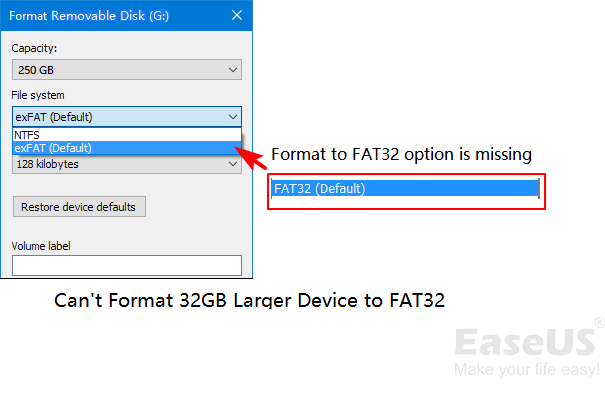
Windows may show only NTFS or exFAT when an external hard disk is larger than 32GB. If an older device, media player, camera, or tool requires FAT32, use a partition tool that can format the target partition as FAT32.
Before You Start
- Back up all files from the external hard disk because formatting erases the selected partition.
- Confirm the device really requires FAT32.
- Remember that FAT32 cannot store a single file larger than 4GB.
- Use exFAT instead if you need large files and the target device supports it.
Windows Check
- Connect the external hard disk and open File Explorer.
- Right-click the drive, choose Properties, and check the current file system.
- Open Disk Management and confirm the drive by capacity and disk number.
- If FAT32 is not listed in the Format window, do not keep repeating the same Windows format step.
- Back up the files, then use a FAT32-capable partition tool.
Use Qiling Disk Master to Format the External Hard Disk to FAT32
Step 1. Open Qiling Disk Master and select the external hard disk by capacity, drive letter, and partition layout. Do not select the internal Windows disk.
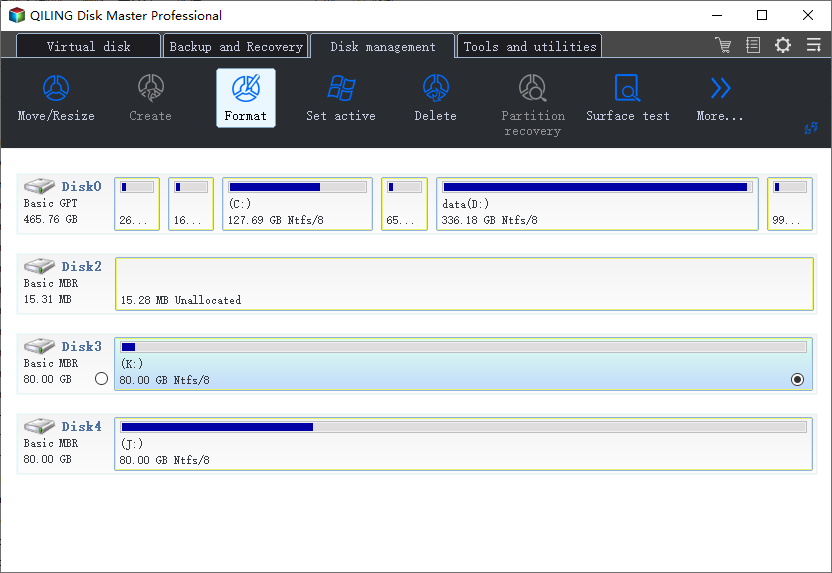
Step 2. Right-click the target partition and choose Format. If the disk has several partitions, select only the partition that must become FAT32.
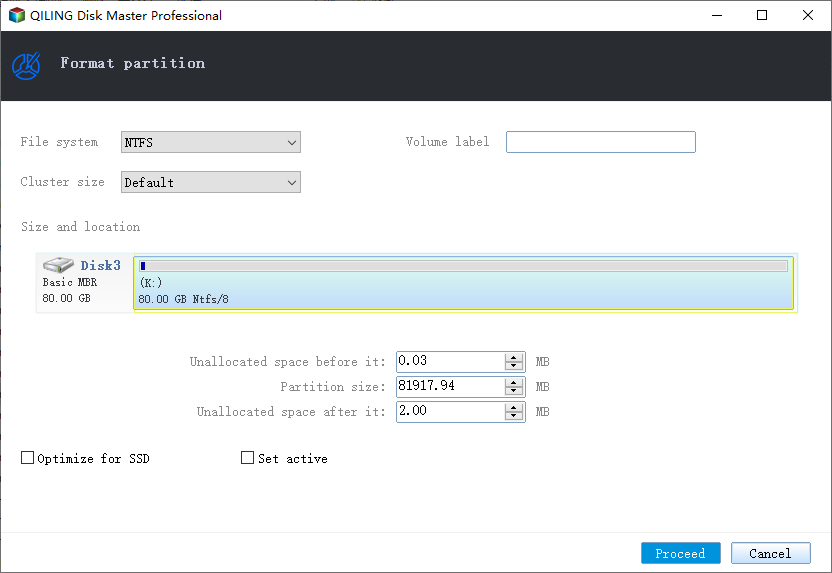
Step 3. Select FAT32 as the file system, enter a clear volume label, and keep the default cluster size unless the target device requires another setting.
Step 4. Preview the operation and confirm that only the external hard disk partition will be formatted.
Step 5. Click Proceed. When formatting is complete, reconnect the external hard disk and test it on the device that requires FAT32.
Conclusion
When Windows only shows NTFS, it usually means the built-in formatter is limiting FAT32 options on a large drive. Back up files first, confirm FAT32 is truly required, and format the correct external partition with preview.
Related Articles
Products
Articles & Tutorials
- Data Recovery
- Data Backup
- File Recovery
- File Backup
- System Backup and Restore
- Disk and Partition Clone
- Technical articles
- Mobile articles
- Disk Master Help
- Windows Data Recovery Tutorials
- Windows Secure Delete Tutorials
- Windows Partition Management Tutorials
- Windows File Backup and Restore Tutorials
- Windows System Backup and Restore Tutorials
- Windows Disk Backup and Restore Tutorials
- Windows Clone Tutorials