Can You Format a Locked Encrypted BitLocker Drive
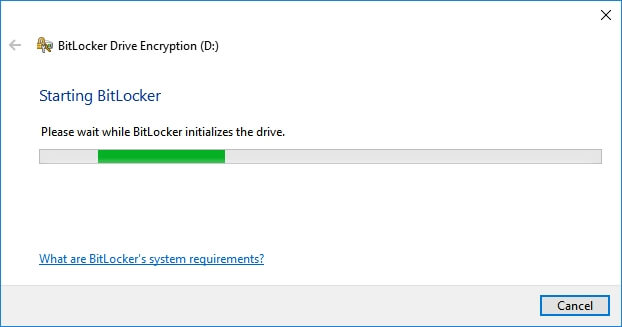
BitLocker encrypts the contents of a drive. If the drive is locked, Windows cannot read the files without the password or recovery key. Formatting a locked BitLocker drive may be possible in some cases, but it destroys access to encrypted data. If you need the files, unlock the drive first.
What to Know First
- Do not format if you need files and do not have the recovery key.
- Try the password or BitLocker recovery key first.
- Back up files after unlocking and before formatting.
- Make sure you are formatting the correct encrypted drive.
Windows Method and Background
- Open File Explorer and try to unlock the BitLocker drive.
- If you have the recovery key, use it to unlock the drive.
- Copy needed files to another safe location.
- If you no longer need the data, format the drive from File Explorer or Disk Management.
- Choose NTFS or exFAT depending on future use.
Use Qiling Disk Master After Unlocking or Choosing to Erase
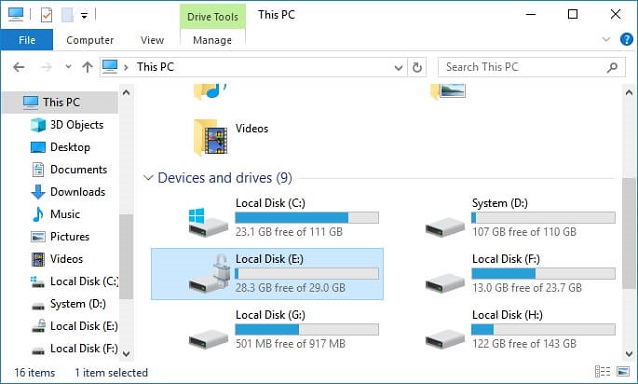
Open Qiling Disk Master and identify the BitLocker drive by capacity, drive letter, and disk position. Decide first whether the files are still needed.
Case A. You Have the Password or Recovery Key
Step 1. Unlock the BitLocker drive in Windows with the password or recovery key.
Step 2. Copy important files to another safe drive before making any format changes.
Step 3. In Qiling Disk Master, select the unlocked BitLocker partition and choose Format.
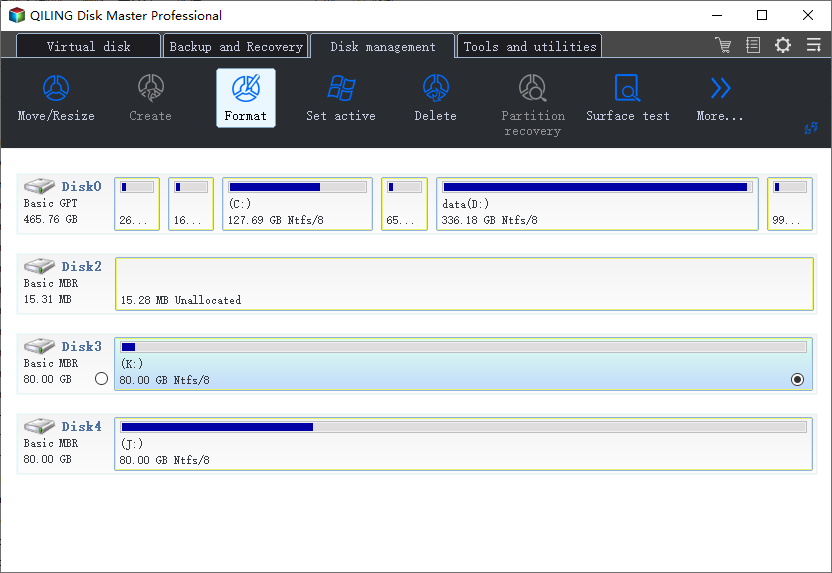
Step 4. Set NTFS for Windows storage or exFAT for removable cross-device use, then enter a volume label.
Step 5. Preview the task and click Proceed only after the correct BitLocker drive is listed.
Case B. You Cannot Unlock the Drive and Do Not Need the Data
Step 1. Confirm that the encrypted files can be permanently erased. Formatting will not recover or decrypt them.
Step 2. Select the locked BitLocker partition by capacity and disk location, not by drive letter alone.
Step 3. Choose Format, select the new file system, and enter a new label.
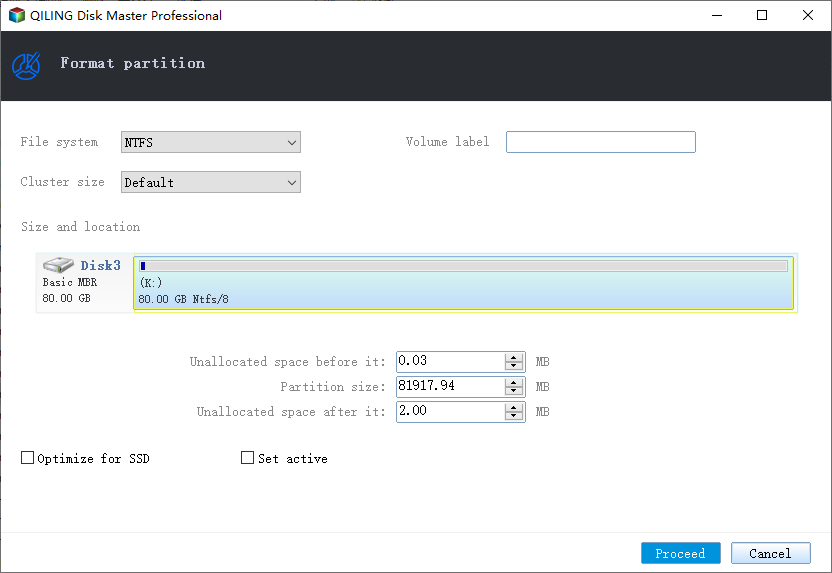
Step 4. Preview the operation, confirm no other drive is selected, and click Proceed.
Case C. You Need the Data but Cannot Unlock It
Step 1. Stop the format process. Search for the BitLocker recovery key in your Microsoft account, printed records, Active Directory, or organization portal.
Step 2. Try recovery only after the drive is unlocked. If the key is unavailable, formatting will only make the encrypted data inaccessible permanently.
Conclusion
You can format a BitLocker drive only when you accept that the encrypted data will be lost. Unlock and back up first if the files matter.
Related Articles
Products
Articles & Tutorials
- Data Recovery
- Data Backup
- File Recovery
- File Backup
- System Backup and Restore
- Disk and Partition Clone
- Technical articles
- Mobile articles
- Disk Master Help
- Windows Data Recovery Tutorials
- Windows Secure Delete Tutorials
- Windows Partition Management Tutorials
- Windows File Backup and Restore Tutorials
- Windows System Backup and Restore Tutorials
- Windows Disk Backup and Restore Tutorials
- Windows Clone Tutorials