Free Hard Drive Testing and Diagnostic Software for Windows
Use hard drive testing and diagnostic software to check bad sectors, file system errors, and backup needs.
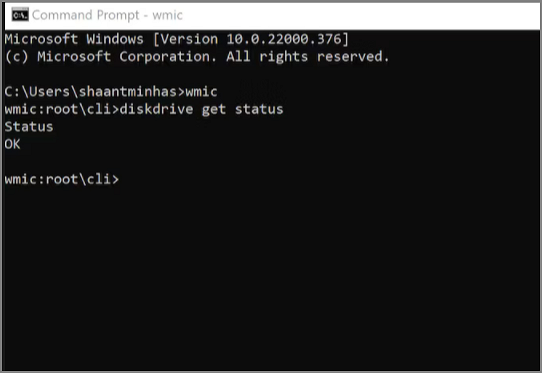
When to Test a Hard Drive
Run a diagnostic test when a drive is slow, clicks, disappears, shows SMART warnings, causes copy errors, or makes Windows freeze. Testing helps you decide whether repair is enough or replacement is safer.
What to Check First
- Check cables, USB ports, and power adapters.
- Read SMART status with a trusted tool.
- Run a surface test before formatting.
- Back up or clone the drive if bad sectors appear.
Check Disk Health with Qiling Disk Master
Testing a drive helps separate software errors from hardware trouble. If the drive clicks, disconnects, or reports many bad sectors, back up or clone it before running heavy repair operations.
Run a Surface Test
- Open Disk management, select the disk or partition, and choose Surface test.
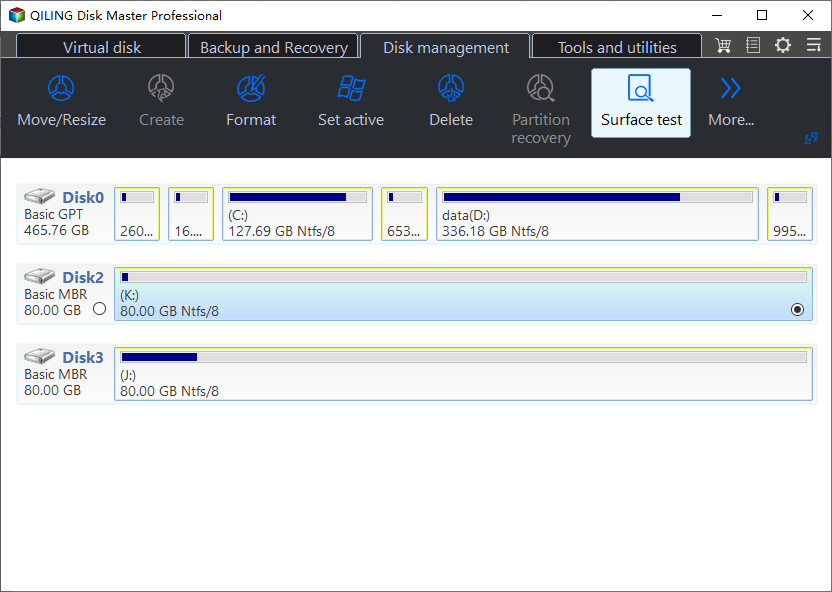
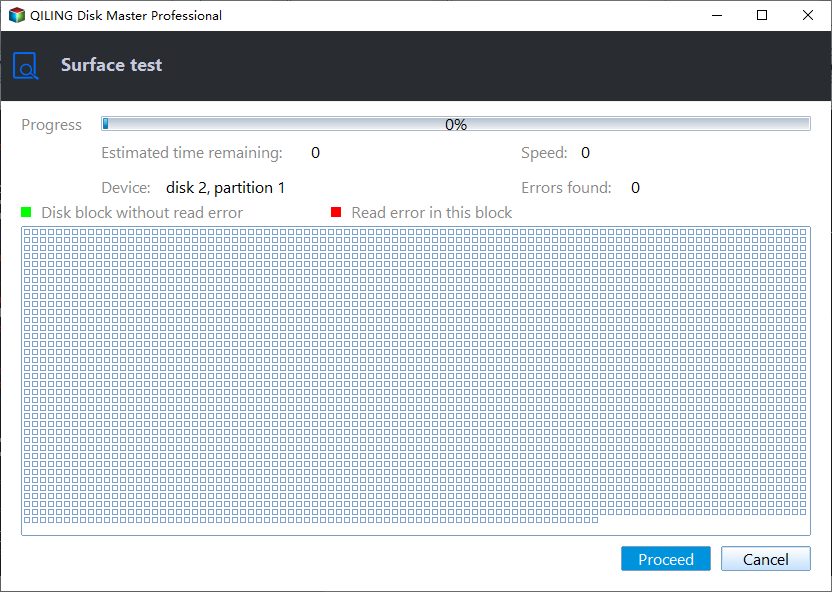
- Start the scan and wait for the result. Do not interrupt the test on a drive that is already unstable.
Decide the Next Step
- If no bad sectors are found, continue with Windows checks such as CHKDSK, driver updates, or cable replacement.
- If many bad sectors appear, stop using the disk for daily work. Create a disk image or clone it to a healthy drive before the condition gets worse.
Create a Disk Image with Qiling Disk Master
A disk image is useful after diagnostic warnings because it keeps partitions, boot files, and data together. Use it before factory reset, hardware changes, risky partition repair, or drive replacement.
Select Disk Backup
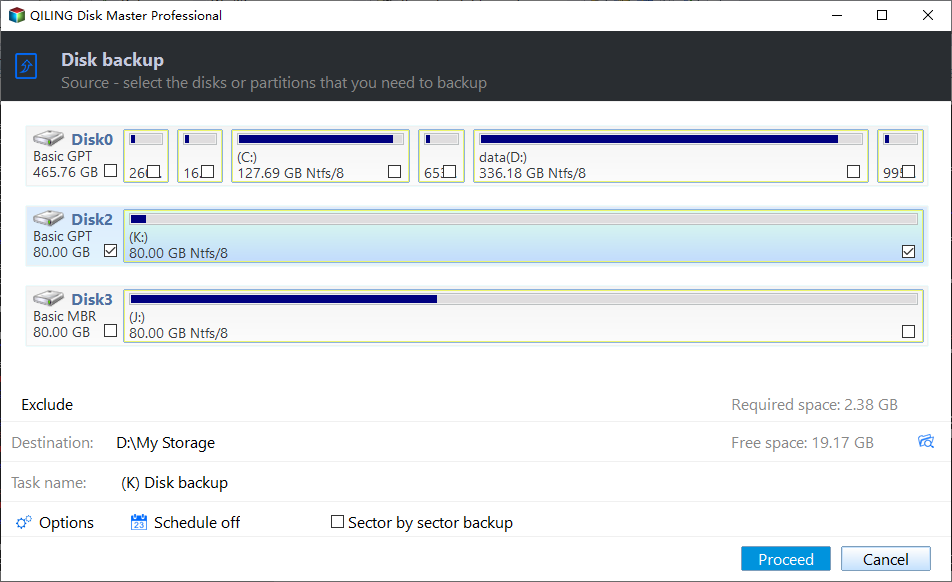
- Open Qiling Disk Master, choose Disk Backup, and add the disk that contains Windows or important files.
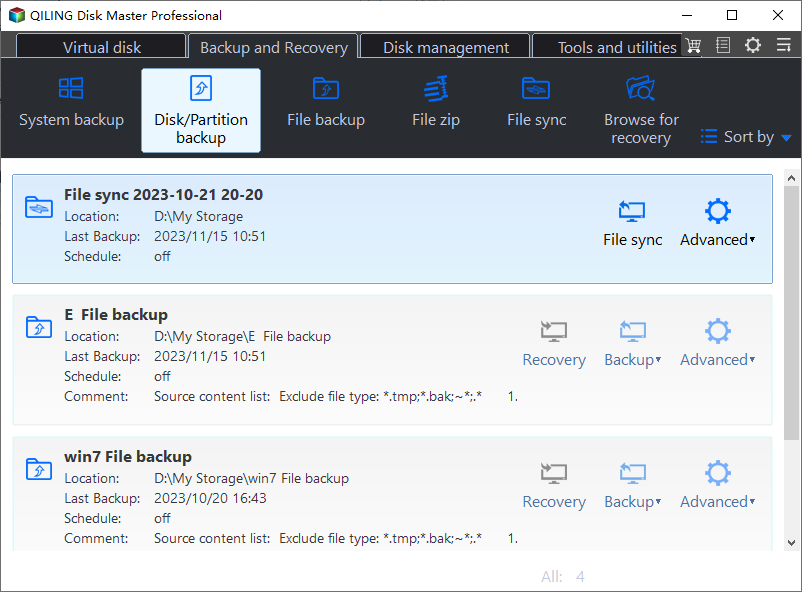
- Confirm the disk by capacity, model, and partition layout. If the PC has several similar disks, label them first or disconnect the disk you will not back up.
Choose Destination and Start
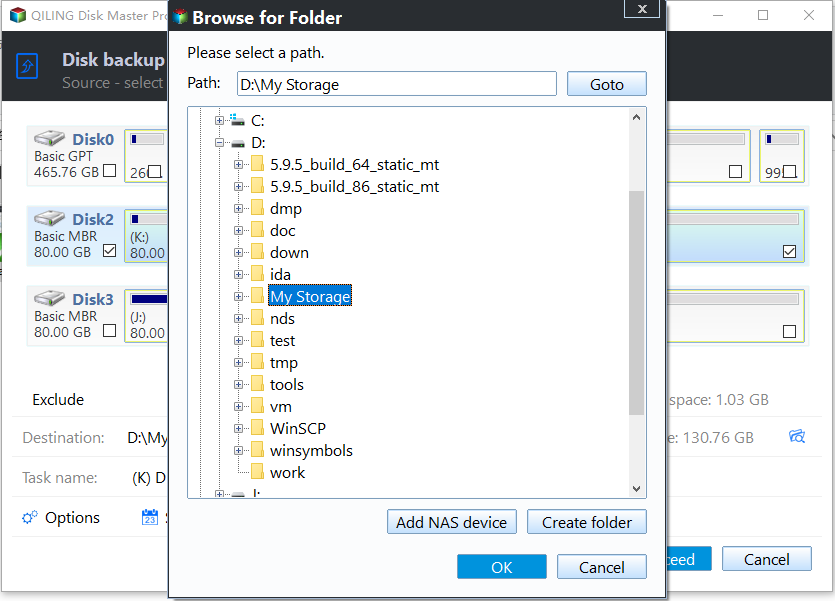
- Save the image to an external drive, NAS, or a different internal disk with enough free space.
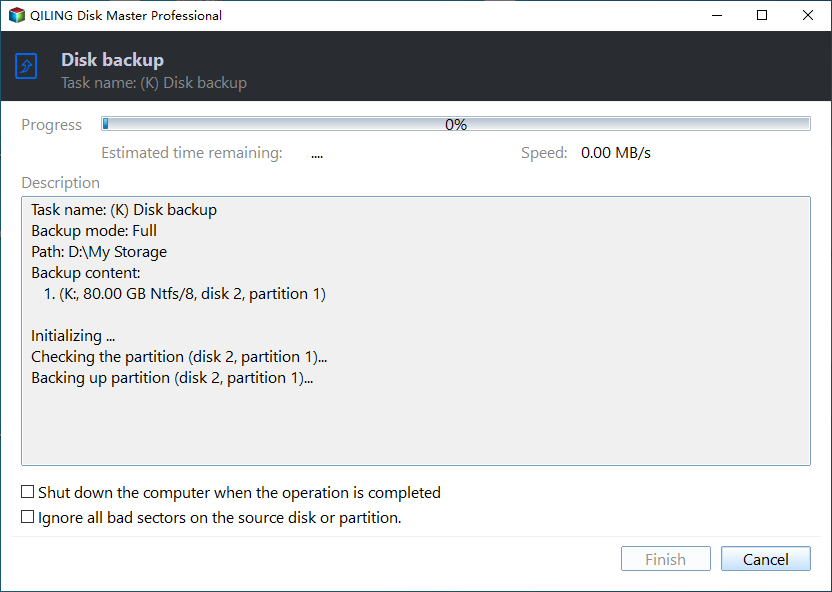
- Click Proceed. Keep the computer powered on and do not unplug the backup drive until the task finishes.
Related Articles
- Windows Partition Management Tutorials
Find practical Windows partition guides for resizing, formatting, checking, converting, and repairing disks without unnecessary risk. - Windows System Backup and Restore Tutorials
Browse Windows backup and restore guides for system images, recovery drives, restore points, and safe repair preparation.
Products
Articles & Tutorials
- Data Recovery
- Data Backup
- File Recovery
- File Backup
- System Backup and Restore
- Disk and Partition Clone
- Technical articles
- Mobile articles
- Disk Master Help
- Windows Data Recovery Tutorials
- Windows Secure Delete Tutorials
- Windows Partition Management Tutorials
- Windows File Backup and Restore Tutorials
- Windows System Backup and Restore Tutorials
- Windows Disk Backup and Restore Tutorials
- Windows Clone Tutorials