Free SSD Clone Software for Windows: What to Check
The word 'free' can mean a fully usable cloning function, a limited edition, or only a free installer. Before relying on any SSD clone tool, verify its current license, supported Windows version, source and target disk types, and whether the boot-disk operation you need is included.
Choose a Tool by the Job
For a boot-drive replacement, the tool must migrate Windows and its EFI or System Reserved partitions, not just C: files. For a data-only SSD, a partition or file copy may be sufficient. A sector-by-sector option copies unused space too and normally requires a target at least as large in actual sectors; it is not needed for most healthy Windows migrations.
Compare the vendor's current license page, not an old download article. A free edition may support data disks but restrict operating-system migration. Also consider whether the tool can run while Windows is active, create rescue media, and show a source/destination preview. Back up first; cloning overwrites the destination but is not itself a versioned backup.
Use Qiling System Clone When Licensed
The exact Qiling edition and license terms should be checked before starting. The following interface sequence shows a supported system-clone workflow; it does not claim that every edition is free.
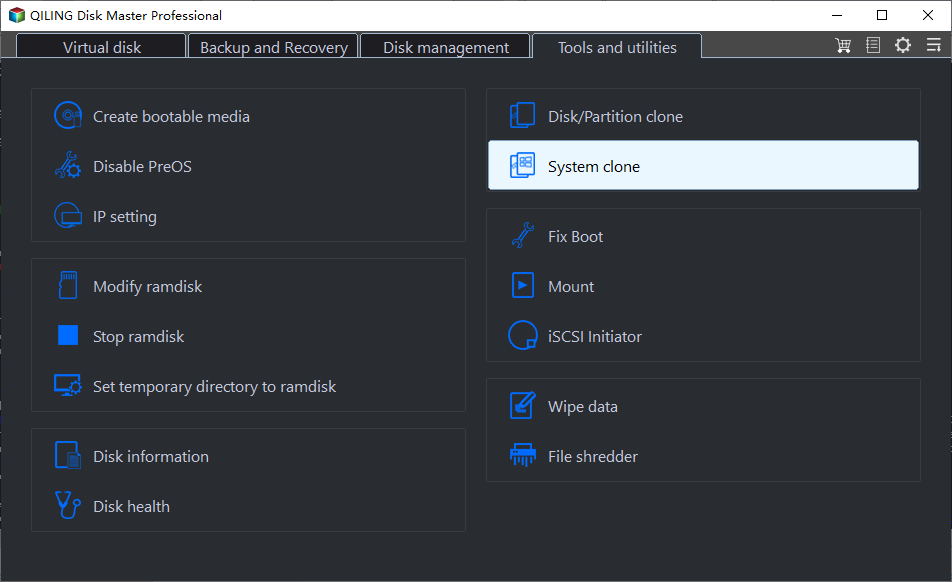
Step 1. Connect the SSD and verify its model, interface, capacity, and important existing contents. Open Tools and utilities > System clone.
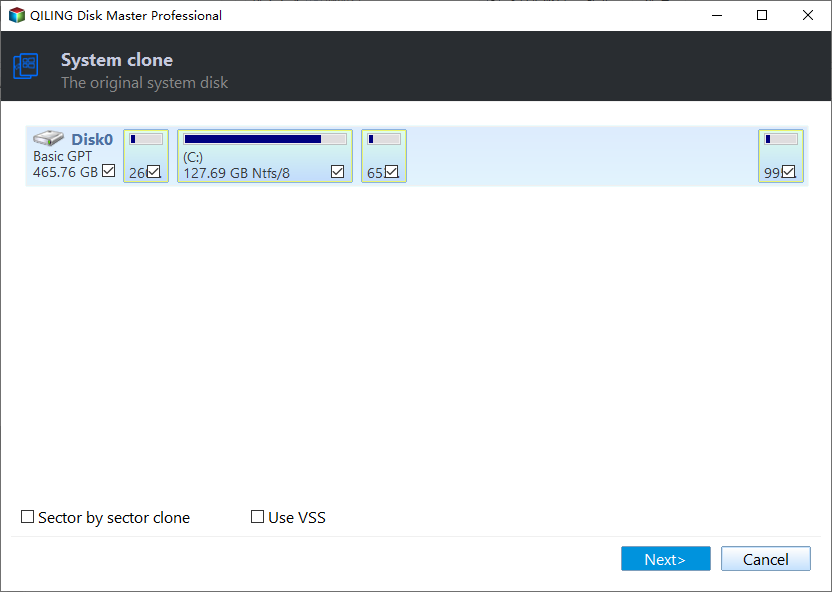
Step 2. Check that Qiling identified the Windows source and all boot-related partitions. Click Next; this is a system clone, not an arbitrary copy of one visible volume.
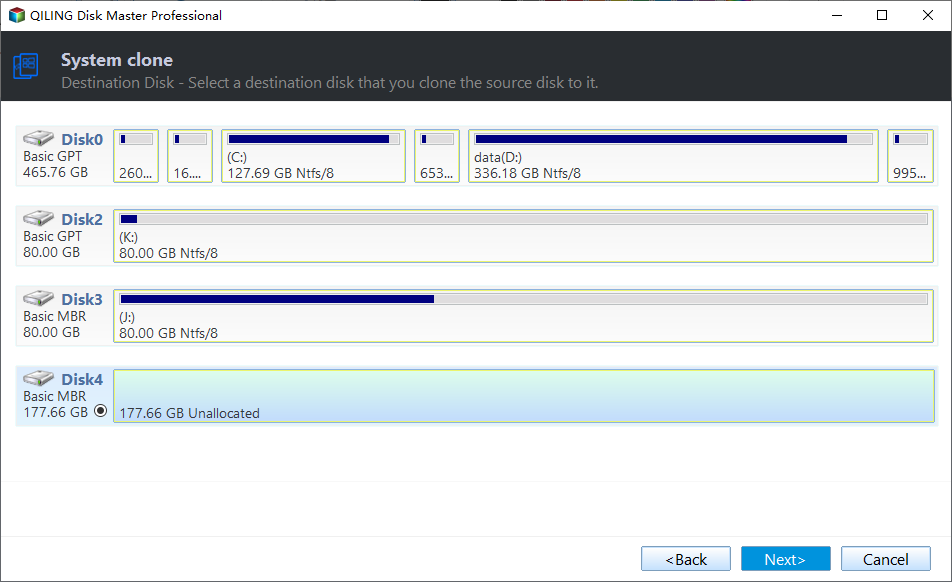
Step 3. Select the SSD destination by model and actual capacity. Confirm it contains no needed data, then click Next.
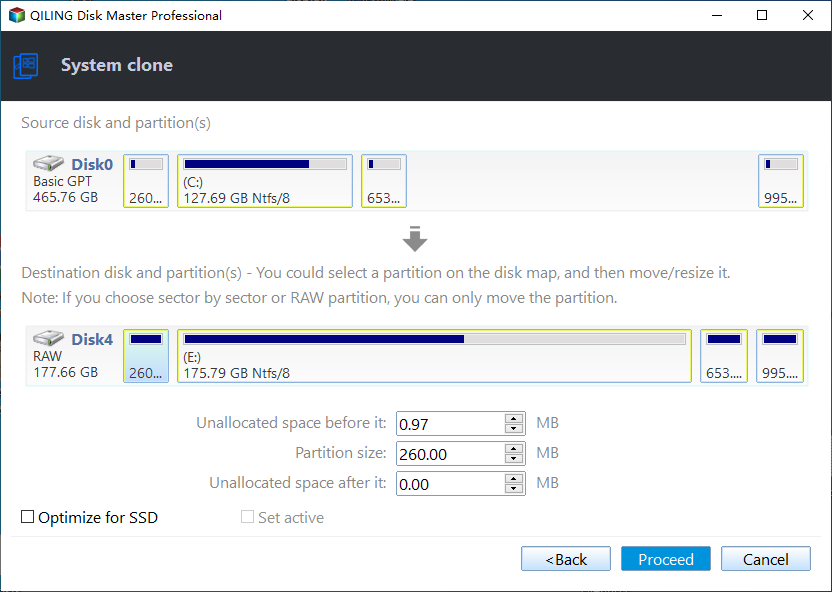
Step 4. Inspect the preview and SSD optimization option. Check the destination layout, click Proceed, confirm the overwrite warning, and wait for a successful completion.
Test the SSD Before Reusing the Old Disk
Shut down and install the SSD in the intended internal slot. Disconnect the original Windows disk for the first boot when practical, or explicitly select the SSD's Windows Boot Manager in firmware. Check Windows startup, files, key applications, activation, and BitLocker state. Do not format the old disk until the SSD passes several starts and a separate backup exists.
If the SSD is larger but C: did not grow, inspect the partition map before resizing; a recovery partition may sit between C: and unallocated space. If the new SSD does not boot, check cable or slot compatibility, UEFI/Legacy mode, and the source's health before running repairs.
Free Alternatives and Limits
Windows itself can create backup images or installation media, but copying C: in File Explorer is not bootable cloning. Open-source tools may require offline boot media and careful disk identification. Use official downloads, verify the operation is included in the license you have, and avoid 'crack' builds that may expose both source and destination data.
Conclusion
Select software by the exact clone operation and current license, protect the source data, and treat an independent first boot as part of the migration.
Related Articles
- Fastest Way to Clone a Hard Drive
Understand what affects cloning time. - Transfer Windows 11 to Another SSD
Prepare BitLocker and verify startup after a clone.
Products
Articles & Tutorials
- Data Recovery
- Data Backup
- File Recovery
- File Backup
- System Backup and Restore
- Disk and Partition Clone
- Technical articles
- Mobile articles
- Disk Master Help
- Windows Data Recovery Tutorials
- Windows Secure Delete Tutorials
- Windows Partition Management Tutorials
- Windows File Backup and Restore Tutorials
- Windows System Backup and Restore Tutorials
- Windows Disk Backup and Restore Tutorials
- Windows Clone Tutorials