GPT Formatted Disk Legacy Boot Not Supported: Fix UEFI Boot
Fix GPT formatted disk legacy boot not supported by matching GPT with UEFI or converting only when appropriate.
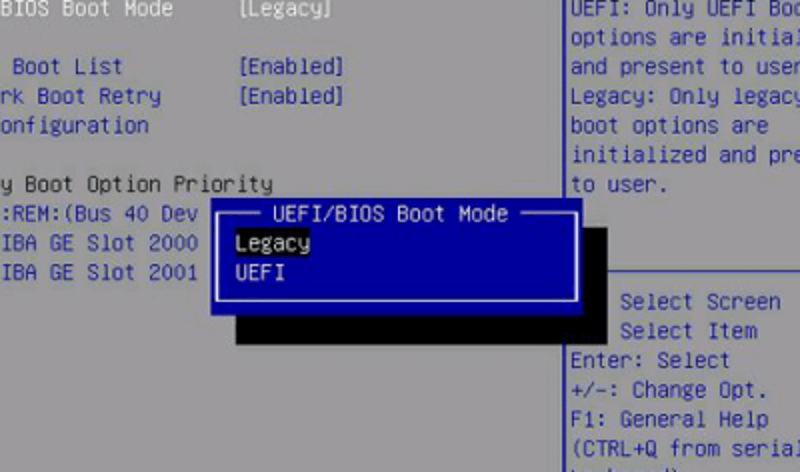
Why This Error Appears
The message usually means the PC is trying to boot a GPT system disk in Legacy BIOS mode. GPT boot normally requires UEFI. Changing random boot settings can make the problem worse, so check the disk style and firmware mode first.
What to Check First
- Confirm whether the disk is GPT or MBR.
- Open BIOS/UEFI and check whether UEFI mode is enabled.
- Set Windows Boot Manager as the first boot option when available.
- Back up the disk before converting partition style.
Fix GPT and Legacy Boot Mismatch with Qiling Disk Master
A GPT disk normally boots through UEFI. If the PC is set to Legacy BIOS, Windows may not start from a GPT system disk even when the files are intact.
Check Partition Style and Boot Mode
Do these checks before converting a disk or rebuilding boot records. The partition style and firmware mode must match: a GPT Windows system disk needs UEFI, while an MBR Windows system disk normally uses Legacy or CSM boot mode.
- Open Qiling Disk Master and select Disk management. Find the disk that contains the Windows partition by its disk number, capacity, drive letters, and partition layout. Read the label beside the disk number: Basic GPT means it is a GPT disk, while Basic MBR means it is an MBR disk.
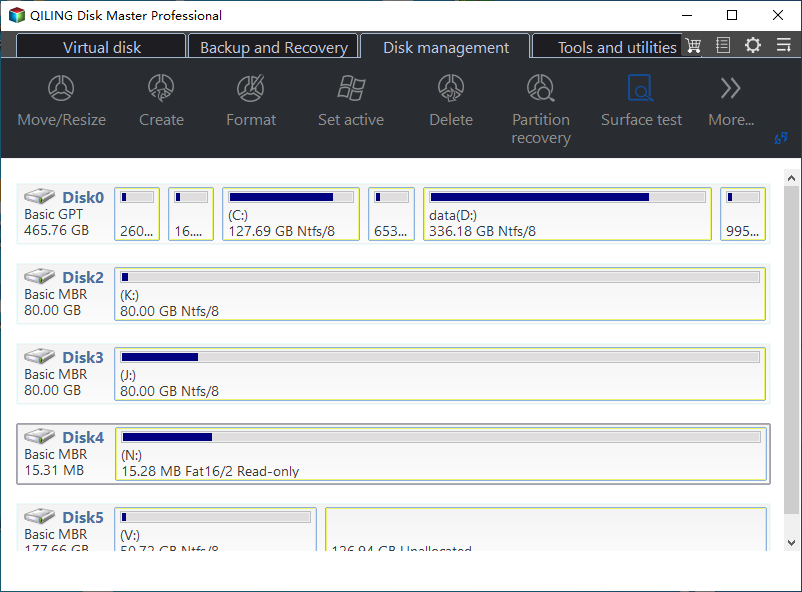
- Write down the result before restarting. If the Windows disk is GPT, do not choose Legacy or CSM boot mode. If it is MBR, do not switch it to UEFI until you have a backup and a clear plan to convert the whole system disk to GPT.
- Restart the PC and enter firmware settings by pressing the setup key shown during startup, commonly F2, Del, Esc, or F10. Open the Boot, Startup, or Boot Mode page. The exact menu name depends on the computer manufacturer.
- Match the boot setting to the disk style. For a GPT Windows disk, enable UEFI, disable Legacy or CSM if the firmware requires a single mode, and place Windows Boot Manager first in the boot order. Save the setting and restart. For an MBR Windows disk, keep Legacy or CSM mode enabled and do not select Windows Boot Manager unless the firmware already identifies that disk as a UEFI installation.
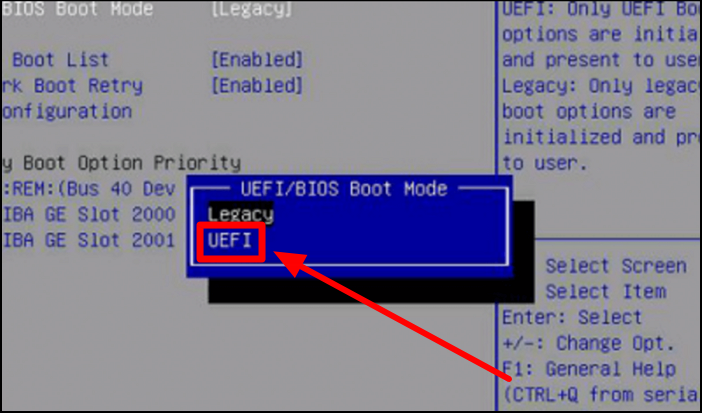
How to use the result: If the disk is GPT and the firmware was set to Legacy or CSM, switch to UEFI first. If the disk is GPT and UEFI is already enabled but Windows still does not start, continue to Fix Boot below. If the disk is MBR and you want to use UEFI, create a backup and use the conversion steps in the next section before changing the firmware mode.
Convert Only When the Boot Plan Is Clear
- If the disk is MBR and the PC supports UEFI, select the whole disk and choose Convert to GPT.
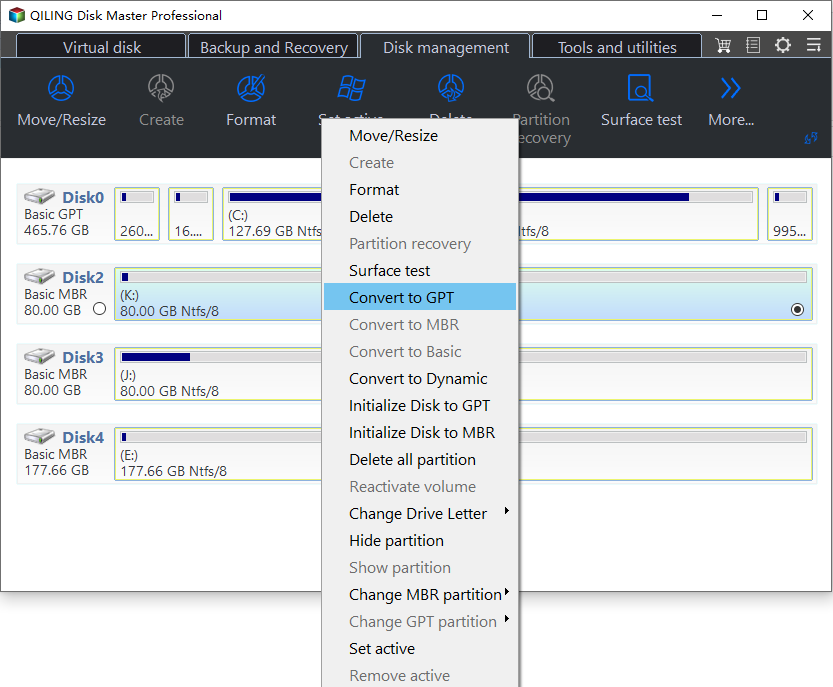
- Click Proceed only after checking that the operation targets the correct disk. After conversion, switch the firmware to UEFI before booting Windows.
Repair Boot Problems with Qiling Disk Master
If a GPT and Legacy boot mismatch is caused by damaged boot files, an incorrect boot mode, or a disk layout problem, repair the boot environment before reinstalling Windows. Do not format the disk while important files may still be recoverable.
Before You Start
- Disconnect unnecessary USB drives, memory cards, and external disks. Leave only the system disk and the bootable repair media connected.
- Start the PC from Qiling bootable media or from another working Windows environment. Confirm the system disk is detected by model and capacity.
- If files are still accessible, make a disk or system backup first. Boot repair changes startup records and should not be your only recovery plan.
Method 1: Use Fix Boot for Startup File Errors
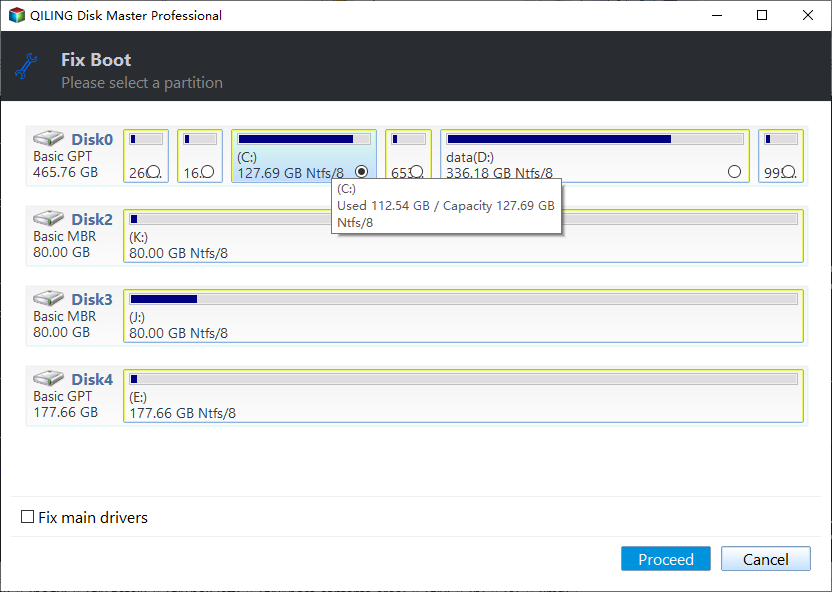
- Open the boot repair tool and choose Fix Boot when Windows exists on the disk but Windows Boot Manager, BCD, or startup files are damaged.
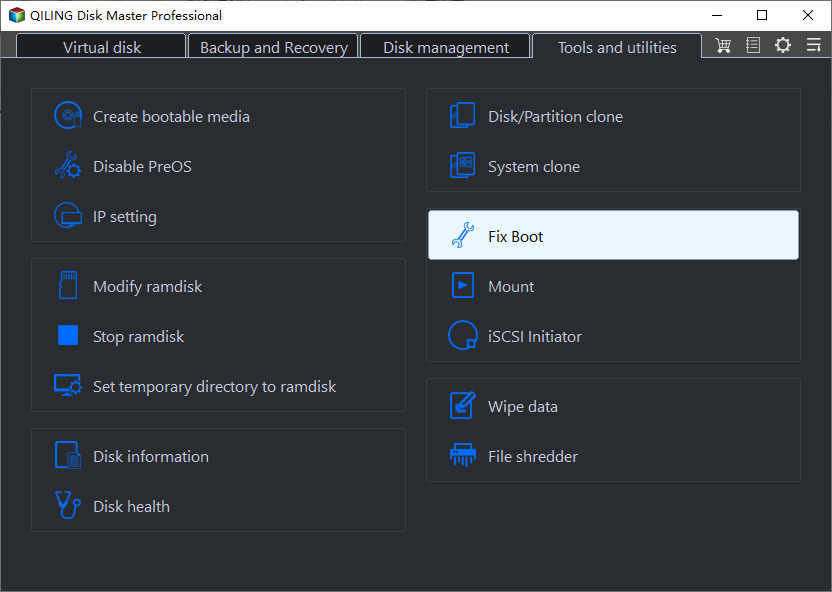
- Select the correct Windows disk and click Proceed. After the repair finishes, restart the computer and set Windows Boot Manager or the repaired disk as the first boot option.
Method 2: Use Rebuild MBR Only for Legacy Boot
- Choose Rebuild MBR only when the disk uses MBR and the PC is configured for Legacy BIOS boot. For GPT and UEFI systems, use Fix Boot and check UEFI settings instead.
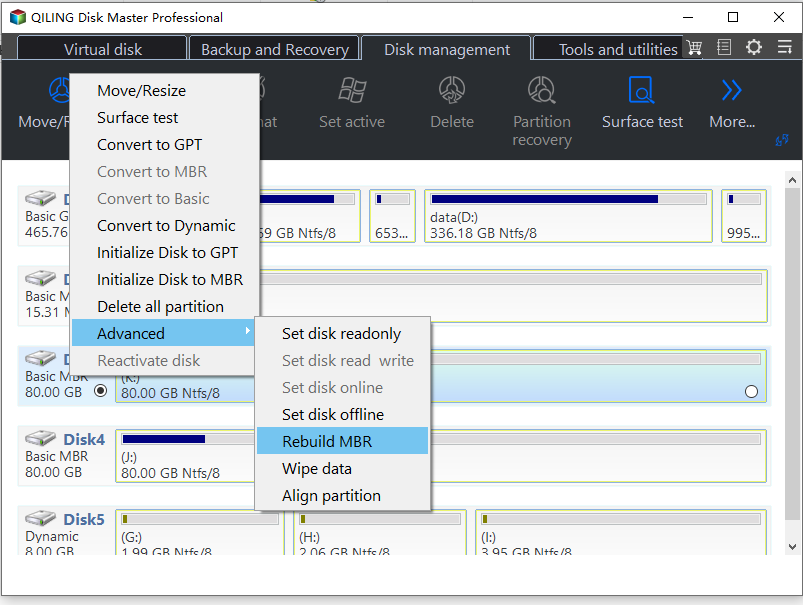
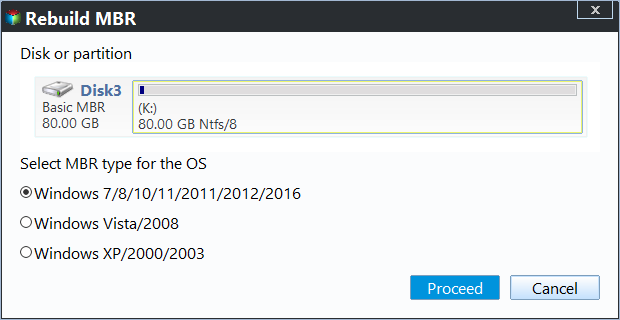
- Select the correct MBR type, review the target disk, and click Proceed. Restart and test the boot result.
Related Articles
- Windows Partition Management Tutorials
Find practical Windows partition guides for resizing, formatting, checking, converting, and repairing disks without unnecessary risk. - Windows System Backup and Restore Tutorials
Browse Windows backup and restore guides for system images, recovery drives, restore points, and safe repair preparation.
Products
Articles & Tutorials
- Data Recovery
- Data Backup
- File Recovery
- File Backup
- System Backup and Restore
- Disk and Partition Clone
- Technical articles
- Mobile articles
- Disk Master Help
- Windows Data Recovery Tutorials
- Windows Secure Delete Tutorials
- Windows Partition Management Tutorials
- Windows File Backup and Restore Tutorials
- Windows System Backup and Restore Tutorials
- Windows Disk Backup and Restore Tutorials
- Windows Clone Tutorials