How Many Partitions Can Be Made on a Hard Drive in Windows
The partition limit depends mainly on whether the disk uses GPT or MBR. For most modern Windows PCs, GPT is the better choice because it supports many partitions and disks larger than 2TB.
Before You Start
- Use GPT for modern UEFI PCs and large disks.
- Use MBR only for older Legacy BIOS compatibility.
- Keep EFI, MSR, Recovery, and system partitions intact.
- Create only as many data partitions as you can manage clearly.
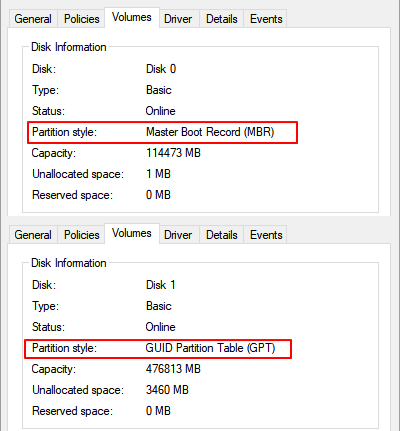
Check the Partition Style in Windows
- Right-click Start and open Disk Management.
- Right-click the disk label such as Disk 0 and choose Properties.
- Open the Volumes tab and check Partition style.
- On MBR disks, plan around the primary partition limit.
- On GPT disks, create normal data partitions as needed.
Use Qiling Disk Master to Plan and Create Partitions
Step 1. Open Qiling Disk Master and check whether the disk is GPT or MBR.
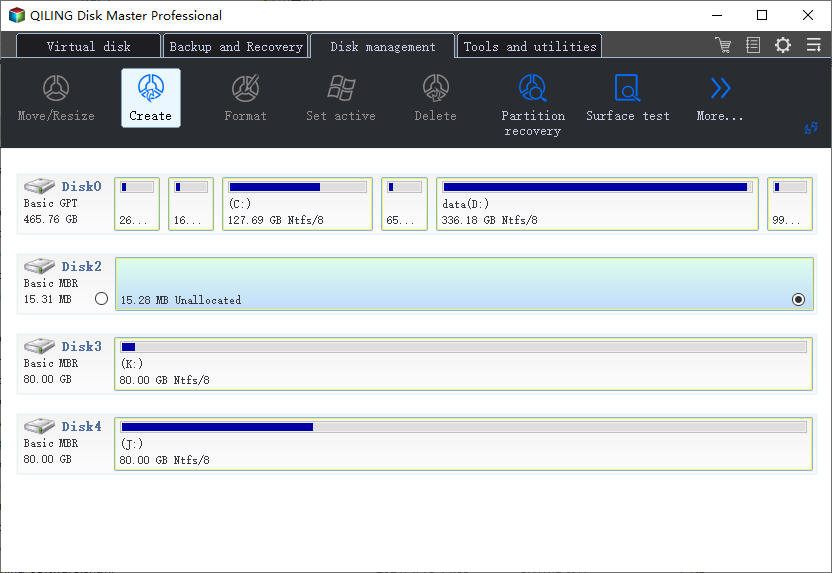
Step 2. If the disk has unallocated space, select it and choose Create.
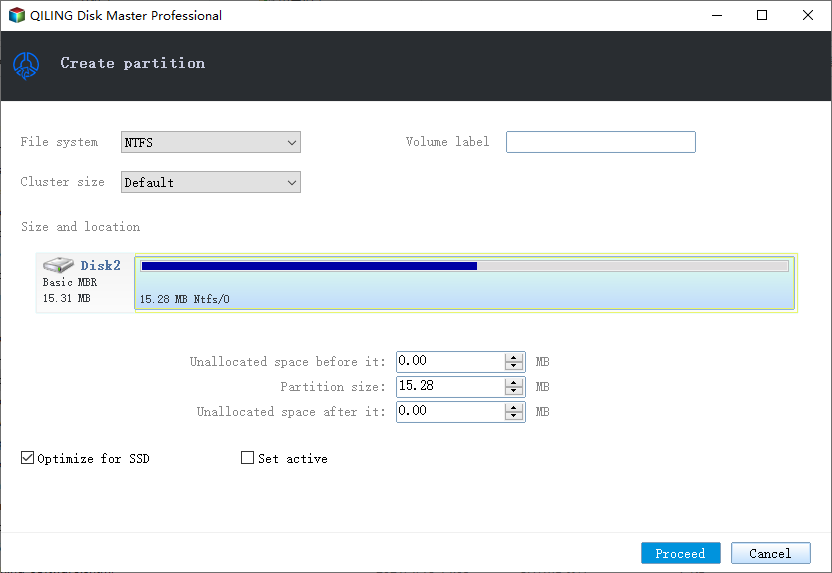
Step 3. If no unallocated space exists, shrink a data partition first.

Step 4. Set partition size, drive letter, label, and file system.

Step 5. Preview the layout and click Proceed.
Conclusion
GPT gives Windows users more flexibility. Still, fewer well-planned partitions are usually easier to manage than many small partitions.
Related Articles
Products
Articles & Tutorials
- Data Recovery
- Data Backup
- File Recovery
- File Backup
- System Backup and Restore
- Disk and Partition Clone
- Technical articles
- Mobile articles
- Disk Master Help
- Windows Data Recovery Tutorials
- Windows Secure Delete Tutorials
- Windows Partition Management Tutorials
- Windows File Backup and Restore Tutorials
- Windows System Backup and Restore Tutorials
- Windows Disk Backup and Restore Tutorials
- Windows Clone Tutorials