How to Increase the Size of FAT32 Partition
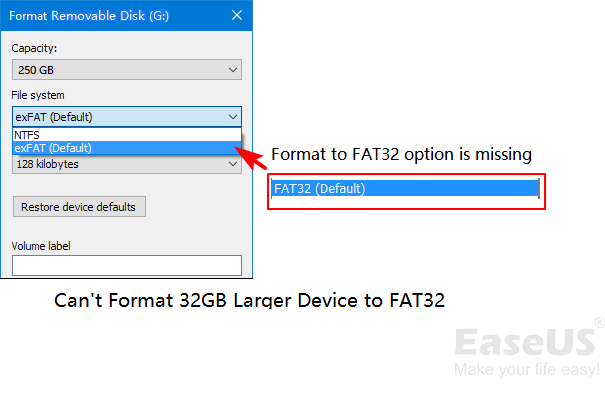
FAT32 is still used by cameras, game consoles, car media systems, and some boot devices. The partition can be larger than 32GB, but Windows built-in tools often limit FAT32 formatting and resizing. The safest approach depends on whether unallocated space is already beside the FAT32 partition.
What to Know First
- Back up files before resizing or rebuilding FAT32.
- Confirm the target device still requires FAT32.
- Remember that FAT32 cannot store one file larger than 4GB.
- Check whether unallocated space is adjacent to the FAT32 partition.
Windows Method and Background
- Open Disk Management and locate the FAT32 partition.
- Check whether unallocated space is directly to its right.
- If Extend Volume is unavailable, Windows cannot resize that FAT32 layout directly.
- If FAT32 is not required, consider exFAT or NTFS after backup.
- If FAT32 is required, use a partition tool that supports FAT32 resize.
Use Qiling Disk Master to Increase FAT32 Size
Open Qiling Disk Master and locate the FAT32 partition by disk number, drive letter, and capacity. Then choose the workflow that matches the disk layout.

Case A. Unallocated Space Is Next to the FAT32 Partition
Step 1. Select the FAT32 partition and choose Resize/Move.
Step 2. Drag the partition edge or enter the new size to add the adjacent unallocated space to the FAT32 partition.

Step 3. Check the preview. The FAT32 partition should become larger, and no unrelated partition should be changed.
Step 4. Click Proceed. After the resize finishes, open File Explorer and confirm the new capacity.
Case B. Another Partition Blocks the Unallocated Space
Step 1. Select the partition between the FAT32 partition and the unallocated space.
Step 2. Choose Resize/Move and move that partition so the unallocated space sits directly beside the FAT32 partition.
Step 3. Select the FAT32 partition again and extend it into the now-adjacent unallocated space.
Step 4. Preview all queued changes. It should show moving the blocking partition first and then extending the FAT32 partition.
Step 5. Click Proceed. Keep the computer powered on until all move and resize tasks finish.
Case C. Resizing Is Not Suitable
Step 1. Back up or copy all files from the FAT32 partition to another safe drive.
Step 2. Delete the old FAT32 partition only after the backup is complete and verified.
Step 3. Select the unallocated space and choose Create. Set a larger partition size and choose FAT32 if the target device requires it.
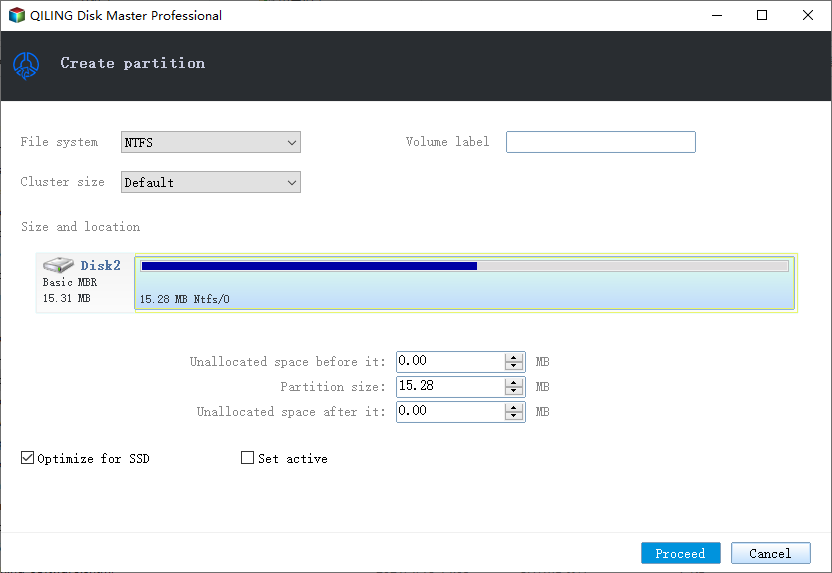
Step 4. Click Proceed, wait for the new FAT32 partition to be created, and then copy the files back.
Conclusion
Increasing FAT32 size is mostly a disk-layout problem. Make the free space adjacent, resize with preview, or rebuild the partition after a full backup.
Related Articles
Products
Articles & Tutorials
- Data Recovery
- Data Backup
- File Recovery
- File Backup
- System Backup and Restore
- Disk and Partition Clone
- Technical articles
- Mobile articles
- Disk Master Help
- Windows Data Recovery Tutorials
- Windows Secure Delete Tutorials
- Windows Partition Management Tutorials
- Windows File Backup and Restore Tutorials
- Windows System Backup and Restore Tutorials
- Windows Disk Backup and Restore Tutorials
- Windows Clone Tutorials