Install Windows 10 Without Product Key: What to Know
Learn when Windows 10 can be installed without a product key and how to back up files before reinstalling Windows.
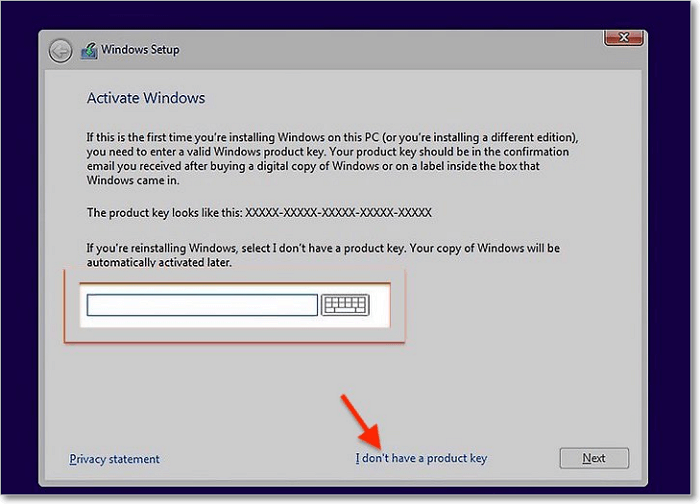
Can You Install Windows 10 Without a Product Key?
Yes. During Windows 10 setup, you can usually choose I don't have a product key and finish installation. Activation is still required later for full personalization and license compliance. If the PC has a digital license, Windows may reactivate automatically after it connects to the internet.
Before You Reinstall Windows
- Confirm whether the PC uses a Microsoft account or digital license.
- Back up personal files, browser data, drivers, and app installers.
- Record BitLocker recovery keys before changing partitions or reinstalling.
- Create installation media from Microsoft on a working PC.
Create a System Backup with Qiling Disk Master
A system backup protects Windows, boot files, installed programs, and system settings. Use it before reinstalling Windows 10 so you can roll back if Windows repair, update, or hardware changes fail.
Choose System Backup
- Open Qiling Disk Master and choose System Backup. The program selects the Windows-related partitions automatically, including boot partitions when required.

- Review the selected partitions. Do not remove EFI, System Reserved, Recovery, or C drive from the backup set.

Select Destination and Run Backup
- Select an external disk, NAS, or another internal disk as the destination. Avoid saving the image on the same disk you are about to repair or replace.
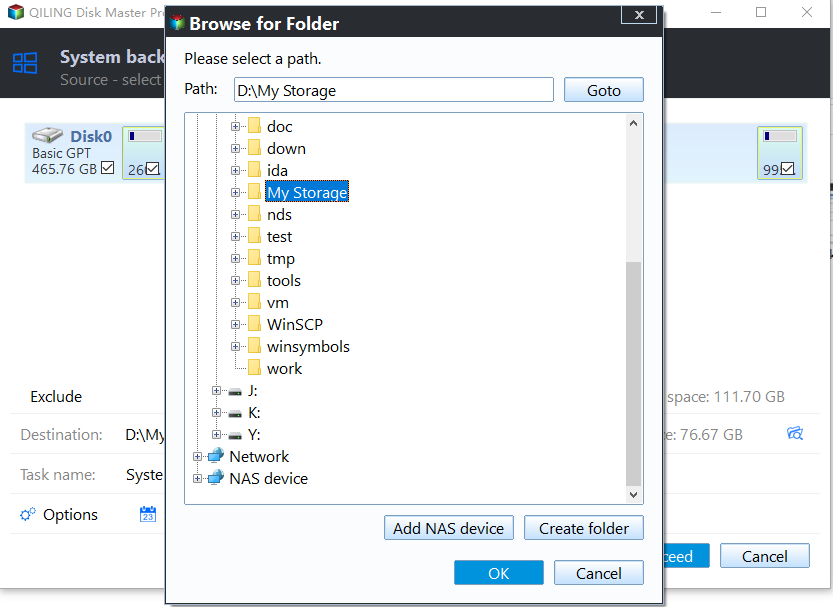
- Click Proceed and wait for completion. Keep the backup drive connected until the task is finished and verified.

Related Articles
- Windows Partition Management Tutorials
Find practical Windows partition guides for resizing, formatting, checking, converting, and repairing disks without unnecessary risk. - Windows System Backup and Restore Tutorials
Browse Windows backup and restore guides for system images, recovery drives, restore points, and safe repair preparation.
Products
Articles & Tutorials
- Data Recovery
- Data Backup
- File Recovery
- File Backup
- System Backup and Restore
- Disk and Partition Clone
- Technical articles
- Mobile articles
- Disk Master Help
- Windows Data Recovery Tutorials
- Windows Secure Delete Tutorials
- Windows Partition Management Tutorials
- Windows File Backup and Restore Tutorials
- Windows System Backup and Restore Tutorials
- Windows Disk Backup and Restore Tutorials
- Windows Clone Tutorials