Move Recovery Partition to Extend C Drive
If a recovery partition sits between C drive and unallocated space, Windows Disk Management cannot extend C drive. Moving the recovery partition can make the space usable.
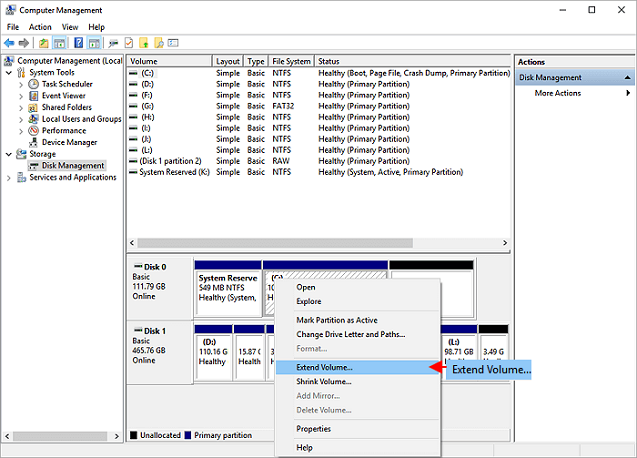
Why Windows Cannot Extend C Drive
Disk Management extends a volume only into adjacent unallocated space on its right side. A recovery partition between C drive and free space blocks the operation.
Safe Workflow
- Create a full backup.
- Confirm the recovery partition location.
- Move the recovery partition to the end of the disk.
- Extend C drive into the newly adjacent unallocated space.
- Check WinRE status after resizing.
Use Qiling Disk Master to Move the Recovery Partition and Extend C Drive
Use this workflow when the disk layout is C drive, Recovery partition, and then unallocated space. The goal is to move the Recovery partition to the right, so the unallocated space sits directly behind C drive.
Step 1. Confirm the Partition Order
Open Qiling Disk Master and check the system disk. Confirm that the Recovery partition is between C drive and the unallocated space. Create a system backup before moving any system-related partition.

Step 2. Move the Recovery Partition to the Right
Select the Recovery partition and choose Resize/Move. Drag the whole partition to the far right side of the unallocated space. Do not resize or delete the Recovery partition in this step.

Step 3. Preview and Click Proceed
Review the disk map. It should show C drive followed by unallocated space, then the Recovery partition. Click Proceed and allow the computer to restart if required.
Step 4. Extend C Drive
After the move finishes, select C drive and choose Resize/Move. Drag the C drive border into the adjacent unallocated space until it reaches the size you want.
Step 5. Proceed and Check WinRE
Click Proceed to extend C drive. After Windows starts, open an elevated Command Prompt and run reagentc /info to confirm the Windows Recovery Environment status.
Conclusion
Moving the Recovery partition is safer than deleting it when you still need Windows recovery tools. Back up first, move the blocking partition, extend C drive, and then verify WinRE.
Related Articles
Products
Articles & Tutorials
- Data Recovery
- Data Backup
- File Recovery
- File Backup
- System Backup and Restore
- Disk and Partition Clone
- Technical articles
- Mobile articles
- Disk Master Help
- Windows Data Recovery Tutorials
- Windows Secure Delete Tutorials
- Windows Partition Management Tutorials
- Windows File Backup and Restore Tutorials
- Windows System Backup and Restore Tutorials
- Windows Disk Backup and Restore Tutorials
- Windows Clone Tutorials