Move Unallocated Space Right Behind C Drive
C drive can be extended only when unallocated space is next to it on the right. If another partition is in between, move that partition first.
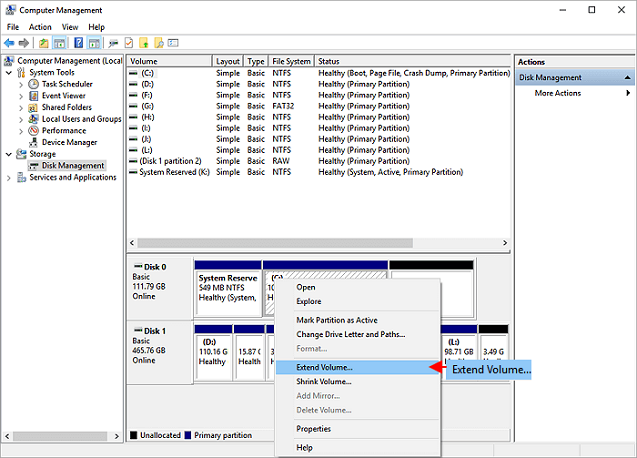
Check the Disk Layout
- Open Disk Management.
- Find C drive and the unallocated space.
- Look for a recovery, OEM, or data partition between them.
- Back up before moving any partition.
What Not to Do
Do not delete a recovery or data partition just to make space unless you have confirmed it is unnecessary and backed up its contents.
Use Qiling Disk Master to Move Unallocated Space Behind C Drive
Windows cannot move partitions in Disk Management. If a data, OEM, or recovery partition sits between C drive and unallocated space, move that partition first and then extend C drive.
Step 1. Locate C Drive, the Blocking Partition, and Unallocated Space
Open Qiling Disk Master and check the system disk from left to right. Find C drive, then identify the partition between C drive and the unallocated space. Back up that partition if it contains data.

Step 2. Move the Blocking Partition
Select the blocking partition and choose Resize/Move. Drag the entire partition to the right side, so the unallocated space moves directly behind C drive.

Step 3. Preview and Click Proceed
Check that no partition is being deleted and that the unallocated space will become adjacent to C drive. Click Proceed and wait for the move to finish.
Step 4. Extend C Drive
Select C drive, choose Resize/Move, and drag its right border into the adjacent unallocated space. Leave enough free space if you still need another partition later.
Step 5. Proceed and Verify
Click Proceed. After Windows restarts, open File Explorer and Disk Management to confirm C drive shows the new size.
Conclusion
The key is partition order. C drive can be extended only after the unallocated space is placed directly to its right.
Related Articles
Products
Articles & Tutorials
- Data Recovery
- Data Backup
- File Recovery
- File Backup
- System Backup and Restore
- Disk and Partition Clone
- Technical articles
- Mobile articles
- Disk Master Help
- Windows Data Recovery Tutorials
- Windows Secure Delete Tutorials
- Windows Partition Management Tutorials
- Windows File Backup and Restore Tutorials
- Windows System Backup and Restore Tutorials
- Windows Disk Backup and Restore Tutorials
- Windows Clone Tutorials