You Need to Format the Hard Drive Before You Can Use It
The message that a drive needs formatting usually appears when Windows cannot read the file system. The drive may be RAW, corrupted, unplugged improperly, encrypted, or using a file system Windows does not support. Formatting may make the drive usable again, but it can also remove access to recoverable files.
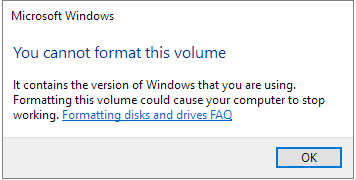
What to Know First
- Do not click Format if the drive contains important files.
- Try another cable, port, or computer first.
- Check whether the drive came from macOS, Linux, a camera, or a recorder.
- Recover files before formatting a RAW or corrupted drive.
Windows Method and Background
- Cancel the format prompt first if data is important.
- Open Disk Management and check whether the partition is RAW, unallocated, or shown with a normal file system.
- If files are needed, recover them before repair or formatting.
- If the drive is empty or backed up, format it as NTFS or exFAT.
- Safely eject the drive after formatting.
Use Qiling Disk Master After Files Are Safe
Do not choose an action from the Windows popup alone. Open Qiling Disk Master and identify the problem drive by capacity, model, and drive letter.
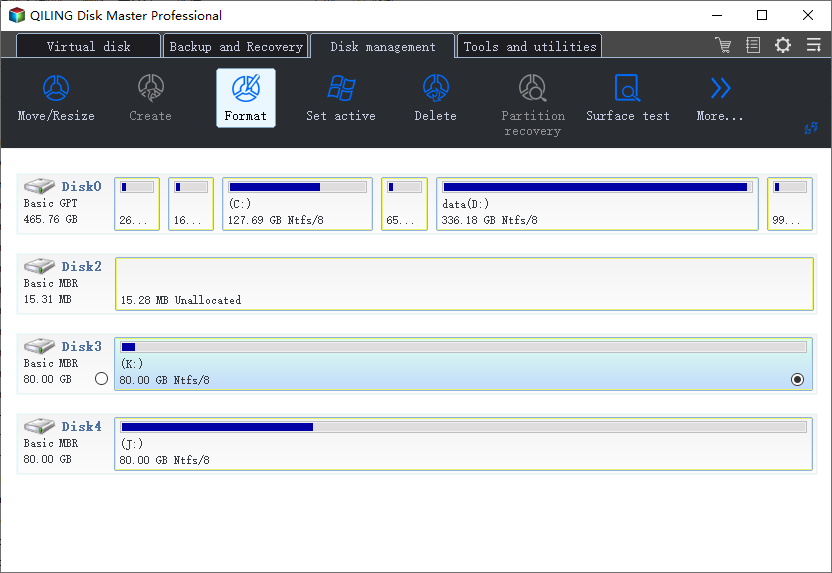
Case A. The Drive Contains Needed Files
Step 1. Cancel the Windows format prompt and stop writing new data to the drive.
Step 2. Check whether the drive is RAW, unallocated, encrypted, or from another operating system.
Step 3. Recover or copy important files before formatting. Do not delete or recreate the partition until files are safe.
Case B. The Drive Is Empty or Already Backed Up
Step 1. Select the target partition in Qiling Disk Master and choose Format.
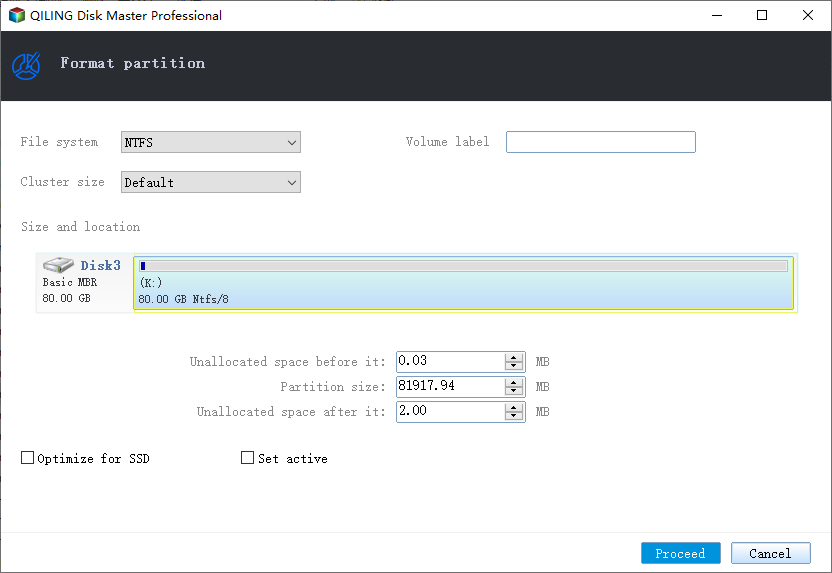
Step 2. Choose NTFS for Windows storage or exFAT for removable cross-device use.
Step 3. Enter a volume label, preview the operation, and click Proceed.
Step 4. After formatting, copy a small test file to confirm the drive is usable again.
Conclusion
When Windows asks to format before use, treat it as a data-risk warning. Recover files first, then format only when you are ready to rebuild the file system.
Related Articles
Products
Articles & Tutorials
- Data Recovery
- Data Backup
- File Recovery
- File Backup
- System Backup and Restore
- Disk and Partition Clone
- Technical articles
- Mobile articles
- Disk Master Help
- Windows Data Recovery Tutorials
- Windows Secure Delete Tutorials
- Windows Partition Management Tutorials
- Windows File Backup and Restore Tutorials
- Windows System Backup and Restore Tutorials
- Windows Disk Backup and Restore Tutorials
- Windows Clone Tutorials