Next Best Partition Software After Partition Magic
Partition Magic was designed for much older Windows versions and disk layouts. Modern PCs use GPT disks, UEFI boot, SSDs, recovery partitions, BitLocker, and larger drives. A modern replacement should show a clear disk map, support current Windows versions, preview pending operations, and avoid forcing risky changes without confirmation.

What to Know First
- Avoid old partition tools on Windows 10, Windows 11, and Server systems.
- Back up important files before partition operations.
- Check disk style, boot mode, and system partitions before resizing.
- Prefer tools that queue operations and show a preview before execution.
Windows Method and Background
- Open Disk Management to understand the current disk layout.
- Identify C drive, data partitions, EFI, MSR, Recovery, and unallocated space.
- Decide whether the goal is resize, create, delete, format, convert, or clone.
- Avoid changing small system partitions unless the task requires it.
Use Qiling Disk Master as a Partition Magic Alternative
Open Qiling Disk Master and review the disk map before choosing an operation. A good Partition Magic replacement should let you see the target disk, preview pending changes, and cancel before anything is executed.
Example A. Resize or Move a Partition
Step 1. Select the partition you want to change and confirm its drive letter, capacity, and position on the disk.
Step 2. Choose Resize/Move. Drag the partition edge to shrink or extend it, or move the partition if unallocated space needs to be placed beside another volume.

Step 3. Check the preview and make sure system partitions such as EFI, MSR, and Recovery are not changed by mistake.
Step 4. Click Proceed. If the operation affects C drive or another active partition, allow the restart or pre-OS process.
Example B. Create a New Partition
Step 1. Select unallocated space on the target disk and choose Create.
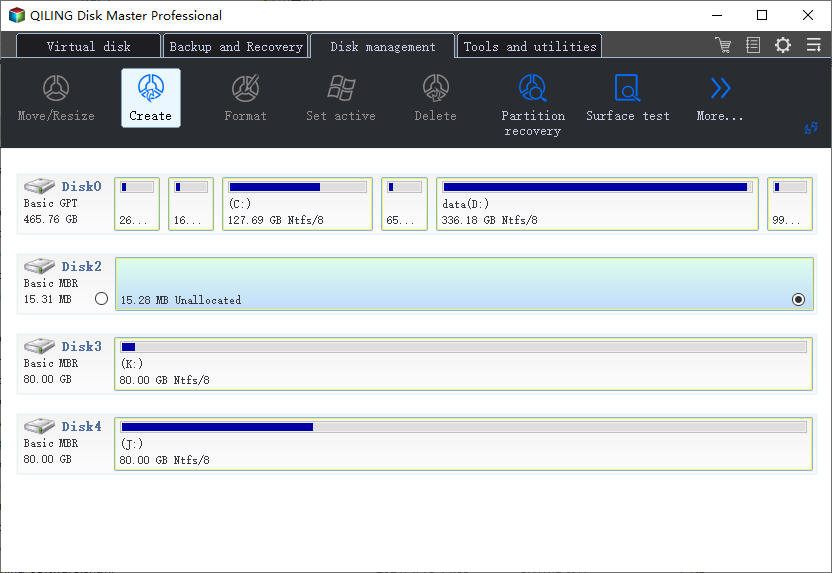
Step 2. Set the partition size, drive letter, volume label, and file system. Use NTFS for normal Windows storage.
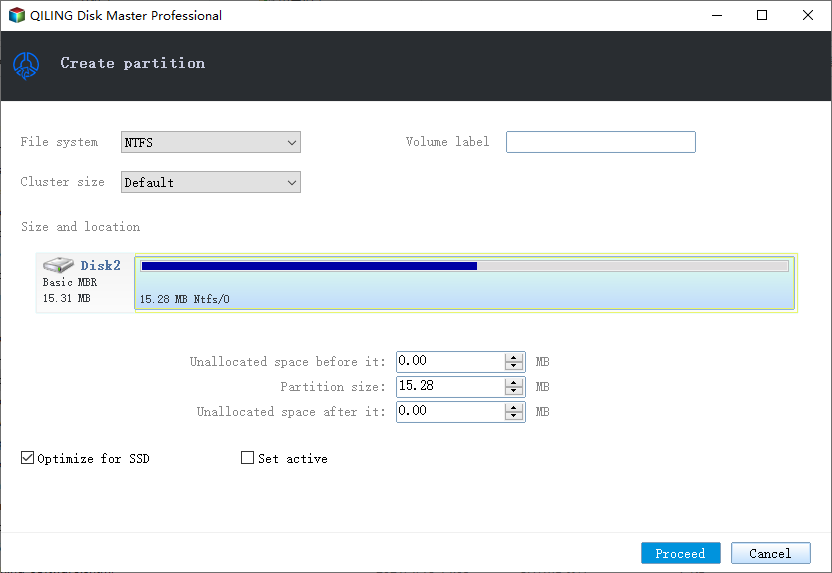
Step 3. Preview the new layout and click Proceed.
Example C. Format a Data Partition
Step 1. Back up needed files, then select the data partition you want to format.
Step 2. Choose Format, select NTFS or exFAT, and enter a clear volume label.
Step 3. Preview the task and confirm no unrelated partition is listed before clicking Proceed.
Conclusion
The best replacement for Partition Magic is a current Windows partition manager with GPT, SSD, and preview support. The safer workflow is understand, back up, preview, then proceed.
Related Articles
Products
Articles & Tutorials
- Data Recovery
- Data Backup
- File Recovery
- File Backup
- System Backup and Restore
- Disk and Partition Clone
- Technical articles
- Mobile articles
- Disk Master Help
- Windows Data Recovery Tutorials
- Windows Secure Delete Tutorials
- Windows Partition Management Tutorials
- Windows File Backup and Restore Tutorials
- Windows System Backup and Restore Tutorials
- Windows Disk Backup and Restore Tutorials
- Windows Clone Tutorials