Is Partition Magic Safe and What Can I Use Instead
Partition Magic was popular years ago, but it is not a good fit for modern Windows 10, Windows 11, GPT disks, SSDs, or current recovery partitions. Use an up-to-date tool instead.

Before You Start
- Do not use outdated partition software on a modern system disk.
- Back up data before any resize, move, delete, or format operation.
- Check whether the disk is GPT, MBR, SSD, HDD, or removable media.
- Use a tool that previews pending operations before execution.
What to Do Before Using Any Partition Tool
- Open Disk Management and understand the current layout.
- Identify C drive, data partitions, EFI, MSR, and Recovery partitions.
- Decide whether you need resize, move, create, delete, format, or convert.
- Back up important files before starting.
Use Qiling Disk Master as a Modern Alternative
Choose the operation according to what you need to change. Do not run several partition operations at once unless you have checked the whole disk layout and backed up important files.
Case A. Resize or Move a Partition
Step 1. Open Qiling Disk Master and select the partition you want to resize or move. Confirm it by drive letter, capacity, file system, and position on the disk.
Step 2. Choose Resize/Move. Drag the partition border to shrink or extend it, or drag the whole partition if you need to move unallocated space next to another volume.

Step 3. Check the preview. Make sure the target partition changes as expected and no unrelated partition is deleted or formatted.
Step 4. Click Proceed. If the system partition is involved, allow Windows to restart and complete the operation before booting.
Case B. Create a New Partition
Step 1. Select unallocated space on the correct disk. If there is no unallocated space, shrink a data partition first instead of touching EFI, MSR, Recovery, or System Reserved partitions.
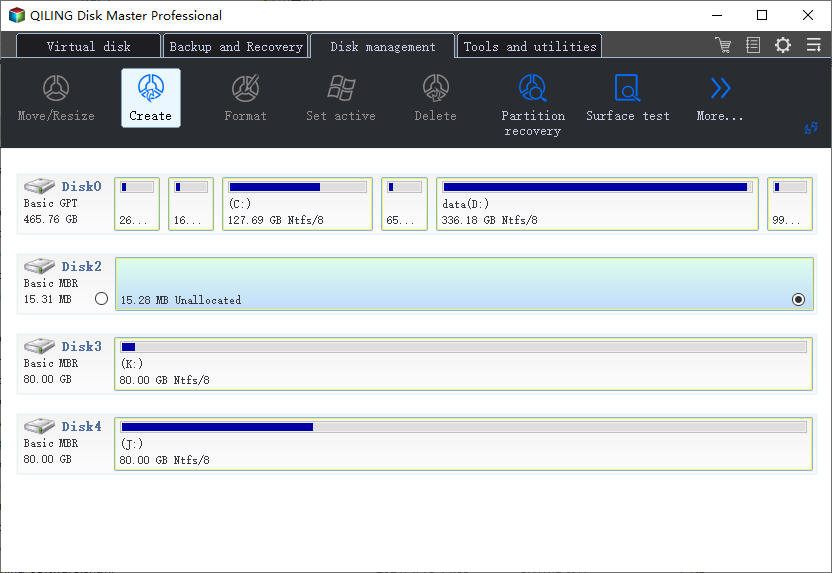
Step 2. Choose Create. Set the partition size, drive letter, volume label, and file system. Use NTFS for normal Windows storage or exFAT for removable drives shared with other devices.
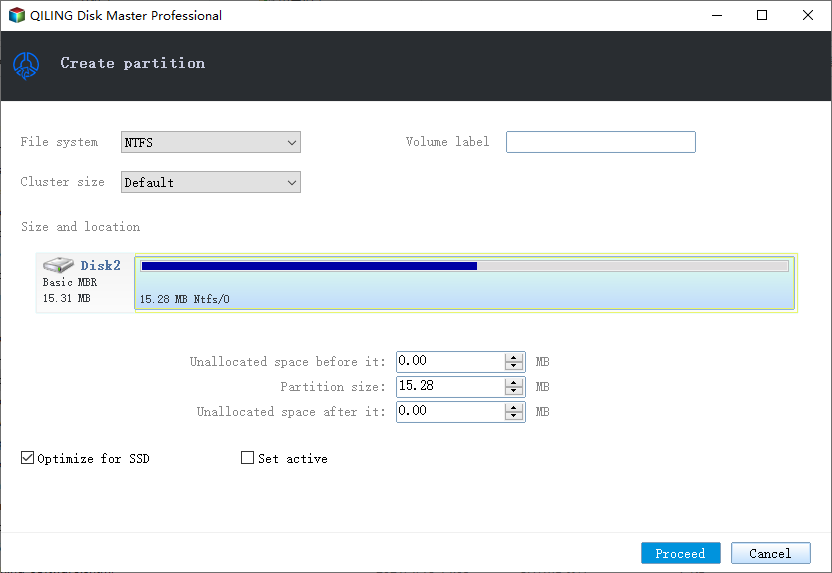
Step 3. Preview the new layout and confirm the partition will be created on the correct disk.
Step 4. Click Proceed, then open File Explorer and confirm the new drive letter appears.
Case C. Format or Delete a Partition
Step 1. Back up or recover files from the partition first. Format and delete operations can remove access to existing data.
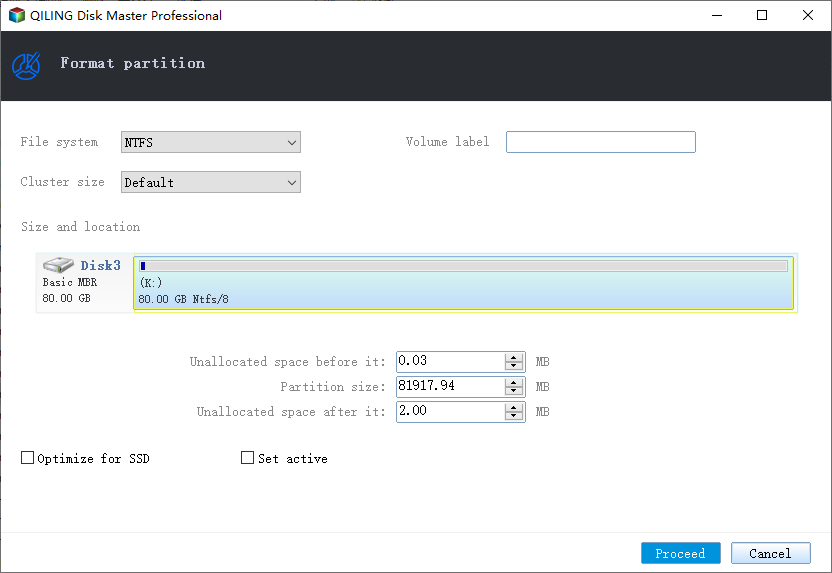
Step 2. To format a partition, select it, choose Format, set the file system and volume label, then confirm the settings.
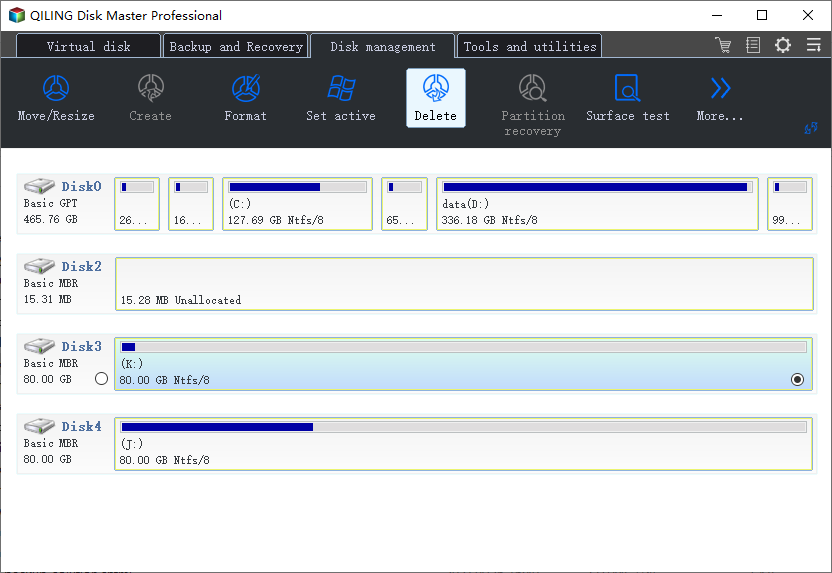
Step 3. To delete a partition, select it and choose Delete. When the data-loss warning appears, confirm only if the target is correct and files are backed up.
Step 4. After the operation finishes, reuse the unallocated space or check the formatted partition in File Explorer.
Conclusion
Partition Magic is outdated. A modern partition manager with preview is safer for current Windows systems and GPT/SSD layouts.
Related Articles
Products
Articles & Tutorials
- Data Recovery
- Data Backup
- File Recovery
- File Backup
- System Backup and Restore
- Disk and Partition Clone
- Technical articles
- Mobile articles
- Disk Master Help
- Windows Data Recovery Tutorials
- Windows Secure Delete Tutorials
- Windows Partition Management Tutorials
- Windows File Backup and Restore Tutorials
- Windows System Backup and Restore Tutorials
- Windows Disk Backup and Restore Tutorials
- Windows Clone Tutorials