Portable Partition Manager Software for Windows
Use portable partition manager software to resize, format, create, and check partitions when Disk Management is limited.
What This Problem Usually Means
A portable partition manager is useful when you need disk tools without a full installation, especially for technicians, bootable media, or temporary repair work. The key is to preview operations before changing the disk.
What to Check First
- Use Disk Management for simple tasks when it works.
- Use a partition manager for moving partitions, clearer previews, or bootable repair work.
- Back up files before resizing, formatting, converting, or deleting partitions.
- Do not run partition tools from an unstable USB drive.
Use a Portable Partition Manager with Qiling Disk Master
A portable partition manager is useful when you need to manage disks on a repair PC, a technician USB, or a system that cannot install software normally. Start by identifying the disk, then follow the task path that matches what you need to do.
Open Disk Management in Qiling Disk Master
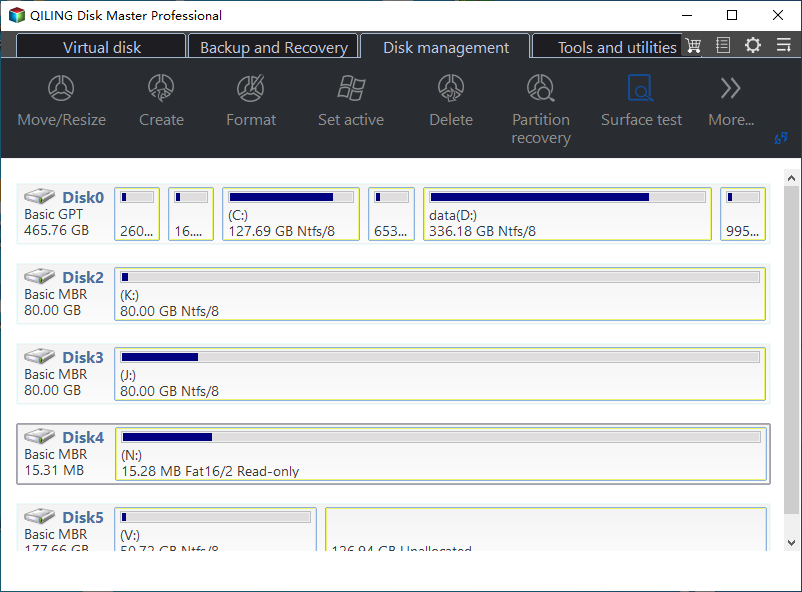
Step 1. Start Qiling Disk Master from Windows, a portable location, or bootable media, then open the Disk management page.
Step 2. Review the full disk map before choosing any operation. Confirm the target disk by model, capacity, partition style, and drive letters.
Step 3. Back up important files from the target disk before resizing, formatting, converting, deleting, or moving partitions.
Task A: Resize or Move a Partition
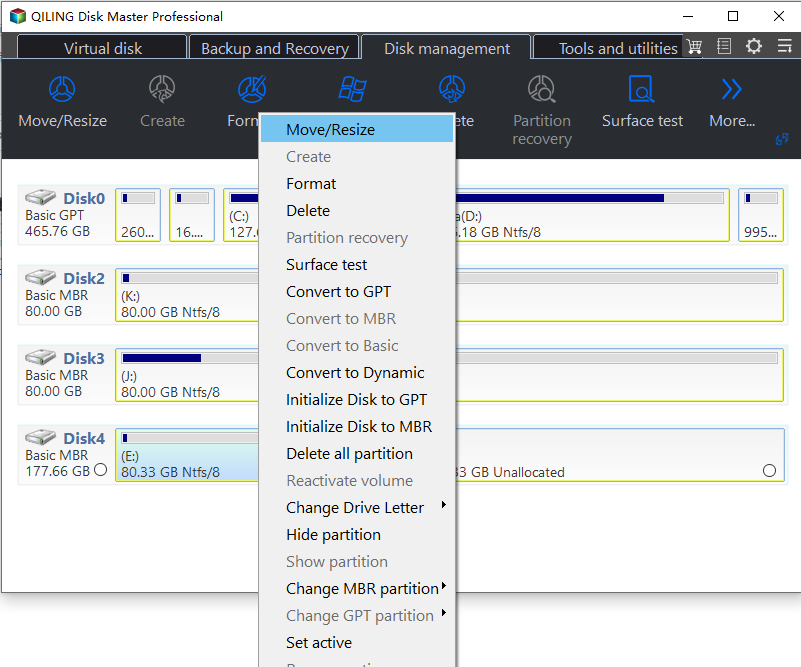
Step 1. Select the partition you want to resize and choose Resize/Move. Use this when C drive is full, unallocated space is not adjacent, or a data partition needs to be smaller or larger.
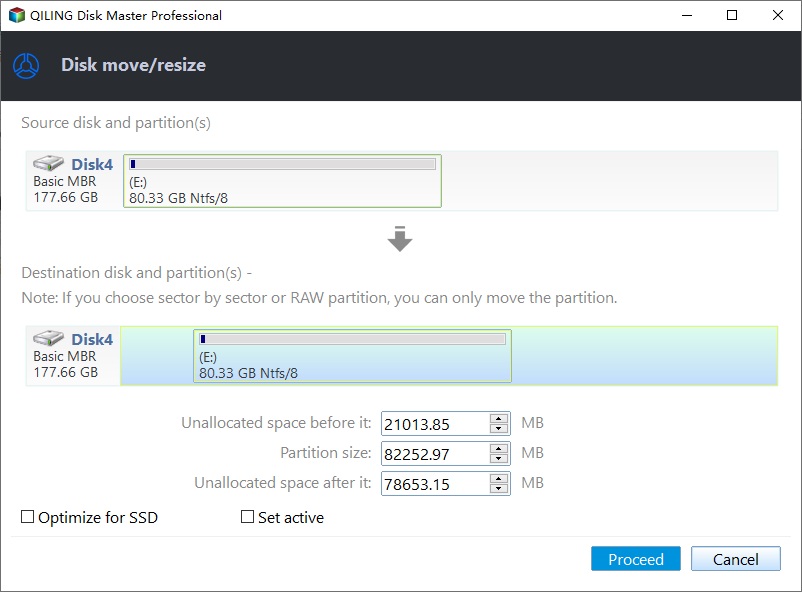
Step 2. Drag the partition edge to shrink or extend it. If you need to move unallocated space next to C drive, move the blocking partition first, then extend C drive.
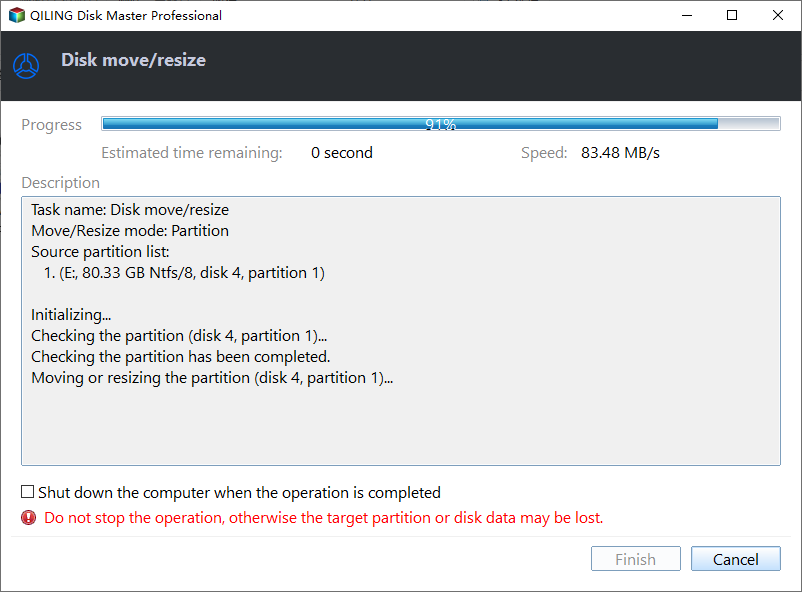
Step 3. Check the pending resize or move operation, then click Proceed. Moving a partition can take time, so keep the PC powered on until the task completes.
Task B: Create a New Partition
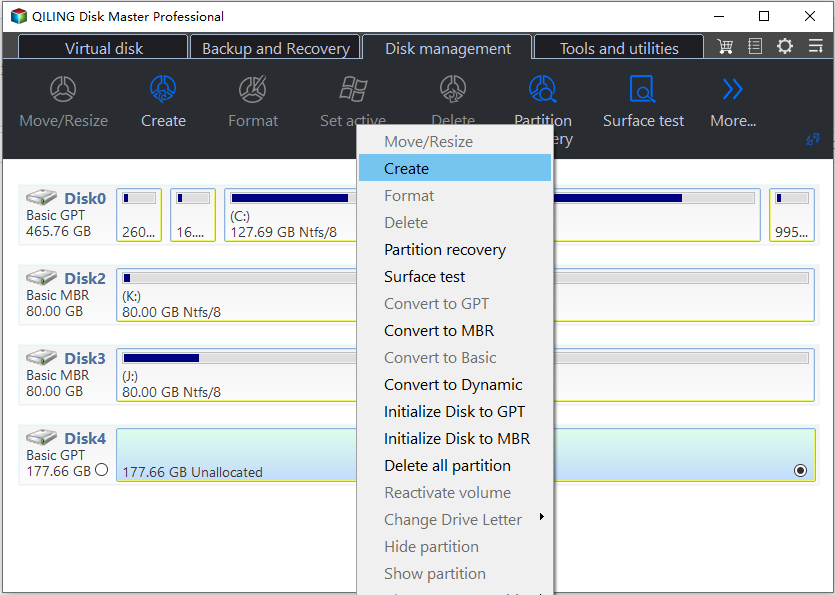
Step 1. Select unallocated space and choose Create Partition. If there is no unallocated space, shrink a data partition first.
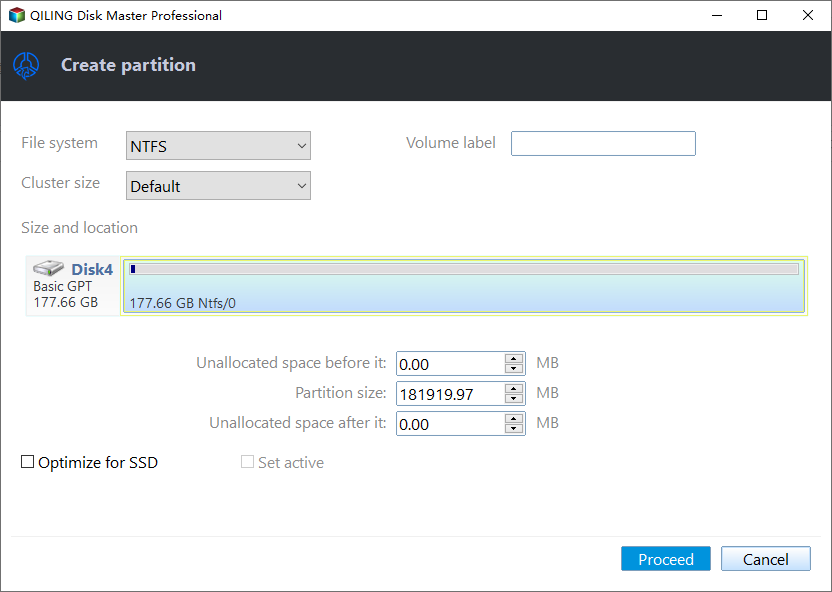
Step 2. Set the partition size, drive letter, file system, and label. Use NTFS for normal Windows storage and exFAT when the drive must work across more devices.
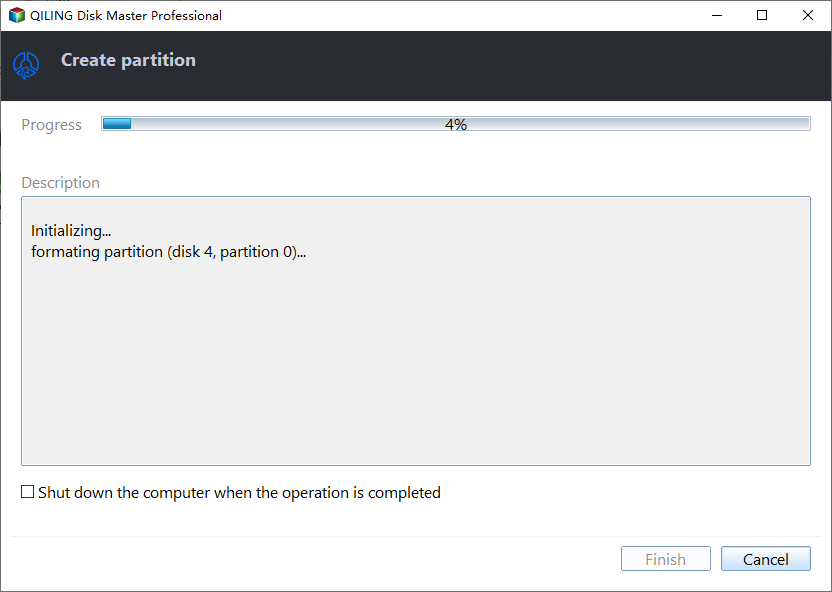
Step 3. Confirm the new partition task and click Proceed. Wait until the progress window finishes before using the new volume.
Task C: Format a Partition
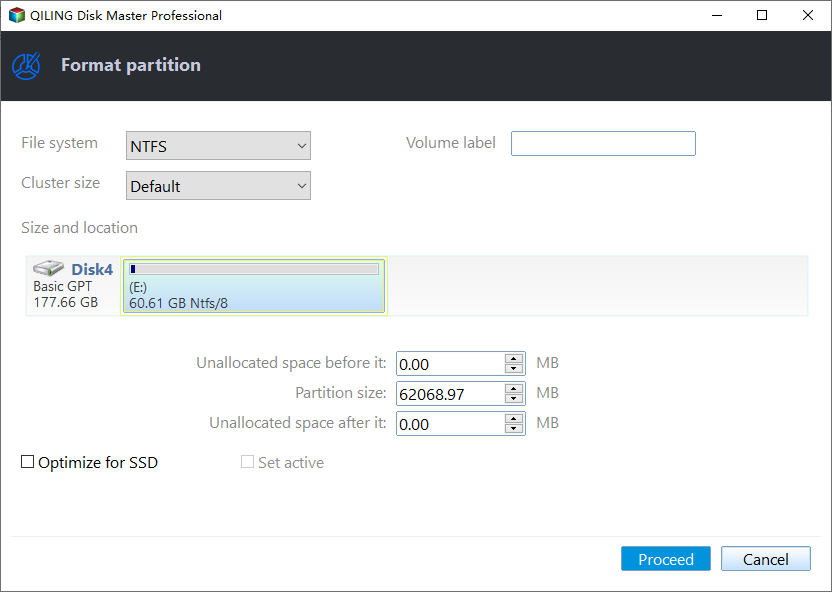
Step 1. Select the partition and choose Format. Use this only after copying or recovering needed files, because formatting removes normal access to existing data.
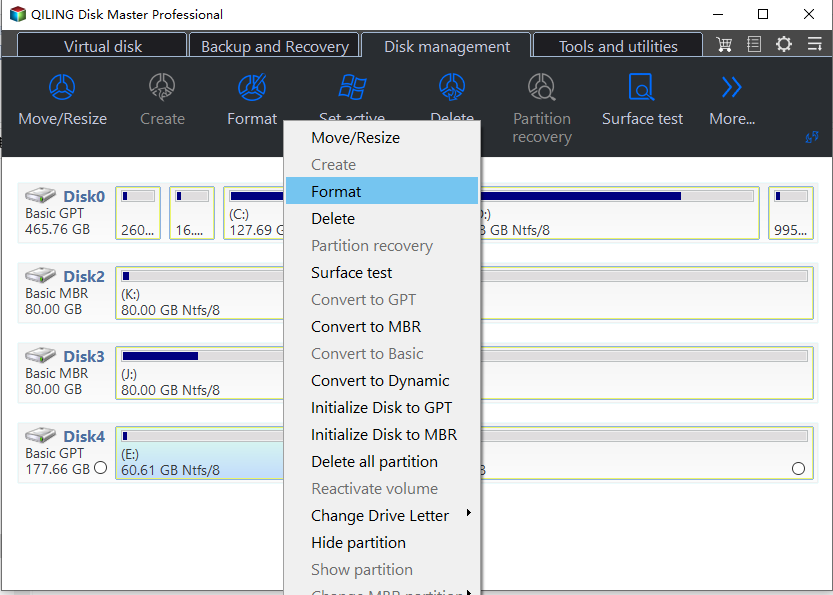
Step 2. Choose the file system and partition label. Use NTFS for normal Windows storage, FAT32 for smaller removable drives when compatibility is required, or exFAT for larger removable drives.
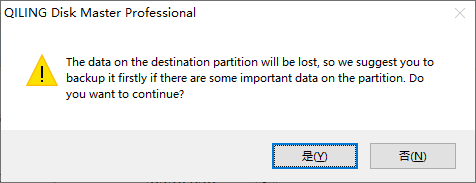
Step 3. Read the warning carefully. If the partition still contains important files, cancel the operation and back them up first.
Task D: Check a Partition or Test the Disk Surface
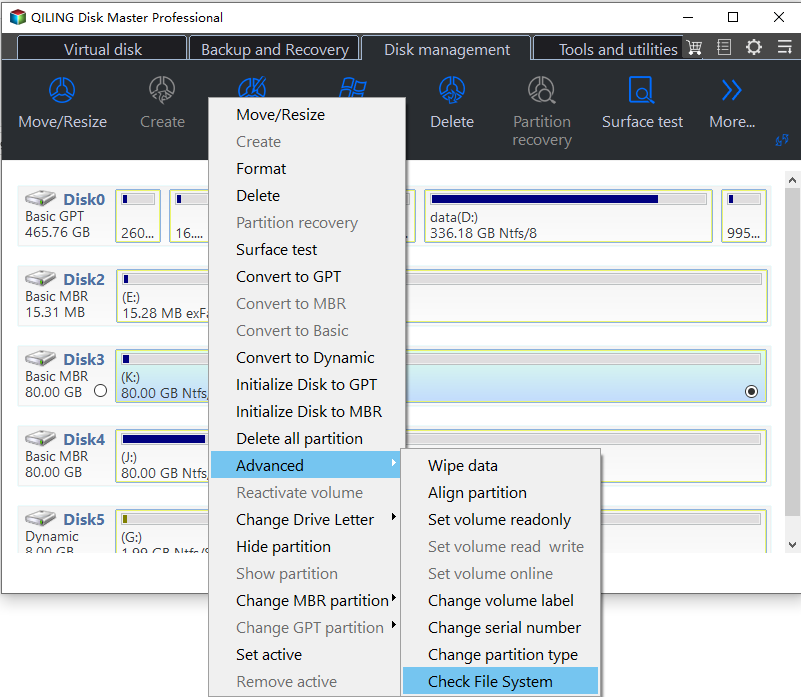
Step 1. If a partition opens slowly or reports file system errors, right-click the partition, open Advanced, and choose Check File System.
Step 2. If you suspect bad sectors, choose Surface test for the disk or partition instead of formatting it immediately.
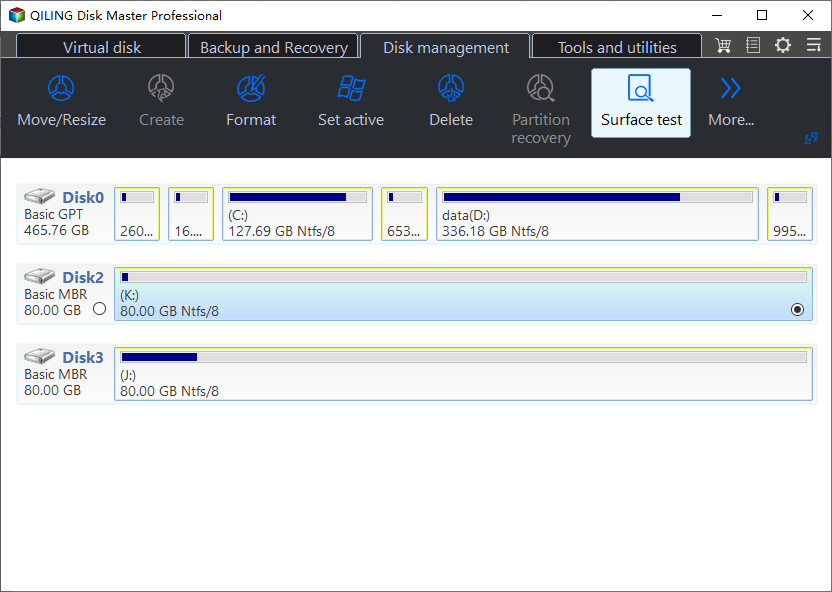
Step 3. Review the check result. If errors return after repair or the surface test reports many bad sectors, clone or back up the disk and replace it.
FAQ
Should I make changes before backing up? If the disk is readable and the files matter, back up first. Repairs, formatting, conversion, and cloning can change boot records or partition data.
When should I use Windows built-in tools? Use Settings, Disk Management, Startup Repair, CHKDSK, SFC, DISM, or account recovery first when the issue is simple and the risk is low.
When does Qiling help? Use Qiling tools when you need a clearer disk map, a bootable recovery environment, backup before repair, partition preview, disk cloning, or controlled password recovery on an authorized PC.
Conclusion
Portable partition tools are helpful, but the workflow should still be cautious: identify the disk, back up files, preview operations, and click Proceed only when the plan is correct.
Related Articles
- Windows Partition Management Tutorials
Find practical Windows partition guides for resizing, formatting, checking, converting, and repairing disks without unnecessary risk. - Windows System Backup and Restore Tutorials
Browse Windows backup and restore guides for system images, recovery drives, restore points, and safe repair preparation.
Products
Articles & Tutorials
- Data Recovery
- Data Backup
- File Recovery
- File Backup
- System Backup and Restore
- Disk and Partition Clone
- Technical articles
- Mobile articles
- Disk Master Help
- Windows Data Recovery Tutorials
- Windows Secure Delete Tutorials
- Windows Partition Management Tutorials
- Windows File Backup and Restore Tutorials
- Windows System Backup and Restore Tutorials
- Windows Disk Backup and Restore Tutorials
- Windows Clone Tutorials