What Is the Purpose of Partitioning a Hard Drive
Partitioning divides one physical disk into separate logical volumes, such as C drive and D drive. It can help organize files, separate system and data areas, prepare a drive for different file systems, or reserve space for recovery and boot files. It is not the same as backup because all partitions on the same disk can fail together.
What to Know First
- Use partitions for organization, not as a replacement for backup.
- Keep system partitions such as EFI, MSR, and Recovery intact.
- Plan partition sizes before shrinking or creating volumes.
- Use GPT for modern large disks and UEFI systems.
Windows Method and Background
- Open Disk Management to view the current layout.
- If unallocated space exists, create a new simple volume from it.
- If no unallocated space exists, shrink a data partition first.
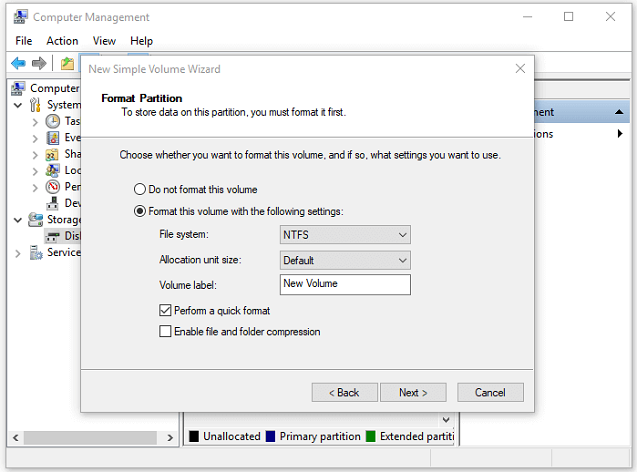
- Assign a drive letter and format the new partition.
- Keep a separate external or cloud backup for important files.
Use Qiling Disk Master to Create or Resize Partitions
Use Qiling Disk Master when you need to see the disk layout before creating or resizing partitions. Keep system partitions such as EFI, MSR, and Recovery unchanged unless you have a specific recovery plan.

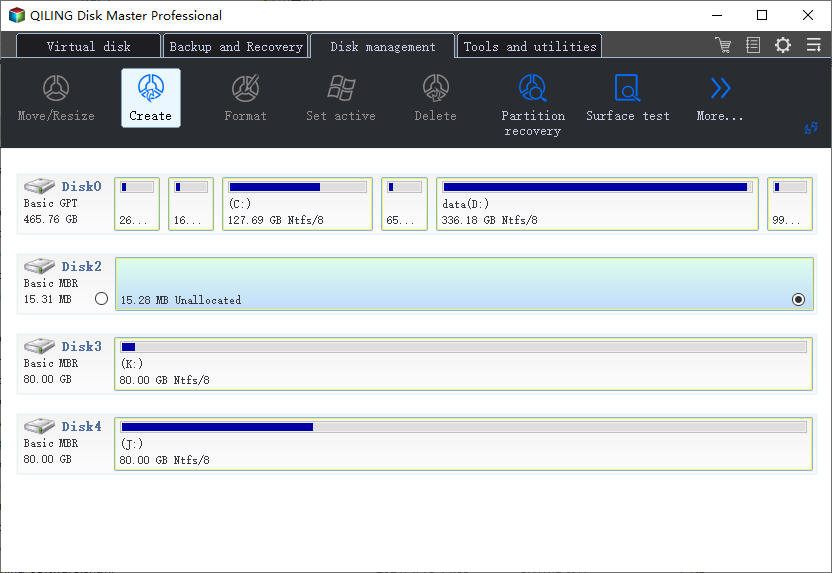
Example A. Create a Data Partition from Unallocated Space
Step 1. Select the unallocated space on the target disk and choose Create.
Step 2. Set the partition size, drive letter, volume label, and file system. Use NTFS for normal Windows storage.
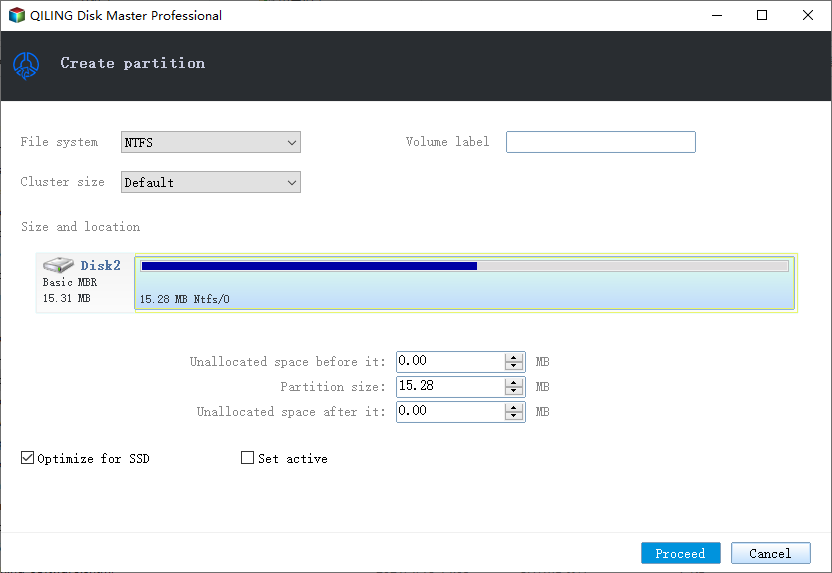
Step 3. Preview the layout and click Proceed.
Example B. Split an Existing Data Partition
Step 1. Back up important files, then select the data partition that has enough free space.
Step 2. Choose Resize/Move and shrink the partition to create unallocated space.

Step 3. Select the new unallocated space and choose Create.
Step 4. Set the new partition size, drive letter, label, and file system.
Step 5. Preview the shrink and create tasks, then click Proceed.
Conclusion
Partitioning is useful for organization and disk management, but it does not protect against disk failure. Use it together with a real backup plan.
Related Articles
Products
Articles & Tutorials
- Data Recovery
- Data Backup
- File Recovery
- File Backup
- System Backup and Restore
- Disk and Partition Clone
- Technical articles
- Mobile articles
- Disk Master Help
- Windows Data Recovery Tutorials
- Windows Secure Delete Tutorials
- Windows Partition Management Tutorials
- Windows File Backup and Restore Tutorials
- Windows System Backup and Restore Tutorials
- Windows Disk Backup and Restore Tutorials
- Windows Clone Tutorials