Portable Partition Manager for Windows
Need a portable partition manager? Learn when portable disk tools help, what Windows can do, and how Qiling Disk Master manages partitions safely.

When a Portable Partition Tool Helps
A portable partition manager is useful when you need to check a disk on a workbench PC, repair a USB drive, or resize partitions without installing many tools. For system disks, always back up first because resizing and converting partitions changes the disk layout.
What Windows Built-in Tools Can Do
- Disk Management can create, delete, format, shrink, and extend simple volumes.
- DiskPart can handle advanced tasks, but a wrong command may erase data.
- Portable tools are easier to review visually before you apply changes.
Use Qiling Disk Master When Windows Tools Are Not Enough
Use Qiling Disk Master as a visual partition manager when Disk Management is not clear enough. Start by checking the disk layout, then choose only the task you actually need. If you only want to inspect a disk, do not click Proceed.
Step 1. Connect the disk, SSD, USB drive, or memory card you want to check. If it is an external device, use a stable cable or adapter before opening the software.
Step 2. Open Qiling Disk Master and wait for the disk map to load. Identify the target disk by model, capacity, drive letter, and partition layout.
Step 3. Decide what you want to do before selecting an operation. Use the tool only to inspect the disk if you are not sure which partition is safe to change.
Step 4. Back up important files before resizing, moving, formatting, deleting, converting, or cloning partitions. If you are working on the Windows system disk, create a full system or disk backup first.
Task A. Resize or Move a Partition
Step 1. Select the partition you want to change and choose Resize/Move.
Step 2. Drag the partition edge to shrink or extend it. If free space is not next to the target partition, move the blocking partition first.

Step 3. Preview the pending operation list. It should show moving or resizing only the partitions you selected.
Step 4. Click Proceed only after the preview is correct. If the system partition is involved, allow the restart or pre-OS process.
Task B. Create a New Partition
Step 1. Select unallocated space on the target disk and choose Create.
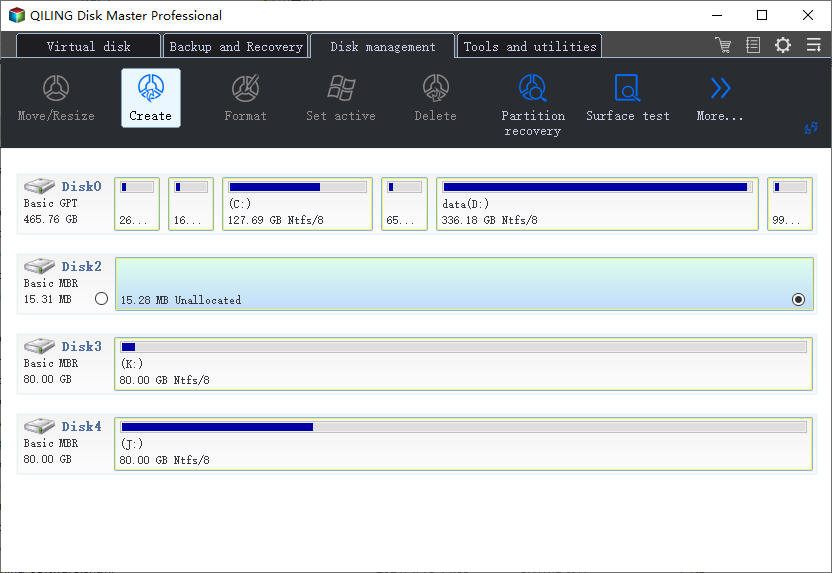
Step 2. Set the partition size, drive letter, volume label, and file system. Use NTFS for normal Windows storage.
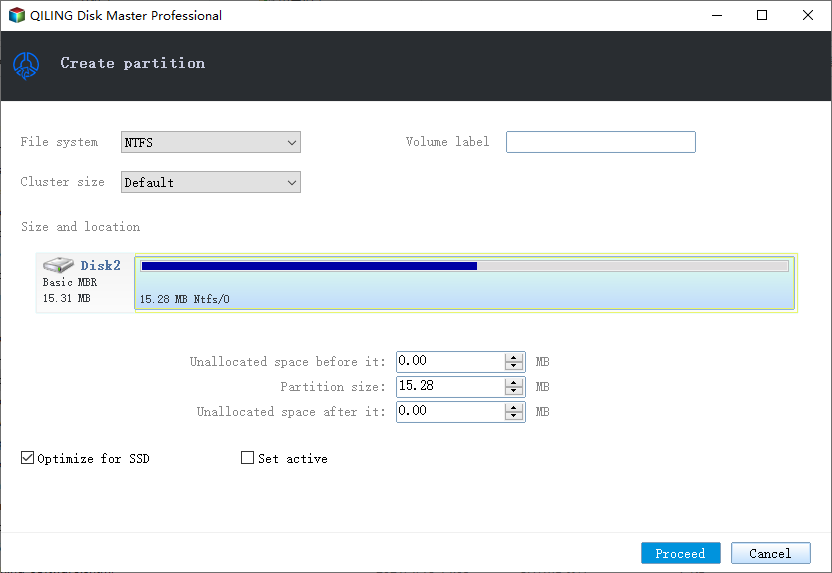
Step 3. Preview the new partition layout and click Proceed if the new partition is on the correct disk.
Task C. Format a Data Partition
Step 1. Back up or copy files from the partition first, because formatting removes normal access to existing data.
Step 2. Select the data partition, choose Format, then choose NTFS, exFAT, or FAT32 according to where the drive will be used.
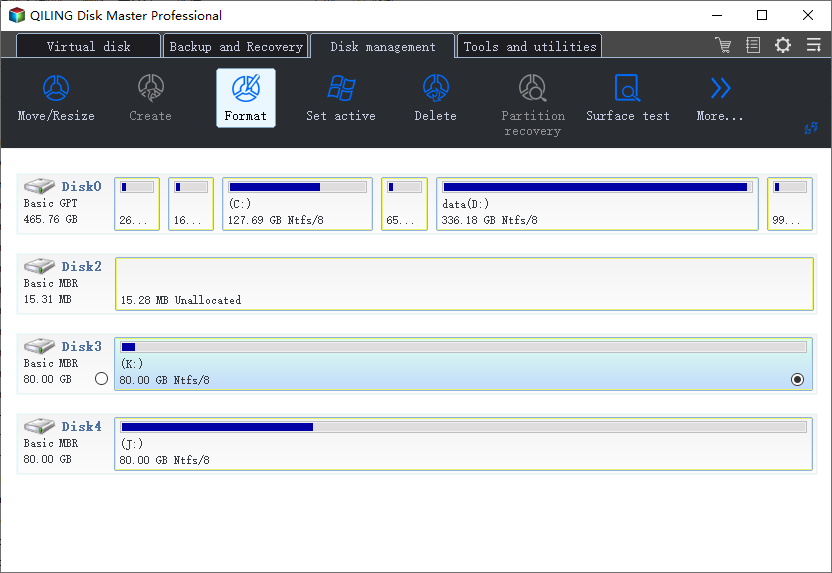
Step 3. Enter a clear volume label, preview the format task, and confirm that no system, EFI, MSR, Recovery, or OEM partition is selected.
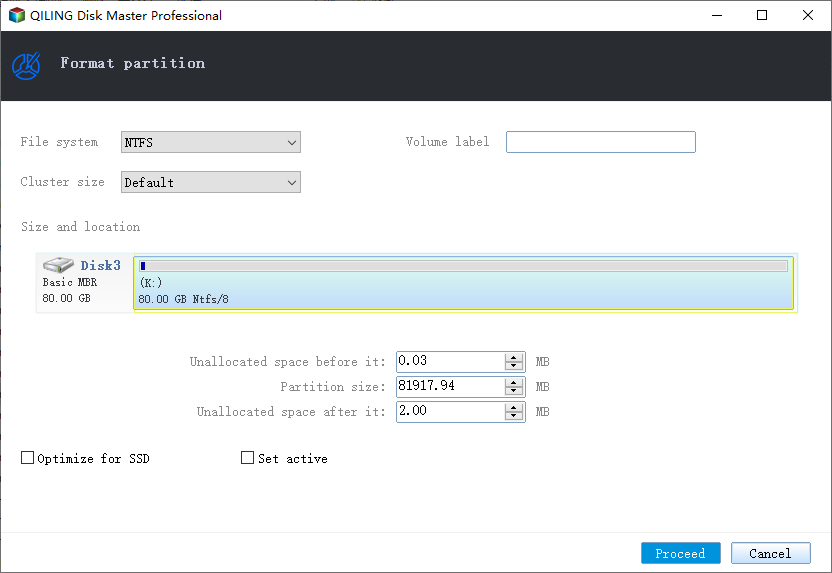
Step 4. Click Proceed. After formatting, open File Explorer and copy a small test file to confirm the partition works.
Conclusion
A portable partition manager is most useful when it helps you see the disk layout clearly before changing anything. Inspect the disk first, choose one task, preview the pending changes, and click Proceed only when the target is correct.
Related Articles
Products
Articles & Tutorials
- Data Recovery
- Data Backup
- File Recovery
- File Backup
- System Backup and Restore
- Disk and Partition Clone
- Technical articles
- Mobile articles
- Disk Master Help
- Windows Data Recovery Tutorials
- Windows Secure Delete Tutorials
- Windows Partition Management Tutorials
- Windows File Backup and Restore Tutorials
- Windows System Backup and Restore Tutorials
- Windows Disk Backup and Restore Tutorials
- Windows Clone Tutorials