How to Remove a Recovery Partition in Windows
A recovery partition may be required by Windows Reset this PC, startup repair, or the device manufacturer. Remove it only when it is unused or duplicated and you have recovery media.
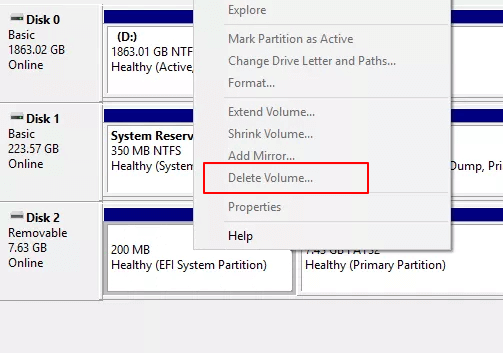
Before You Start
- Run reagentc /info before deleting.
- Create a system backup or recovery USB.
- Do not delete EFI, MSR, or System Reserved partitions.
- Avoid deleting the only recovery partition on a working system unless you have a clear reason.
Windows Check Before Removal
- Open Command Prompt as administrator and run reagentc /info.
- Open Disk Management and compare the recovery partition size and position.
- If WinRE points to that partition, keep it or move it.
- If it is old, duplicated, or on an external clone, removal may be reasonable after backup.
Use Qiling Disk Master to Remove an Unused Recovery Partition
Step 1. Select the recovery partition you have confirmed is unused.
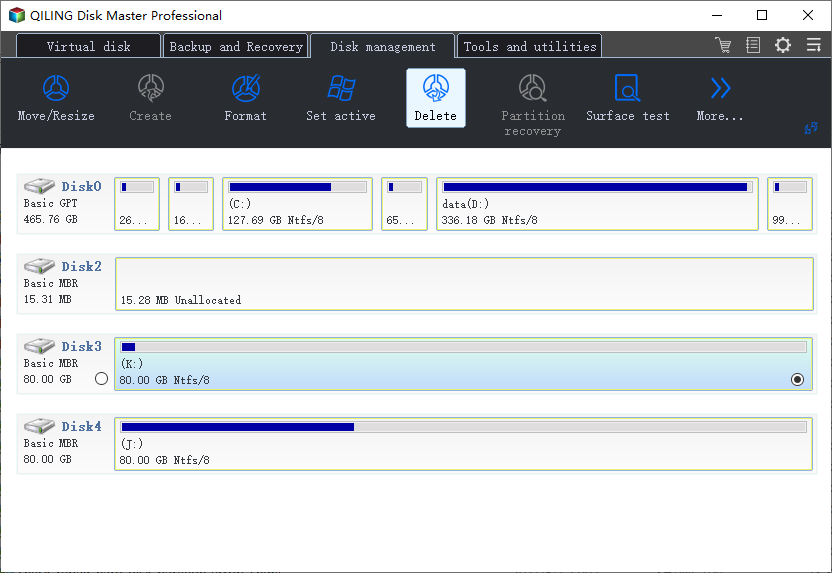
Step 2. Choose Delete and read the pending operation.
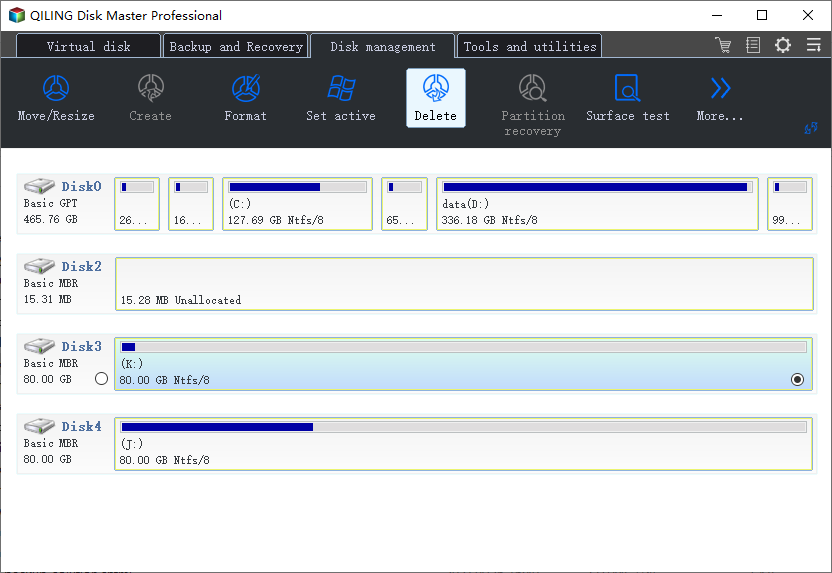
Step 3. When the data-loss warning appears, confirm only if the target is correct and files are backed up.
Step 4. Extend a neighboring partition or create a new partition from the freed space.
Conclusion
Recovery partition removal is safe only after confirmation. When unsure, move it instead of deleting it.
Related Articles
Products
Articles & Tutorials
- Data Recovery
- Data Backup
- File Recovery
- File Backup
- System Backup and Restore
- Disk and Partition Clone
- Technical articles
- Mobile articles
- Disk Master Help
- Windows Data Recovery Tutorials
- Windows Secure Delete Tutorials
- Windows Partition Management Tutorials
- Windows File Backup and Restore Tutorials
- Windows System Backup and Restore Tutorials
- Windows Disk Backup and Restore Tutorials
- Windows Clone Tutorials