Forgot a Lenovo Laptop Password? What to Do Without a Reset Disk
If this is your own Lenovo laptop, identify which credential is missing before trying a reset. A Windows sign-in password, a PIN, a BitLocker recovery key, and a firmware power-on password are different. The methods below address Windows sign-in only. Disk Master Pro can reset an authorized local Windows account from bootable media, but it cannot reveal an old password, recover a Microsoft account online, or bypass BitLocker and firmware security.
Identify the sign-in method
At the sign-in screen, select Sign-in options. If a PIN is rejected, try the password option; the PIN and account password are not identical. Check the keyboard layout, Caps Lock, and network connection. A screen asking for a 48-digit BitLocker key is not a forgotten Windows password; find the recovery key associated with the device before changing disks or resetting Windows.
If you use a Microsoft account
Step 1. From another trusted device, open Microsoft's official account recovery page and choose the password-reset path for the account shown on the laptop. Verify your identity using a recovery email, phone, or account-recovery form.
Step 2. Create a new password and wait for the change to propagate. Connect the Lenovo laptop to the internet from the sign-in screen and sign in with the new password. If a PIN still fails, select the password sign-in option first, then repair the PIN after you enter Windows.
For a work or school account, contact the organization's administrator. A personal Microsoft account recovery form will not override organization policy.
If you use a local Windows account
Step 1. Enter an incorrect password once, select Reset password when offered, and answer the security questions configured for that account. Set a new password and sign in.
Step 2. If another administrator account already exists on this PC and you are authorized to use it, sign in to that account. Open Computer Management > Local Users and Groups > Users where available, select the locked local account, and use Set Password. Read Windows' warning about possible access to previously protected data before confirming. This console is not available in every Windows edition.
If neither route is available, there is no supported generic command that simply reveals the old password. Be wary of instructions that assume an unsecured built-in Administrator account or promise a no-risk bypass.
Reset a Lenovo Windows Password with Disk Master Pro
Qiling Disk Master Pro provides a Reset Windows password feature for an authorized local account when you do not have a previously created reset disk. Use it only on a Lenovo laptop that you own or are allowed to service. If the laptop uses a Microsoft account, start with Microsoft's account recovery instead. If BitLocker is enabled, locate the recovery key before changing login settings.
Step 1. On another working computer, open Qiling Disk Master Pro and create a bootable password reset USB. Use a USB drive that can be erased, and do not store the only copy of important files on it.
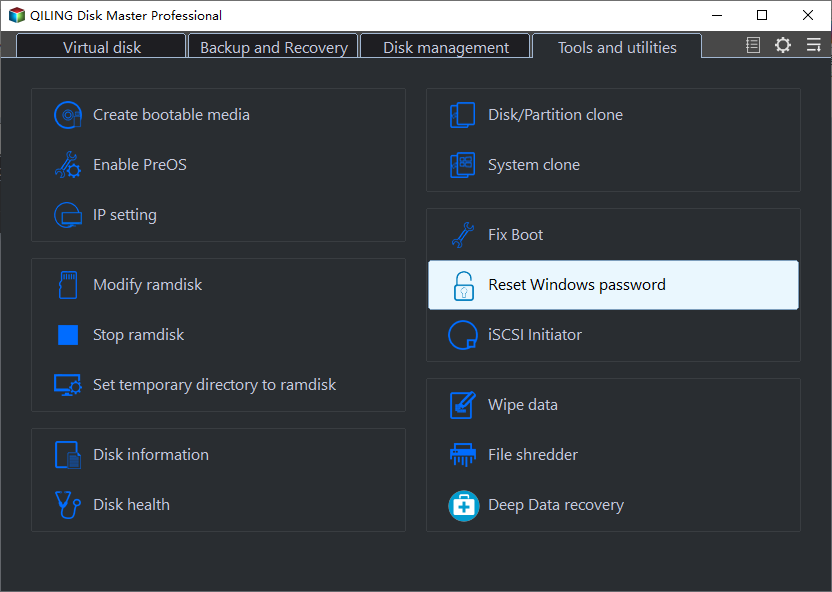
Step 2. Connect the bootable USB to the locked Lenovo laptop and start it from the USB device. Open the Lenovo boot menu or firmware settings, select the USB drive, and continue. If the internal disk is missing, stop to check its connection or encryption status rather than selecting an unrelated disk.
Step 3. In the Disk Master Pro password reset environment, select the Windows installation and the local account that you are authorized to repair. Confirm the installation path, account name, and disk before continuing.

Step 4. Click Reset and confirm the operation. This changes the selected local account's password; it does not display the previous password. Record the new login information before restarting.
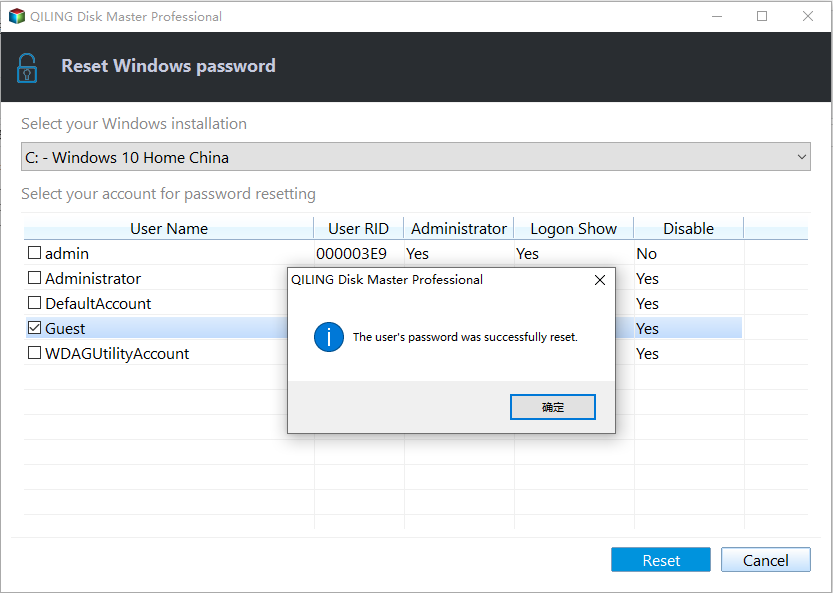
Step 5. Remove the USB drive, restart the Lenovo laptop from its internal disk, and sign in with the new password. Check the user's files and applications. If EFS files, saved credentials, or certificates cannot be opened, stop and consult the account owner or a qualified recovery professional.
Last resort: reset the PC
From the sign-in screen, select Power, hold Shift, and choose Restart. In Windows Recovery Environment select Troubleshoot > Reset this PC. Keep my files may retain personal files but removes apps and settings; it is not a substitute for a backup. Read every choice before continuing, especially on an encrypted or company-managed device. If you cannot protect the files first, consult Lenovo or a qualified recovery professional instead of experimenting with disk changes.
Conclusion
Use the recovery method that matches the actual account type. For an authorized local account, Disk Master Pro can reset the password from bootable media without making a PC reset the first option. Protect important files and encryption keys before changing account settings, and do not format or clone the laptop as a password-reset attempt.
Related Articles
- Factory Reset a Laptop Without a Password
Understand what a Windows reset can change before you use it. - Windows File Backup and Restore Tutorials
Plan a separate backup once you regain access to your files.
Products
Articles & Tutorials
- Data Recovery
- Data Backup
- File Recovery
- File Backup
- System Backup and Restore
- Disk and Partition Clone
- Technical articles
- Mobile articles
- Disk Master Help
- Windows Data Recovery Tutorials
- Windows Secure Delete Tutorials
- Windows Partition Management Tutorials
- Windows File Backup and Restore Tutorials
- Windows System Backup and Restore Tutorials
- Windows Disk Backup and Restore Tutorials
- Windows Clone Tutorials