Forgot a Windows Vista Password? Legitimate Recovery Options
Identify what is locked
These steps apply to a Windows Vista local user account on a computer you own or administer. A BIOS power-on password, encrypted volume, and Windows account password are different problems. Vista is no longer supported, so even if access is restored, plan to move the data to a supported operating system rather than use the PC online indefinitely.
Use a password reset disk made in advance
Step 1. At the sign-in screen, enter a password once and select the offered Reset password option. Insert the Vista password-reset disk created for that exact local account before you forgot the password.
Step 2. Follow the Password Reset Wizard, set a new password, and sign in. A newly created disk on another computer or for another account will not reset this one.
Use another authorized administrator
If a separate administrator account already exists and you are authorized to use it, sign in to that account. Open Control Panel > User Accounts and Family Safety > User Accounts > Manage another account, choose the locked local account, and select Change the password. Enter and confirm the new password, then sign out and test the account. Menu wording may differ by Vista edition. Read any Windows warning first: changing a password this way can affect access to EFS-encrypted files, stored passwords, and certificates. Do not proceed without understanding that risk, especially on a business PC.
Reset a Windows Vista Password with Disk Master Pro
Qiling Disk Master Pro includes a Reset Windows password feature for recovering access to a local Windows account on a computer you own or are authorized to service. Use this method only after checking the account type and protecting important files. It does not reveal the old password, reset a Microsoft account online, remove BitLocker encryption, or bypass an organization's security policy.
Step 1. On a working computer, open Qiling Disk Master Pro and create its bootable password reset USB. Use a USB drive that can be erased, and keep the Windows Vista computer's BitLocker recovery key available if encryption is enabled.
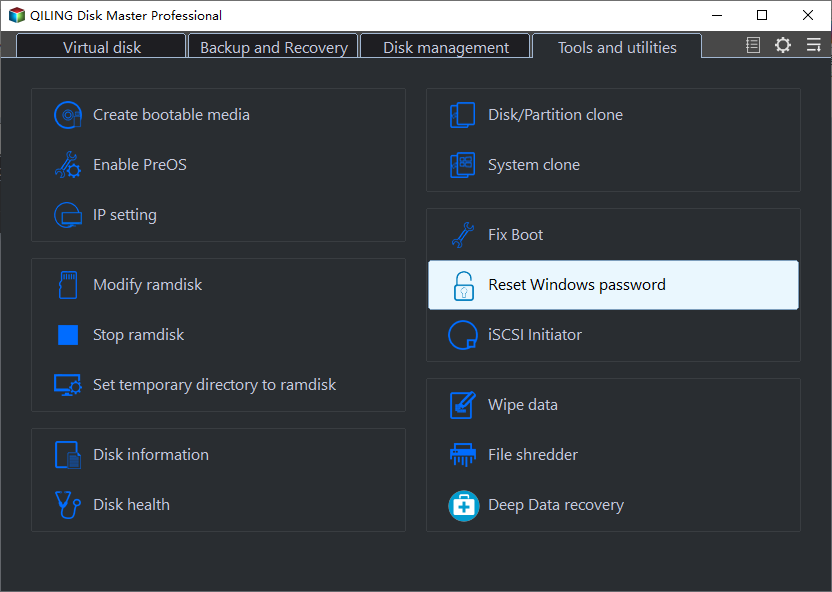
Step 2. Connect the bootable USB to the locked Vista computer and start it from the USB device. Use the computer's boot menu or firmware settings to select the USB drive. If the internal disk is not listed, stop and check its connection or encryption status instead of selecting another disk.
Step 3. In the Disk Master Pro password reset environment, select the Windows installation and the local Vista account that you are authorized to repair. Confirm the Windows path, account name, and disk before continuing.

Step 4. Click Reset and confirm the operation. The feature changes the selected local account's password; it does not recover the previous password. Record the new sign-in information before restarting.
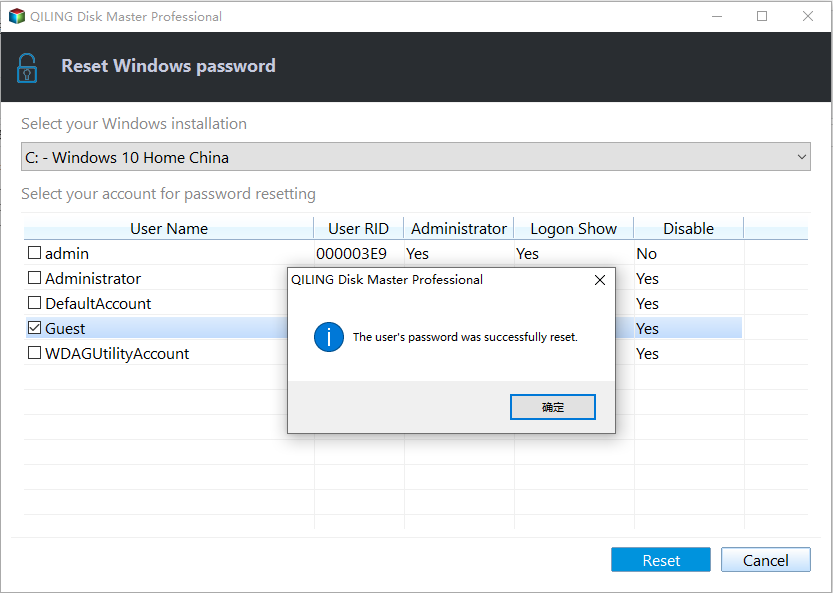
Step 5. Remove the USB drive, restart the computer from its internal disk, and sign in with the new password. Test the user's files and applications. If EFS files, saved credentials, or certificates are unavailable, stop and consult the account owner or a qualified recovery professional.
When neither option exists
Do not rely on instructions promising a hidden built-in Administrator account or a universal command that reveals the old password. For a valuable or encrypted drive, consult the owner, the organization's administrator, or a qualified recovery professional. If the goal is only to salvage unencrypted personal files, an authorized data-recovery workflow may be possible, but possession of the computer does not bypass encryption. Do not format the drive until data is protected.
Conclusion
The safest route is still a precreated reset disk or another authorized administrator. When those options are unavailable, Disk Master Pro can help reset a local Windows Vista password from bootable media, but account ownership, backups, encryption keys, and stored credentials must be considered first. Vista is obsolete, so move the recovered data to a supported operating system.
Related Articles
- Windows File Backup and Restore Tutorials
Protect files before changing a system or save folder. - Windows System Backup and Restore Tutorials
Compare file and system recovery options.
Products
Articles & Tutorials
- Data Recovery
- Data Backup
- File Recovery
- File Backup
- System Backup and Restore
- Disk and Partition Clone
- Technical articles
- Mobile articles
- Disk Master Help
- Windows Data Recovery Tutorials
- Windows Secure Delete Tutorials
- Windows Partition Management Tutorials
- Windows File Backup and Restore Tutorials
- Windows System Backup and Restore Tutorials
- Windows Disk Backup and Restore Tutorials
- Windows Clone Tutorials