Secure Erase vs Quick Format SSD: What Is the Difference
Quick Format rebuilds file system structures so the drive can be reused, but it does not securely remove all recoverable data. Secure Erase or disk wiping is used when you want to remove data before selling, recycling, or redeploying an SSD. SSDs handle data differently from HDDs, so the right method depends on your goal.
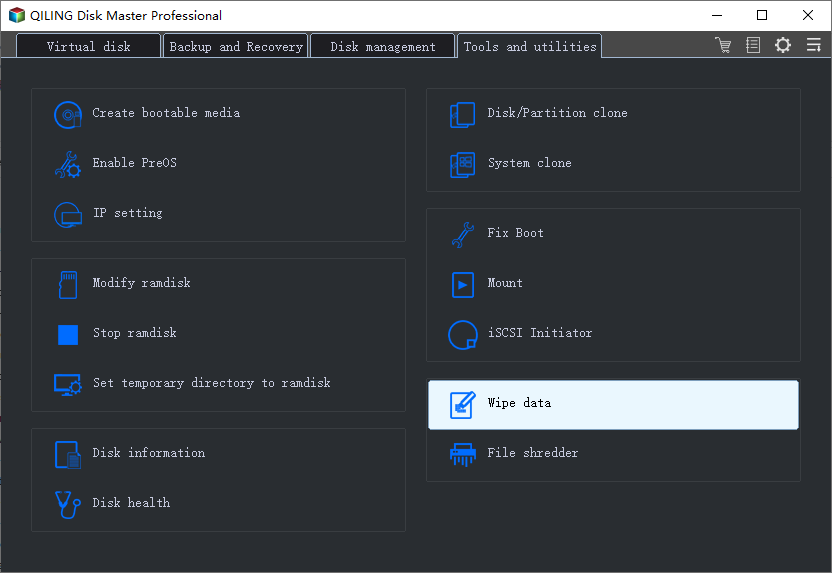
What to Know First
- Use Quick Format for normal reuse when data privacy is not the concern.
- Use Secure Erase or wipe when the SSD leaves your control.
- Back up needed files before either operation.
- Do not repeatedly wipe SSDs without reason because it adds unnecessary writes.
Windows Method and Background
- Use Quick Format from File Explorer or Disk Management for normal reuse.
- Use BitLocker encryption plus format when preparing some drives for disposal, if encryption was enabled before data was written.
- For secure disposal, use a proper wipe or SSD secure erase method.
- Verify the drive is empty before handing it off.
Use Qiling Disk Master to Wipe or Format an SSD
Open Qiling Disk Master and identify the SSD by model and capacity. Choose quick format only for reuse; choose wipe only when the data must not remain recoverable.
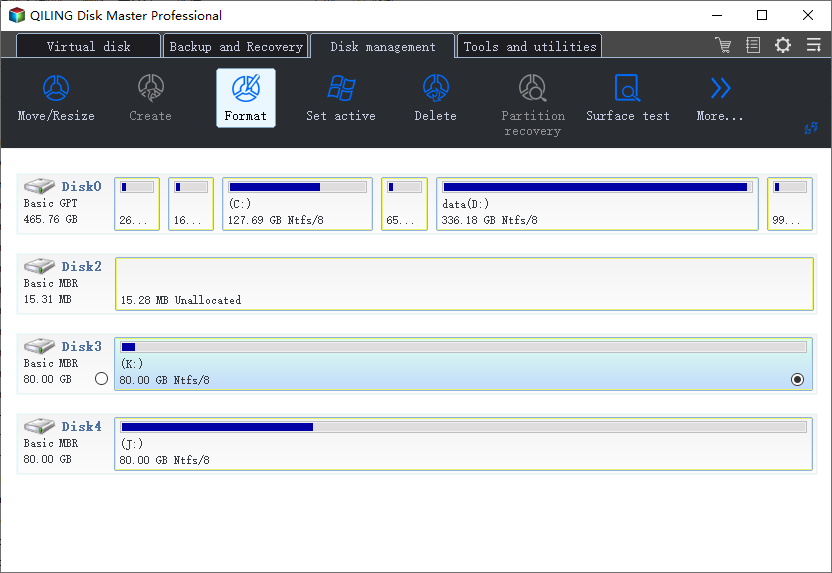
Case A. Quick Format the SSD for Reuse
Step 1. Back up files you still need, then select the SSD partition you want to reuse.
Step 2. Choose Format. Select NTFS for a Windows internal SSD or exFAT for a removable SSD used across devices.
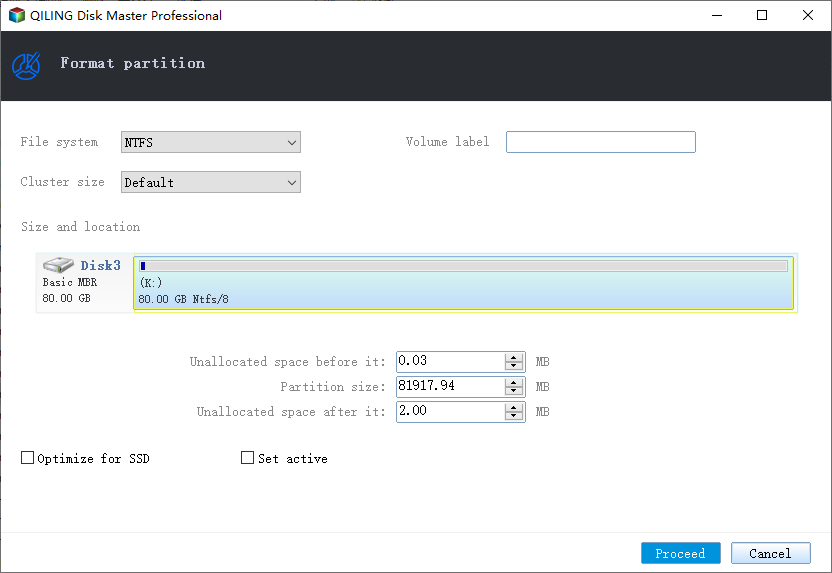
Step 3. Enter a volume label and keep the default cluster size unless you have a specific requirement.
Step 4. Preview the task and click Proceed. Use this option when the SSD stays under your control.
Case B. Wipe the SSD Before Disposal or Transfer
Step 1. Confirm the SSD is the correct target and the files are backed up. A wipe is intended to erase data, not repair the file system.
Step 2. Open the wipe function and select the SSD or target partition.
Step 3. Review the warning carefully. Do not continue if the selected disk is your active Windows system disk or the wrong SSD.
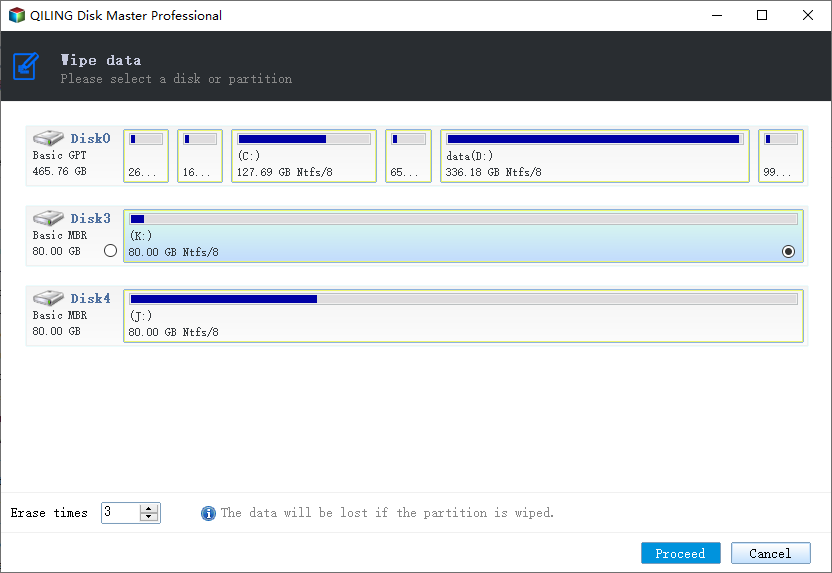
Step 4. Click Proceed and keep the computer powered on until the wipe finishes.
Case C. The SSD Shows Health or Connection Errors
Step 1. Stop wiping or formatting if the SSD disconnects, reports I/O errors, or repeatedly returns to RAW.
Step 2. Check the cable, enclosure, and SSD health. Replace the SSD if errors continue.
Conclusion
Quick Format is for reuse. Secure Erase or wipe is for data privacy. Choose based on whether the SSD stays with you or leaves your control.
Related Articles
Products
Articles & Tutorials
- Data Recovery
- Data Backup
- File Recovery
- File Backup
- System Backup and Restore
- Disk and Partition Clone
- Technical articles
- Mobile articles
- Disk Master Help
- Windows Data Recovery Tutorials
- Windows Secure Delete Tutorials
- Windows Partition Management Tutorials
- Windows File Backup and Restore Tutorials
- Windows System Backup and Restore Tutorials
- Windows Disk Backup and Restore Tutorials
- Windows Clone Tutorials