Shrink and Extend a Partition on a Hard Drive in Windows 10
Shrinking reduces a partition to create unallocated space. Extending increases a partition by adding adjacent unallocated space. Windows Disk Management can do basic shrink and extend tasks, but it cannot move partitions, so the location of unallocated space matters.
What to Know First
- Back up important files before resizing partitions.
- Leave enough free space on C drive for updates and apps.
- Use Disk Management when the unallocated space is already adjacent.
- Use a partition tool if you need to move a partition or place free space next to another volume.
Windows Method and Background
- Open Disk Management.
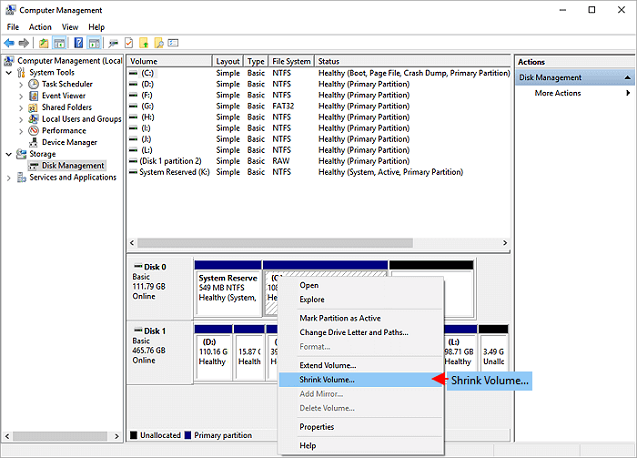
- Right-click a partition and choose Shrink Volume to create unallocated space.
- Right-click another partition and choose Extend Volume only if the unallocated space is directly to its right.
- If Extend Volume is greyed out, another partition likely blocks the free space.
- Do not delete partitions just to make Extend Volume available unless files are backed up and the partition is unnecessary.
Use Qiling Disk Master to Shrink, Move, and Extend
Open Qiling Disk Master and review the whole disk map first. The key is to place unallocated space beside the partition you want to extend.

Case A. Shrink a Partition to Create Free Space
Step 1. Select the partition that has enough unused space and choose Resize/Move.
Step 2. Reduce the partition size from the left or right side, depending on where you need the unallocated space to appear.

Step 3. Confirm the partition still has enough free space for files, apps, and Windows updates.
Case B. Extend a Partition When Free Space Is Adjacent
Step 1. Select the partition you want to enlarge and choose Resize/Move.
Step 2. Drag the partition edge into the adjacent unallocated space or enter the new size manually.
Step 3. Preview the layout and confirm only the target partition is being extended.
Case C. Extend a Partition When Free Space Is Not Adjacent
Step 1. Select the partition located between the target partition and the unallocated space.
Step 2. Choose Resize/Move and move it so the unallocated space becomes directly next to the target partition.
Step 3. Select the target partition and extend it into the adjacent unallocated space.
Step 4. Review the pending operation list. It should show the move task before the extend task.
Step 5. Click Proceed. If Qiling requests a restart for a system partition, allow it and wait until the task completes.
Conclusion
Shrinking and extending are safe when the disk is healthy and the layout is clear. The key is placing unallocated space next to the partition that needs it.
Related Articles
Products
Articles & Tutorials
- Data Recovery
- Data Backup
- File Recovery
- File Backup
- System Backup and Restore
- Disk and Partition Clone
- Technical articles
- Mobile articles
- Disk Master Help
- Windows Data Recovery Tutorials
- Windows Secure Delete Tutorials
- Windows Partition Management Tutorials
- Windows File Backup and Restore Tutorials
- Windows System Backup and Restore Tutorials
- Windows Disk Backup and Restore Tutorials
- Windows Clone Tutorials