What Software Do You Use to Format an SSD
An SSD can be formatted with Windows File Explorer, Disk Management, DiskPart, or a partition manager. The best tool depends on the situation. For a healthy data SSD, Windows tools are usually enough. For a damaged layout, missing drive letter, multiple partitions, or format failure, a visual partition tool is easier to control.
What to Know First
- Back up files before formatting an SSD.
- Use NTFS for internal Windows SSDs.
- Use exFAT for removable SSDs shared across devices.
- Check SSD health if formatting fails or the SSD disconnects.
Windows Method and Background
- Use File Explorer for a simple healthy volume.
- Use Disk Management to create, delete, or format partitions.
- Use DiskPart only when you are comfortable selecting the correct disk.
- Avoid cleaning the wrong disk because DiskPart commands can erase it quickly.
Use Qiling Disk Master to Format an SSD Visually
Use a visual SSD format tool when you need to confirm the disk layout before making changes. This is especially helpful for multiple partitions, missing drive letters, or a format error.
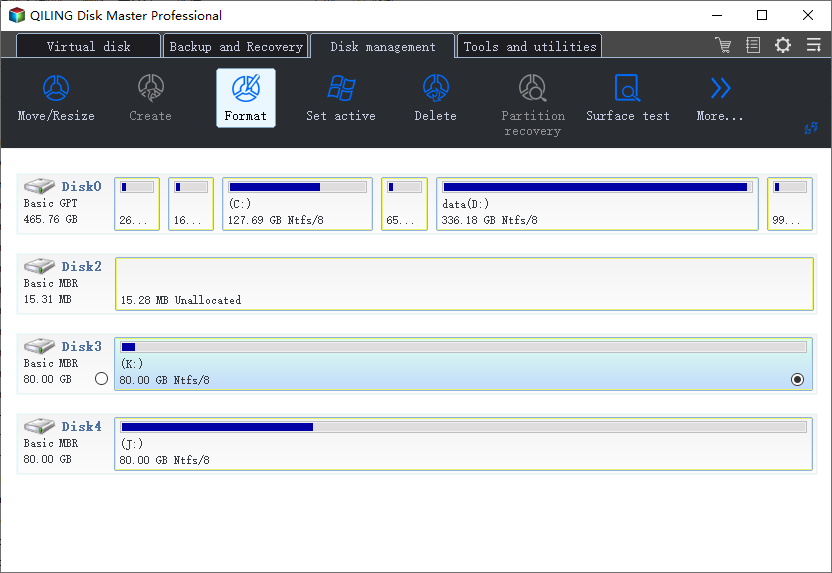
Step 1. Select the SSD by model and capacity. Make sure it is not the active Windows system disk unless you are working from a bootable environment.
Step 2. Back up needed files. If the SSD disconnects or reports errors, check SSD health before formatting.
Step 3. Choose Format for the target partition.
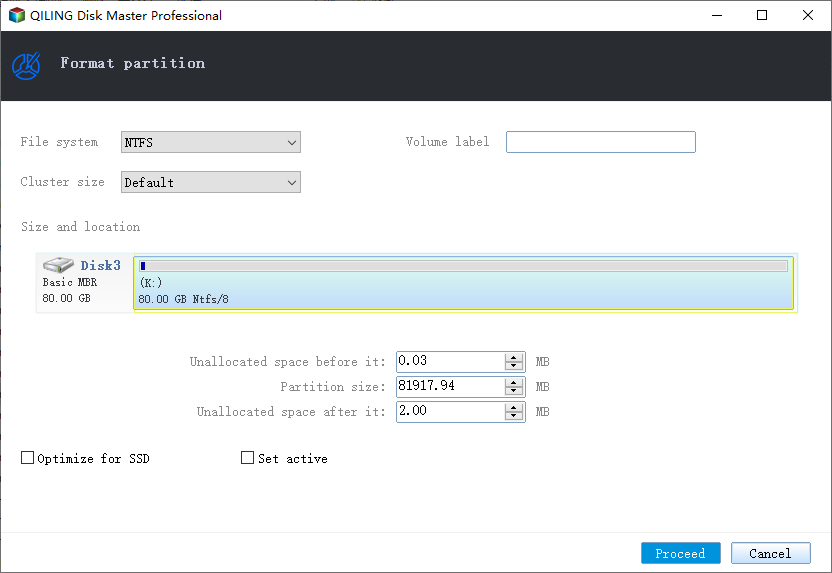
Step 4. Set NTFS for an internal Windows SSD or exFAT for a removable SSD used across devices, then enter a clear label.
Step 5. Preview the operation and confirm no unrelated partition is affected.
Step 6. Click Proceed. After formatting, verify the SSD appears in File Explorer and can save a test file.
Conclusion
For simple formatting, Windows tools work. For clearer control over SSD partitions and layout changes, use a visual partition manager with preview.
Related Articles
Products
Articles & Tutorials
- Data Recovery
- Data Backup
- File Recovery
- File Backup
- System Backup and Restore
- Disk and Partition Clone
- Technical articles
- Mobile articles
- Disk Master Help
- Windows Data Recovery Tutorials
- Windows Secure Delete Tutorials
- Windows Partition Management Tutorials
- Windows File Backup and Restore Tutorials
- Windows System Backup and Restore Tutorials
- Windows Disk Backup and Restore Tutorials
- Windows Clone Tutorials