SSD at 100% Active Time but Low Transfer Rate in Windows
Task Manager's 100% active-time reading means the SSD is busy, not necessarily transferring data quickly. Small random requests, long response times, retries, or a struggling drive can all make activity look high while MB/s stays low. Start with observation rather than a blanket optimization tool.
Find the workload and symptom
Step 1. Open Task Manager's Performance and Processes views. Record active time, read/write speeds, and the processes using the disk while the slowdown occurs. Compare an idle period with a repeatable workload.
Step 2. Open Resource Monitor's Disk tab and look at response time and the files being accessed. Check free space in File Explorer and whether Windows Update, an antivirus scan, indexing, or a backup is running.
Step 3. If the SSD is external, try a known-good cable and direct port. If it is internal, use the manufacturer's diagnostics and firmware guidance; do not assume a benchmark alone identifies the fault.
Review disk health and preserve data
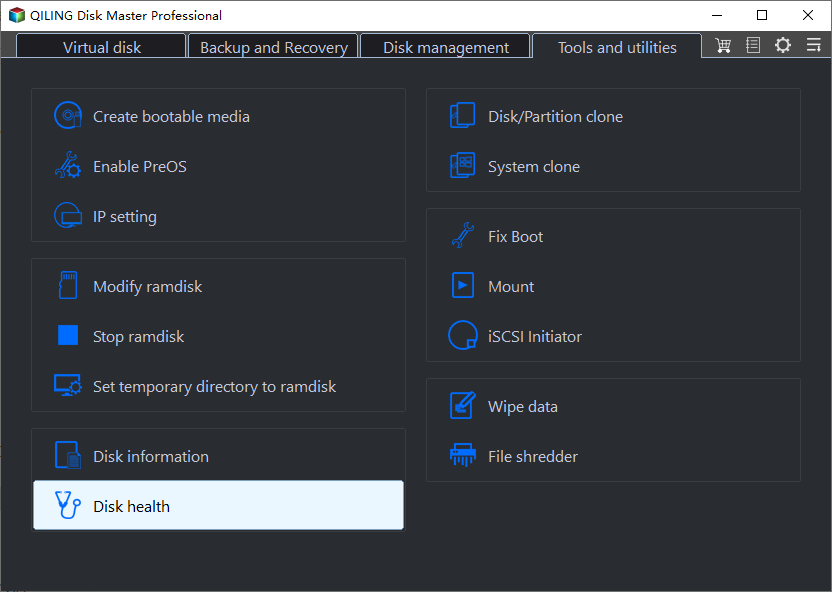
Step 1. Open Qiling Disk Master Pro and go to Tools and utilities > Disk health. Select the affected SSD by model and capacity before reading its health indicators.
Step 2. Review the displayed health and SMART information. A clean result does not prove the SSD is flawless; repeatable timeouts, disconnections, or error counts still matter.
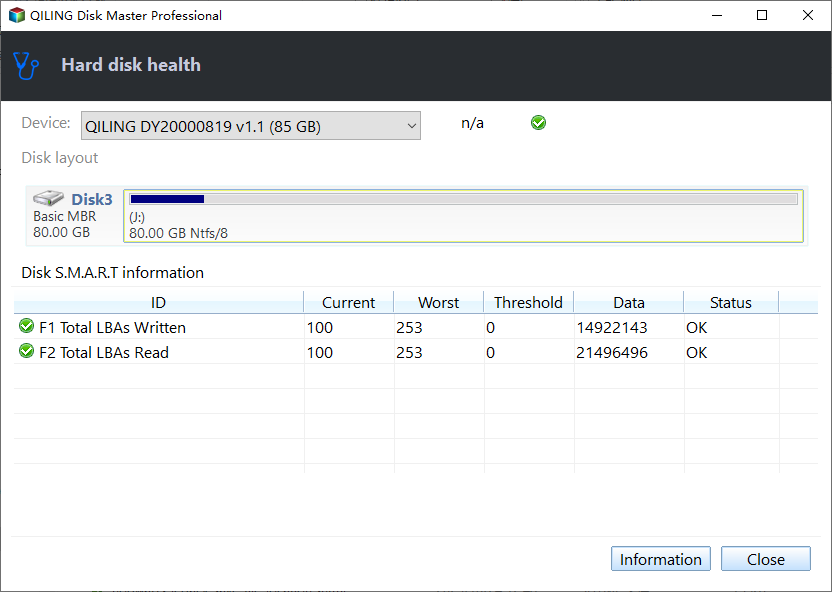
Step 3. If health warnings appear or errors recur, back up important files to another drive before stress tests, firmware updates, or repairs. If health is normal, test one suspected workload at a time and recheck activity; avoid disabling Windows services at random.
Related Articles
- Check Disk Health
Understand the health indicators shown by the disk. - Back Up Before Repair
Copy important data to a separate drive first.
Products
Articles & Tutorials
- Data Recovery
- Data Backup
- File Recovery
- File Backup
- System Backup and Restore
- Disk and Partition Clone
- Technical articles
- Mobile articles
- Disk Master Help
- Windows Data Recovery Tutorials
- Windows Secure Delete Tutorials
- Windows Partition Management Tutorials
- Windows File Backup and Restore Tutorials
- Windows System Backup and Restore Tutorials
- Windows Disk Backup and Restore Tutorials
- Windows Clone Tutorials